Excel
Create, fill, extend or read Excel workbooks — from data, Markdown tables, a template or with AI.
What it does
The Excel step produces a real .xlsx workbook (or a CSV file) with proper number, currency, percent and date formats, a frozen header row and an auto filter. The result is a file in the run: it appears as a card in the Inbox and in the job details, where it can be previewed and downloaded. Optionally it is saved to a path on the server as well; to store it on WebDAV or convert it further, add a Store file step.
Numbers and dates follow the workspace settings (Administration → Workspace): 1.234,56 € and 31.12.2026 in a German workspace, $1,234.56 and 12/31/2026 in a US one.
Modes
| Mode | What happens | Needs |
|---|---|---|
create | Builds a workbook from data: a list of rows, { "Sheet name": [rows] } for several sheets, or text with Markdown tables (one sheet per table, named after the heading above it). Column types are detected. | Data |
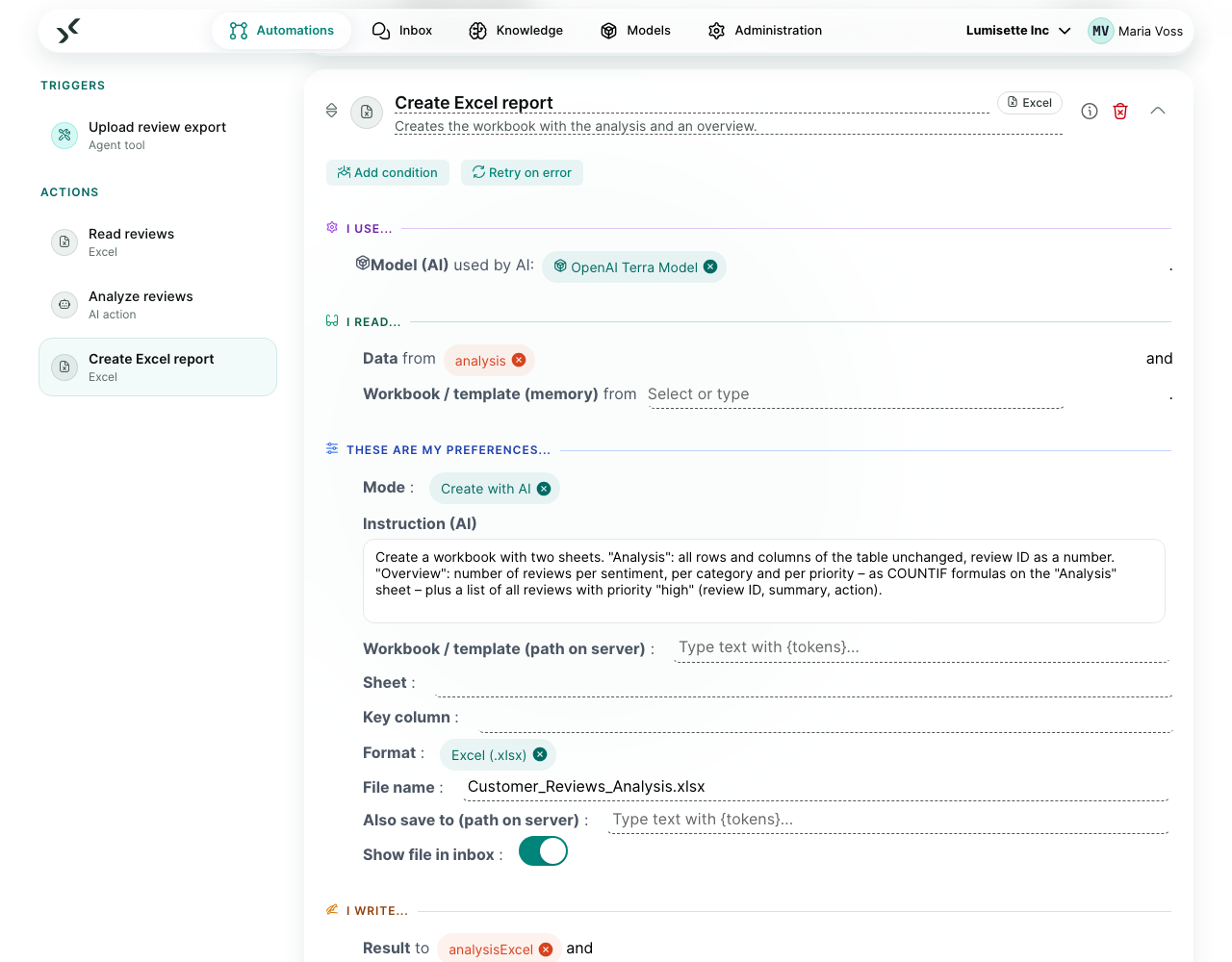
create-with-ai | The AI designs the table from an instruction — columns, types, totals, formulas, highlighting. With more than 50 data rows the AI only defines the structure and the values are taken from the data unchanged (no transposed digits, fewer tokens). | Instruction, model; data optional |
fill-template | Fills placeholders in your own workbook: {{field}} for single values, a row with {{#list}} is repeated for each entry of the list. Formulas below (e.g. sums) include the new rows. | Template, data |
append-rows | Appends rows to an existing list, matched by the column headers. New columns are added. With a key column, rows whose key already exists are skipped. A totals row stays at the bottom. | Workbook, rows |
update-rows | Changes existing rows found by the key column, e.g. a status column. | Workbook, rows, key column |
read | Reads the rows of a sheet as { sheet, columns, rows }, optionally as a Markdown table for an AI step. | Workbook |
A list that comes from a path on the server (append-rows, update-rows) is written back to that path.
What you configure
| Field | What it controls | Required | Notes |
|---|---|---|---|
| Mode | See above. | required | |
| Data | Rows, a Markdown table or text; for templates the values of the placeholders. | depends on mode | From memory, e.g. the result of an AI step or of Records changed. |
| Instruction (AI) / Model (AI) | What the table should show. | for create-with-ai | e.g. "Revenue per month and region with totals". |
| Workbook / template (memory) | A workbook from an earlier step, e.g. a mail attachment. | for template and list modes | Either this or the path. |
| Workbook / template (path on server) | Absolute path, e.g. /data/lists/invoices.xlsx. | for template and list modes | |
| Sheet | Which sheet to read or change. | optional | Default: the first sheet. |
| Key column | Identifies rows. | for update-rows | append-rows uses it to skip duplicates. |
| Format | xlsx or csv. | optional | CSV uses ; in workspaces with a decimal comma, UTF-8 with BOM. |
| File name | Name of the file. | optional | The extension is added. |
| Also save to (path on server) | Additional copy on the server. | optional | |
| Result | Memory key for the workbook (for read: the rows). | required | |
| Result as Markdown | The table as Markdown, e.g. for a later AI step. | optional | |
| Show file in inbox | Card with preview and download. | optional | On by default. |
Example scenario
Monthly revenue report. A cron trigger runs on the first of each month. A Database Query loads last month's orders. The Excel step in mode create-with-ai gets the rows and the instruction "Revenue per region and product group, with totals, highlight regions below plan". Store file saves the workbook to Reports/2026 on Nextcloud, and Send email notifies the sales team.
Recommendations
- ✅ Let an AI step produce a Markdown table and use mode
create— the most robust way to get AI results into Excel. - ✅ Use
fill-templatefor layouts that must look exactly like your company form. - ✅ Always set a key column for
append-rowswhen runs might repeat — duplicates are then skipped. - ⚠️ Formulas from the AI are checked: references to other workbooks,
WEBSERVICE,HYPERLINKand similar functions are removed (with a note in the job log). - ❌ Do not use
append-rowson a workbook that people have open at the same time on a network share — the last writer wins.
What to do next
- Store or convert the file: Store file.
- React to changes in a list: Records changed.