Agents
An agent is an automation that talks to a user. The user drives the conversation; the agent decides which tools to use, what to ask, and when the conversation is done. This page covers everything agent-specific.
For the shared concepts (memory, models, knowledge), see Core Concepts. For workflow-specific editing, see Workflows.
When to build an agent (and not a workflow)
Build an agent when:
- The user is on the other end of the interaction.
- You don't know in advance what the user will ask.
- The interaction takes multiple turns — the user asks, the agent answers, the user follows up, the agent looks something up, and so on.
Build a workflow instead when the order of steps is fixed and there is no user in the loop. See Workflows.
The anatomy of an agent
Agents share many components with workflows but configure them differently. The big pieces are:
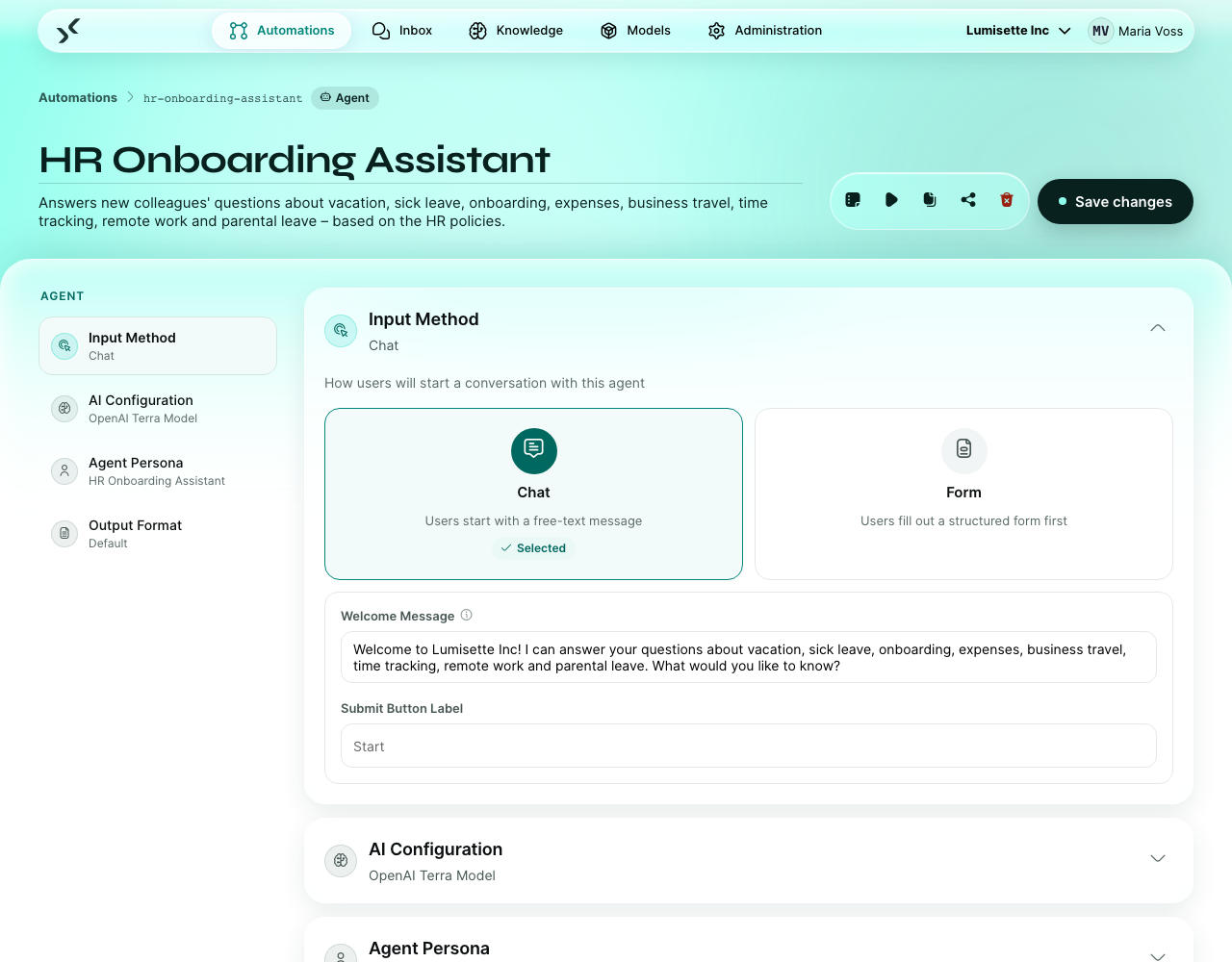
- Trigger — for agents, the trigger is one of two built-in choices: Chat (the user starts with a free-form message) or Form (the user fills in structured fields first). Both choices appear as cards at the top of the agent editor; you pick one. See Integrations → Chat Input and Form Input for the configuration details.
- Persona — the agent's identity, expressed as three short fields plus a list of behavior rules. See Persona below.
- System instruction — the detailed brief for the AI: what tasks the agent can perform, in what order, how to handle edge cases. This is the longest piece of text in the agent definition and the one you will iterate on most.
- Model — the AI engine the agent uses (see Models).
- Pseudonymization — optional masking of personal data in user messages before they reach the agent's AI model. See Pseudonymization below.
- Effort — how thoroughly the agent works: answers per turn, tools, knowledge, sub-agents and – where the model supports it – how long it thinks. See Effort.
- Knowledge — optional knowledge bases the agent can search during the conversation (see Knowledge).
- Tools — optional workflows and other agents the agent can call on its own (see Agent Tools).
- Output format — optional structured output. By default the agent replies in natural language.
The editor
The agent editor has the same toolbar as the workflow editor — name, description, and the action buttons Jobs, Manual Run, Duplicate, Export, Remove, Save.
The canvas is split into a few sections:
- Trigger — two cards labeled Chat ("Users start with a free-text message") and Form ("Users fill out a structured form first"). The selected one shows a "Selected" badge. Below the cards, the trigger's own fields appear (welcome message and submit-button label for Chat; form fields for Form).
- Model — pick the AI model the agent will use.
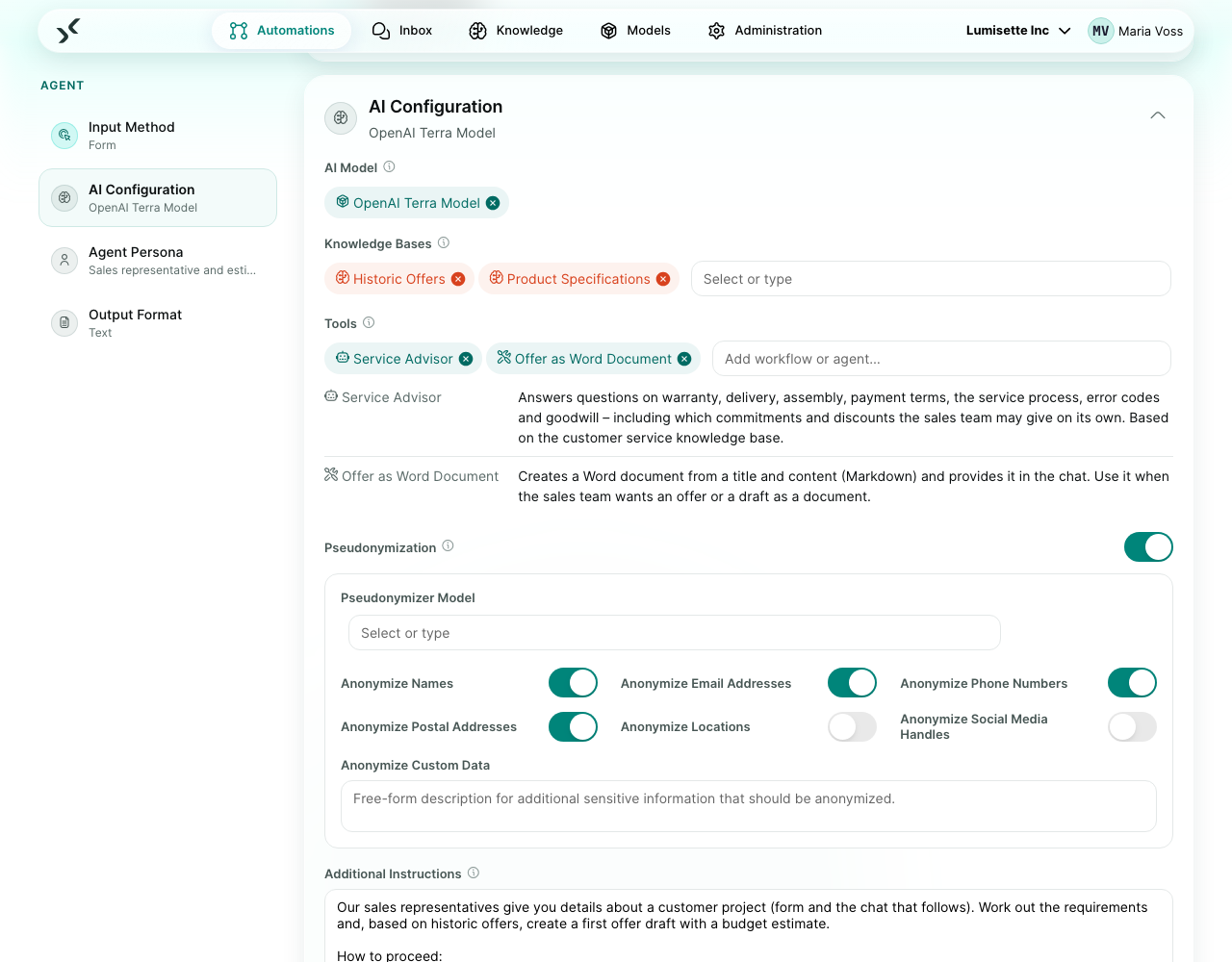
- Pseudonymization — a toggle directly below the model selection. When enabled, it expands into a pseudonymizer model picker, one toggle per data category, and a custom pattern field. See Pseudonymization.
- Knowledge — chip selector for the knowledge bases the agent may search.
- Tools — chip selector for workflows with the trigger Agent tool and other agents. See Agent Tools.
- Persona — three fields (role, goal, communication) plus a chip list of behavior rules.
- System instruction — the long-form brief for the AI.
- Effort — five levels from Low to Ultra; a line below shows what the chosen level allows. See Effort.
- Output format — optional. Click Define output format to pick natural language or a JSON schema.
Persona
The persona is not a single text block. Instead, three short fields shape the agent's identity:
- Role — who the agent is. "You are an HR onboarder."
- Goal — what the agent is trying to achieve. "Help new colleagues find answers in their first week."
- Communication — how the agent speaks. "Friendly, concise, German."
Below the three fields, a chip list lets you add behavior rules — short phrases the agent should follow as guard rails. Typical examples: "understanding untrained staff", "don't decide anything", "in doubt redirect to HR".
You can add a chip by typing into the chip input and pressing Enter. Remove a chip by clicking its × icon.
Pseudonymization
Agents can pseudonymize personal data transparently at the AI boundary. When the toggle in the agent editor is on, every user message is masked before the agent's AI model sees it, and every reply is unmasked before it is shown or stored. The conversation transcript — what users see in the Inbox, and what the job records — always contains the real values.
This is the same protection the LLM Data Anonymizer / Deanonymizer pair provides for workflows, but built in: you do not wire up any steps, and there are no memory keys to manage.
What happens on each turn
- The pseudonymizer model scans the new user message for personal data and replaces each finding with a placeholder like
#Name 01#. - The conversation history is masked mechanically from the stored mapping — entities from earlier turns keep their placeholders without another AI call.
- If the agent searches a knowledge base, the query is the masked text, so query-rewriting strategies never send real values to the agent's model provider.
- The agent's reply has its placeholders replaced with the original values before it is stored and shown.
The mapping lives inside the conversation's job and persists across turns: the same name always becomes the same placeholder, so the agent can refer to "#Name 01#" consistently over a long conversation.
What you configure
| Field | What it controls | Notes |
|---|---|---|
| Pseudonymization (toggle) | Turns the feature on or off for this agent. | Off by default. |
| Pseudonymizer model | The model that detects personal data. Required when enabled. | Pick a self-hosted or trusted model — it sees the clear text. |
| Category toggles | Names, emails, phone numbers, postal addresses, locations, social handles. | Same categories and defaults as the workflow anonymizer: names/emails/phones/addresses on, locations/handles off. |
| Custom pattern | Free-form description of anything else to mask. | Example: "Mask any case-file reference of the form CF- followed by digits." |
Limitations to know about
- The pseudonymizer model itself sees the clear text — that is the point: it is the one model you trust. Use a self-hosted model (e.g. Ollama) so personal data never leaves your premises.
- Knowledge content is not masked. The chunks retrieved from your knowledge bases go to the agent's model as-is; only the query is masked. If the knowledge itself contains personal data, that data reaches the agent's model.
- Retrieval recall can suffer for masked entities. A question like "What did Max Mustermann order?" searches for
#Name 01#, which will not match documents mentioning the real name. - Detection is statistical, not perfect. Same caveat as the workflow anonymizer: treat it as a strong assist, not a guarantee.
How the agent decides what to do
At every turn of the conversation, the agent considers:
- The full conversation so far.
- The persona and the system instruction.
- The list of connected knowledge bases.
It then picks one of three things:
- Reply to the user with a message.
- Search a knowledge base and then continue.
- Use a tool — run a workflow or ask another agent (see Agent Tools) and then continue.
- Mark the conversation as done.
This decision happens inside the AI model. You shape the behavior by writing a clear system instruction, choosing relevant knowledge bases, and tightening the persona fields.
Step by step — build a minimal agent
- Create the automation as Agent (see Create a New Automation).
- Pick a trigger — click the Chat or Form card at the top. Chat is the default for "anything could come in"; Form is better when you know the user must provide a fixed set of fields first.
- Configure the trigger — for Chat, set a welcome message and the submit-button label; for Form, define the form fields.
- Pick a model — for most agents, a mid-sized model is a good starting point.
- Enable pseudonymization if user messages will contain personal data and the agent's model is external — see Pseudonymization. Pick a self-hosted pseudonymizer model.
- Fill the persona — role, goal, communication, plus a small list of behavior chips.
- Write the system instruction — describe the agent's task in detail. Include examples of what it should and should not do.
- Connect knowledge if the agent should know about your documents.
- Pick the effort – Medium is right for most agents; Low for simple, frequent questions.
- Save. Missing or invalid entries — e.g. no model selected, a form field without a label — are listed at the top by section (AI configuration, Input method, …). Click a section to jump to it; it is framed in red and shows its problems. Nothing is saved until they are fixed.
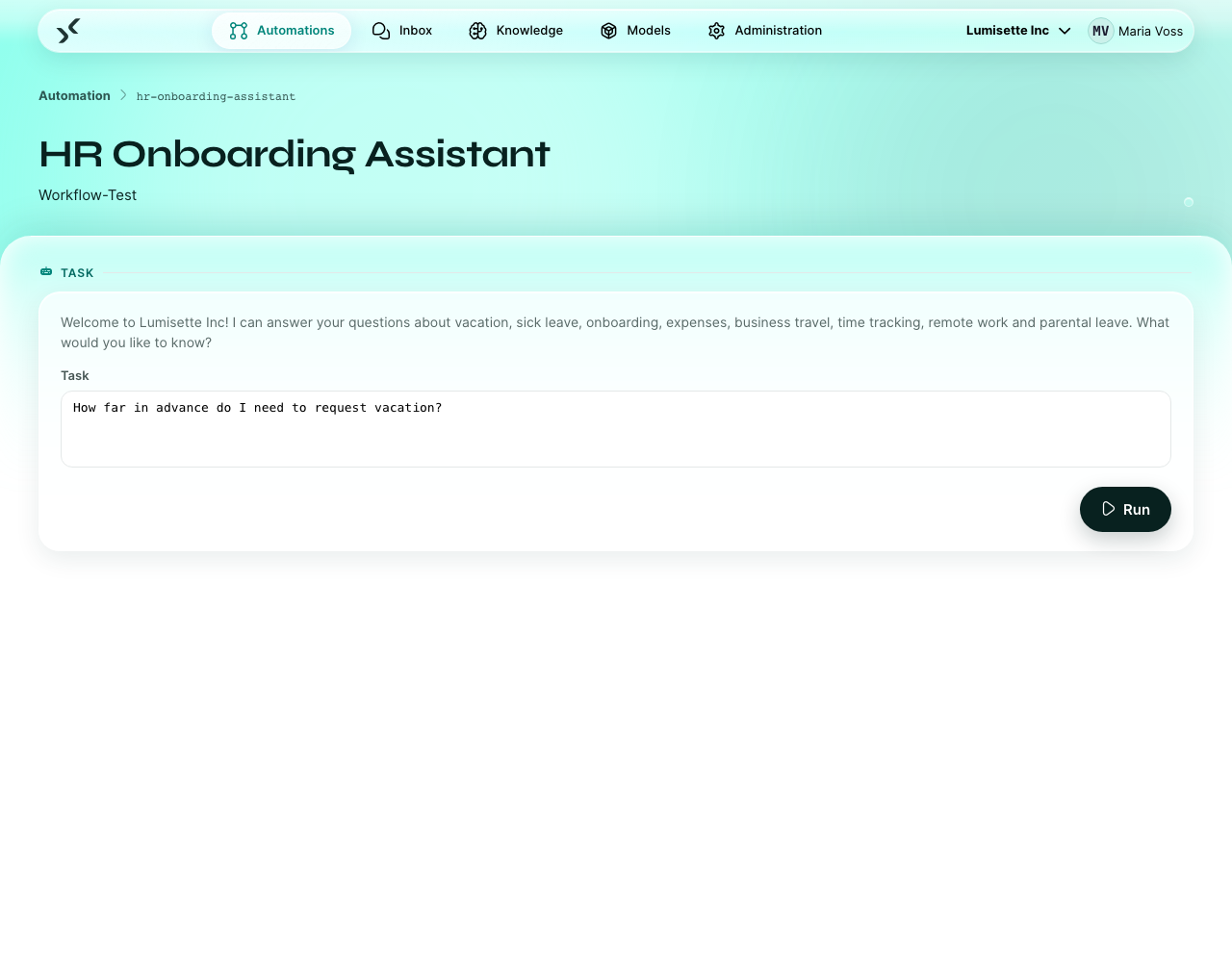
- Manual Run opens a test chat with you as the user. Try the typical questions and the edge cases. Iterate until the behavior is right.
- Start the trigger in the Trigger Monitor when you are satisfied. The agent is now available to users from the Inbox.
How an agent decides it is done
The agent marks the conversation complete when:
- It has executed the user's request and there is nothing pending.
- The user explicitly says "thanks, that's it" or similar.
- The system instruction tells it to stop after a certain milestone.
A completed conversation moves to the Completed filter in the Inbox. Users can still open it to read the transcript, but they cannot continue it. If they want to continue something similar, they start a new conversation.
If you want a hard cap, you can include a sentence in the system instruction like "Always end the conversation after sending the final summary."
Jobs and metrics
Every conversation produces a job — the same concept as for workflows. The Jobs view lists all conversations as jobs and lets you inspect each one: every message exchanged, every model call, every retrieval, every error. The view is a chronological log.
Agent jobs are never moved to an archive area. A conversation is deleted, together with its files, once it has had no activity for 60 days — your administrator can change this period (AGENT_JOB_RETENTION, see Local resources).
Recommendations
- ✅ Write the system instruction in plain language and in the first person ("You are…"). Models follow this style well.
- ✅ Keep the persona fields short — one or two sentences each. Behavior rules belong in the chip list, not as long prose in the role.
- ✅ Start narrow. An agent that does one thing well beats an agent that does ten things adequately.
- ✅ Use the Form trigger when the user always has to provide the same fields. It saves the agent from asking for them.
- ✅ Re-test after changing the system instruction. Small wording changes can have surprisingly big effects on behavior.
- ✅ Enable pseudonymization when user messages contain personal data and the agent runs on an external model.
- ⚠️ Watch the agent's token usage in Metrics. Long system instructions cost on every turn.
- ⚠️ Knowledge access is implicit (the model decides when to search). If the agent should always consult a specific knowledge first, say so explicitly in the system instruction.
- ❌ Do not put credentials in the persona or system instruction. Use secured fields on the relevant integrations.
- ❌ Do not connect every available knowledge "just in case". Each unrelated knowledge adds noise and cost on every turn.
What to do next
- Inbox → Chat with Agents — what the end-user experience looks like.
- Agent Tools — let the agent run workflows and ask other agents.
- Integrations → Chat Input and Form Input — the two trigger types in detail.
- Knowledge → Introduction — give your agent access to your own data.
- Administration → Trigger Monitor — start the agent once it is ready.
- Best Practices → Pseudonymization — the bigger picture on masking personal data, for agents and workflows.
- Best Practices → Data Privacy — what to think about before exposing sensitive data to an agent.