Licensing
The day-to-day administration of license files, quotas, and upgrades.
For the conceptual introduction (trial vs. standard, what a license controls), see Getting Started → Licensing. This page is the operational reference.
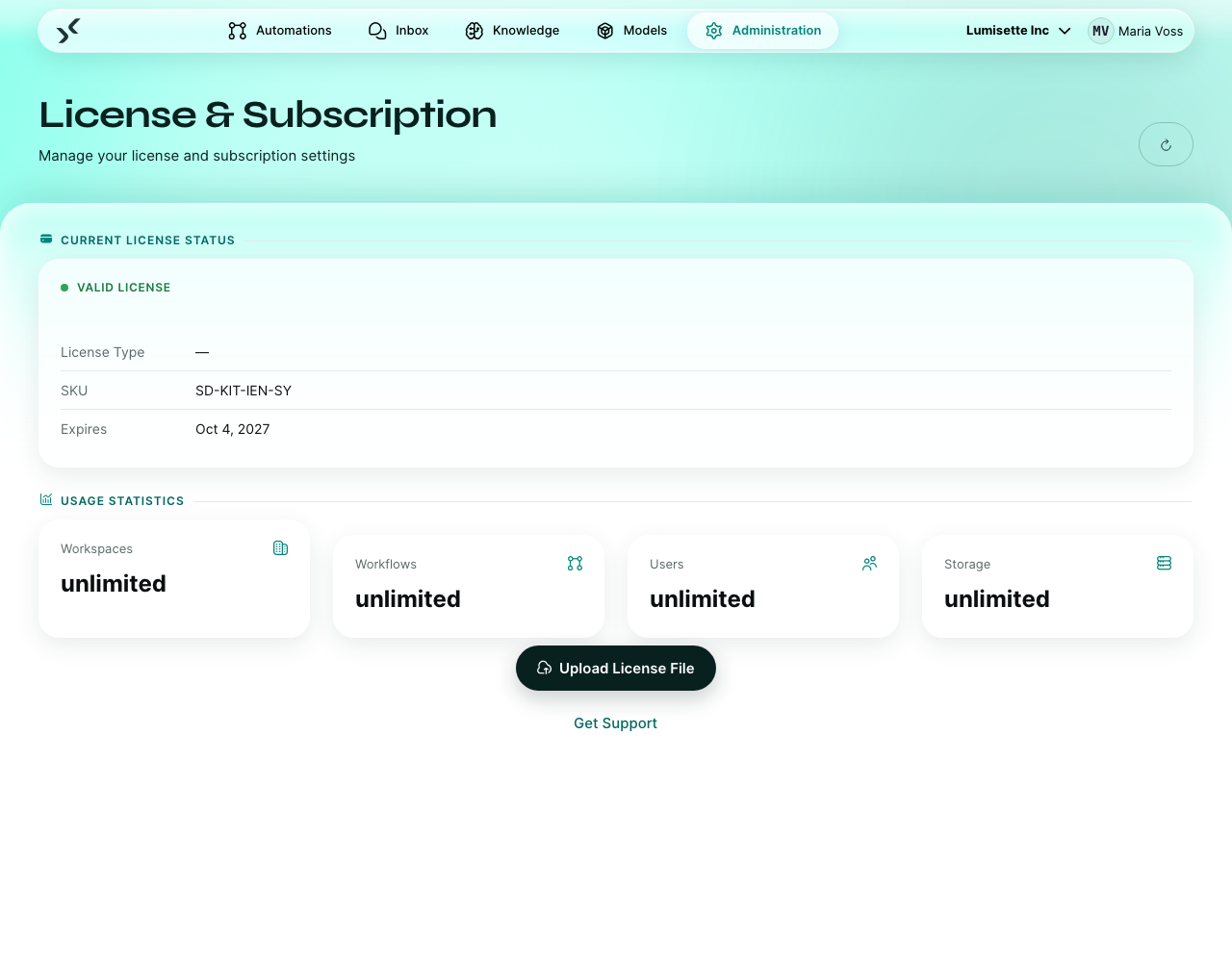
The Licensing page
Open Administration → License. The page shows:
- License summary — type (trial, standard, enterprise), expiration date, organization name from the license file.
- Quotas list — each quota with current usage and the limit. The bar fills up as you approach the limit.
- Upload license — replace the current license with a new file.
- Upgrade — link to the purchase or upgrade flow.
- Get support — direct contact button.
Understanding the quota bars
Each bar shows two numbers: how much you have used and what the limit is.
- Green — comfortable headroom.
- Yellow — approaching the limit. Plan ahead.
- Red — at or over the limit. Some operations are now blocked.
Common quotas:
| Quota | Counted as |
|---|---|
| Workflows | Number of automations of any type in the workspace. |
| Users | Number of distinct user accounts that can log in to the workspace. |
| Models | Number of model connections configured. |
| Knowledge | Number of knowledge bases configured. |
| Workspaces | Number of workspaces in the installation (only relevant in the global view). |
When a quota is at 100 %, the platform refuses to create new items in that quota but does not stop existing ones from running.
Replacing the license file
- Open the License page.
- Click Upload license.
- Pick the
.licfile you received.
The new license takes effect immediately. The page refreshes to show the updated summary and quotas.
If the upload fails:
- The file has been edited (license files are signed; edits break the signature).
- The file is for a different installation (license files are tied to an installation ID).
- The file is corrupt (rare; re-download from the original delivery channel).
Renewing before expiry
License files have an expiry date. A renewal extends that date — usually for another year. The renewal flow:
- Contact your account contact (or use Get support).
- Receive a new
.licfile. - Upload it from the License page.
You can upload the new file any time before the old one expires. The system uses whichever is in force.
What happens at expiry
If no new license is in place when the old one expires:
- Trial → the workspace transitions to a read-only state. Users can log in, view, and look at past results. No new automations run; existing automations stop on their next trigger.
- Standard / Enterprise → same as trial, plus a grace period configured by the issuing organization. The exact duration of the grace period is documented in your contract.
Uploading a valid license unfreezes the workspace within seconds.
Anticipating quota growth
The platform sends license notifications to the workspace contact email (see Manage Workspace) when:
- A quota crosses 80 % of its limit.
- The license is within 30 days of expiry.
- The license has expired.
Make sure the contact email is monitored.
Recommendations
- ✅ Review the License page monthly. Yellow bars are early warnings.
- ✅ Plan license renewals at least 30 days before expiry. Some procurement processes take longer than expected.
- ✅ Keep a copy of the most recent license file outside the AI Kit (in your password manager or a documentation system) for disaster recovery.
- ⚠️ Replacing a license file replaces the previous one. Once you upload a new one, the old one is gone — and the new one's quotas apply from that moment.
- ⚠️ Quotas apply to the workspace where the resource lives. Shared resources (users that exist across workspaces) count against each workspace separately.
- ❌ Do not delete automations purely to free up the Workflow quota during an emergency. Mark them inactive instead — they no longer run but still count toward the quota only on some plans, depending on contract terms.
- ❌ Do not edit
.licfiles. They are signed.
What to do next
- Getting Started → Licensing — the conceptual introduction.
- Metrics → Analyze and Export — reconcile with provider invoices.