Log In for the First Time as a User
When you have been invited to a workspace, you will receive an email with a link to the platform. This page walks you through what to expect on that first login.
What you need
- The invitation email sent to your address by the workspace administrator.
- Your email address (this is also your username).
- A modern browser. Any current version of Chrome, Edge, Firefox, or Safari works.
If you can't find the invitation, check your spam folder, and if it is still missing, ask the person who invited you to send it again.
Step by step
1. Open the login page
Click the link in your invitation email, or open the URL your administrator sent you. The login page asks for your email address — unless your organization uses single sign-on: then it forwards you to your company sign-in right away (see step 2).
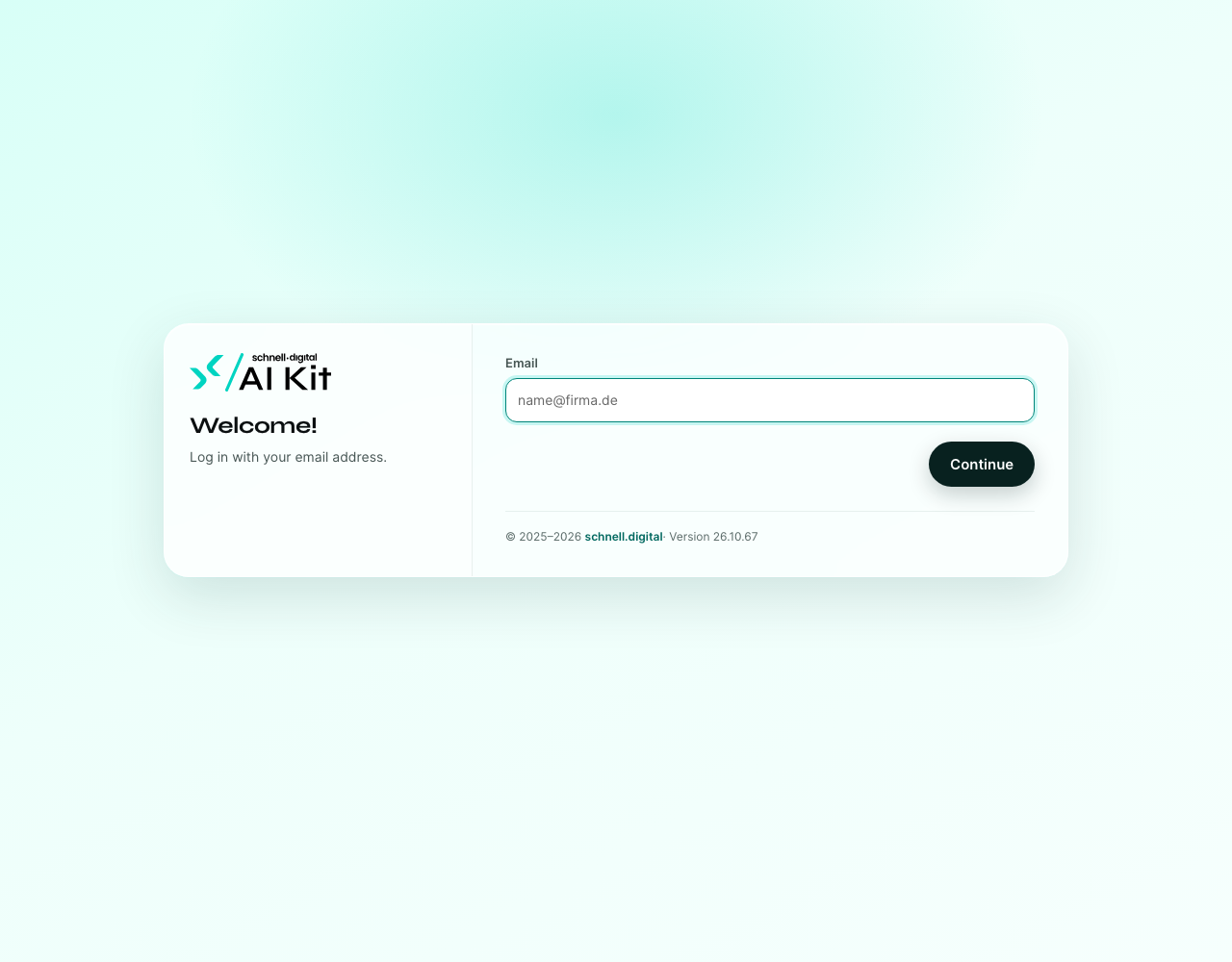
Enter the email address where you received the invitation, then click Continue.
2. Sign in
How you sign in depends on how your organization set up the AI Kit:
- With your company account (single sign-on). The login page forwards you to your organization's sign-in page — for example Microsoft or Google. Sign in there as usual; afterwards you are back in the AI Kit.
- With a one-time code by email. A six-digit code is sent to your inbox. Enter it on the page and click Log in. The code is valid for 5 minutes, and only the most recently sent code counts.
- With a password. If a password was set for your account, the page asks for it instead of a code.
Some installations ask for a second step: after signing in, a code is sent to your email address — enter it just like a code by email. Details for administrators: Single Sign-On and Second Factor.
📷 SCREENSHOT: The OTP step with six digit input boxes.
3. Complete your profile
After authenticating, you fill in a short profile form:
- Your name — shown to other workspace members and in conversation transcripts.
- Language — controls the language of the user interface and the date format.
- Accept the terms of use and privacy policy. Both checkboxes are required.
📷 SCREENSHOT: Profile completion form with the name field, language selector, and the two checkboxes.
Click Complete Setup to finish.
4. Choose a workspace (only if you belong to more than one)
Most users land directly in their workspace. If you have been invited to several, a workspace picker shows the list. Pick the one you want to enter; you can always switch later from the top toolbar.
5. Land in the Inbox
Your first stop is the Inbox. The left column lists your conversations; New Conversation in the toolbar starts one. It opens in place, in the right-hand pane — not as a pop-up — and asks you to Select an Agent from the agents your administrator has set up.
If there are no agents yet, the page says No agents available. That is normal on a fresh workspace and not a sign of an error.
📷 SCREENSHOT: An empty Inbox with the New Conversation button in the toolbar.
Frequently asked questions
I clicked the invitation link, but it says my email address is unknown. The invitation may have been sent to a different address, or the invitation has expired. Ask the administrator who invited you to resend it.
I never received the one-time code. Check your spam folder first. Some corporate mail systems delay automated mails — give it up to five minutes. If it still hasn't arrived, click Send new code — it appears 60 seconds after the code was sent. Only the newest code is valid.
I sign in with my company account and see "No access yet". You have not been invited with the email address your company account uses. Ask your administrator to invite you with exactly that address.
I can't see any of my colleagues in the workspace. Workspaces are isolated. If your colleagues are in a different workspace, you simply won't see them — even on the same installation. Ask your administrator to invite them to yours, or to grant you access to theirs.
Recommendations
- ✅ If your organization uses single sign-on, always sign in with your company account — there is no separate password for the AI Kit.
- ✅ Bookmark the workspace URL.
- ⚠️ Use the email address you actually read. One-time codes go there.
- ❌ Do not share your one-time code with anyone, even support staff.
What to do next
- Chat with Agents — your most common task in the Inbox.
- Automations → Introduction — if you have permission to build automations too.