Single Sign-On and Second Factor
By default, people sign in with their email address and a one-time code sent by email (or a password, if one was set). For companies, two additions are available:
- Single sign-on (SSO) with your own identity provider — Microsoft Entra ID, Google Workspace, Keycloak, Okta or any other OpenID Connect provider.
- A second factor: after signing in, a code sent by email must also be entered.
Both are configured through environment variables on the server and apply to the whole installation — all workspaces. There is no switch in the user interface.
Sign-in modes
| Mode | How people sign in | Setting |
|---|---|---|
| Code by email (default) | Enter the email address, then the six-digit code from the email — or the password, if one was set. | nothing to set |
| Single sign-on | The login page forwards to your identity provider; people sign in there with their company account. Code by email and passwords are switched off. | AIKIT_LOGIN_OAUTH_URL is set |
| Second factor | After the company account or the password, a code sent by email is required as well. | AIKIT_LOGIN_MFA=otp |
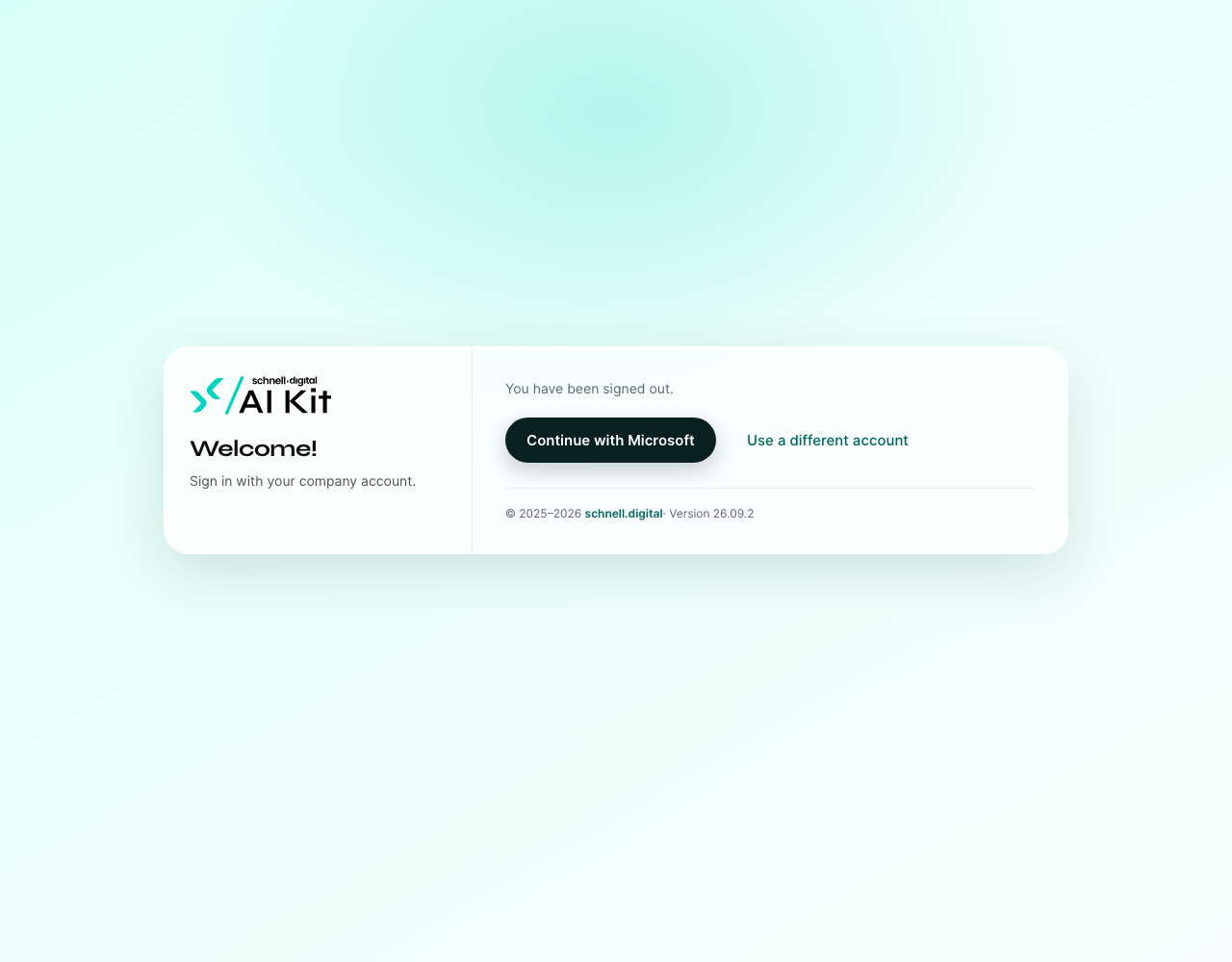
With SSO, the login page forwards to the provider right away. After signing out, it shows a button instead, so that the provider does not silently sign the person back in:
How single sign-on works
The AI Kit uses the OpenID Connect standard with the authorization code flow and PKCE. The server redeems the code itself, with the client secret — the secret never reaches the browser.
- A person opens the AI Kit and is forwarded to the sign-in page of your provider.
- They sign in there — including any multi-factor authentication your provider requires.
- The provider sends the browser back to
/login/callback. - The AI Kit checks the provider's answer: signature, issuer, audience, expiry and a one-time value that ties the answer to this browser.
- It signs the person in with its own session. The provider's tokens are discarded right away — they are neither stored nor logged.
Only invited accounts. SSO does not create accounts. A person can only sign in if an administrator has invited them before — with the email address they have at the provider. Upper and lower case do not matter.
The first sign-in links the account. The AI Kit remembers which account at the provider belongs to the person. If the provider later reports the same email address for a different account (for example because the address was given to a new employee), the sign-in is rejected until an administrator removes the link — see Accounts and email addresses.
Sessions. A sign-in through the provider lasts at most 48 hours. After that, the AI Kit forwards to the provider again — usually without any question, as long as the person is still signed in there. A person blocked at the provider is therefore locked out after 48 hours at the latest.
When you switch SSO or the second factor on, existing sessions are not extended any more: everyone signs in once more the next time the session is renewed.
Before you start
- Address of the installation. The AI Kit must be reachable via HTTPS under a fixed address (
FRONTEND_DOMAIN). The redirect URI to register at the provider ishttps://<your-address>/login/callback. - Outbound connection. The server must reach the provider via HTTPS — see Network Access.
- Invite people first. Invite at least one Admin — and ideally everyone — with the email address they have at the provider before you switch SSO on. Once SSO is active, nobody can sign in with a code any more, so your current administrator account only works if its address matches the provider.
Set up Microsoft Entra ID
In the Microsoft Entra admin center:
- App registrations → New registration. Name, for example, AI Kit. Supported account types: Accounts in this organizational directory only (single tenant).
- Under Redirect URI, choose the platform Web and enter
https://<your-address>/login/callback. - Certificates & secrets → New client secret. Copy the value.
- On the Overview, copy the Application (client) ID and the Directory (tenant) ID.
- Optional: Token configuration → Add optional claim → token type ID →
email. Without it, the AI Kit uses the sign-in name (preferred_username, usually the UPN) as the email address.
Then set on the server:
AIKIT_LOGIN_OAUTH_URL=https://login.microsoftonline.com/<tenant-id>/v2.0
AIKIT_LOGIN_OAUTH_CLIENT_ID=<application-client-id>
AIKIT_LOGIN_OAUTH_CLIENT_SECRET=<client-secret-value>
Use the tenant ID. URLs with
common,organizationsorconsumersare refused at start-up — with them, any Microsoft tenant could sign in.Platform "Web", not "Single-page application". The AI Kit redeems the code on the server with the secret. Entra rejects this for SPA registrations (error
AADSTS9002327).
Set up Google Workspace
In the Google Cloud console:
- APIs & Services → OAuth consent screen: user type Internal.
- Credentials → Create credentials → OAuth client ID, application type Web application. Under Authorized redirect URIs, enter
https://<your-address>/login/callback. - Copy the client ID and the client secret.
AIKIT_LOGIN_OAUTH_URL=https://accounts.google.com
AIKIT_LOGIN_OAUTH_CLIENT_ID=<client-id>.apps.googleusercontent.com
AIKIT_LOGIN_OAUTH_CLIENT_SECRET=<client-secret>
AIKIT_LOGIN_OAUTH_ALLOWED_DOMAINS=example.com
Set AIKIT_LOGIN_OAUTH_ALLOWED_DOMAINS to your Workspace domain. Otherwise any Google account can start a sign-in (it is still rejected if no invited account matches). With the domain set, the AI Kit additionally checks Google's Workspace domain (hd).
Other providers
Any OpenID Connect provider works — Keycloak, Okta, Auth0, ADFS and others. Set the provider's issuer URL, for example https://sso.example.com/realms/<realm> for Keycloak, plus the client ID and secret. The AI Kit reads everything else from the provider's discovery document (<URL>/.well-known/openid-configuration).
Providers without a discovery document. The AI Kit then checks the standard paths <URL>/authorize and <URL>/token and uses them if they answer like OAuth endpoints. If they do not, set the endpoints explicitly (AIKIT_LOGIN_OAUTH_AUTHORIZE_URL, AIKIT_LOGIN_OAUTH_TOKEN_URL, and if needed AIKIT_LOGIN_OAUTH_USERINFO_URL). If the provider publishes no signing keys, the AI Kit accepts the ID token through the HTTPS connection to the token endpoint, over which it fetched the token itself — issuer, audience, expiry and the one-time value are still checked.
Additional parameters. AIKIT_LOGIN_OAUTH_AUTHORIZE_PARAMS adds parameters to the forwarding (for example prompt=select_account or Entra's domain_hint=example.com); AIKIT_LOGIN_OAUTH_TOKEN_PARAMS adds parameters to the code redemption (for example resource=… for ADFS).
Second factor
AIKIT_LOGIN_MFA=otp
After signing in with the company account — or with a password — the AI Kit sends a six-digit code to the account's email address, exactly as with the sign-in by code. Only after entering it is the person signed in.
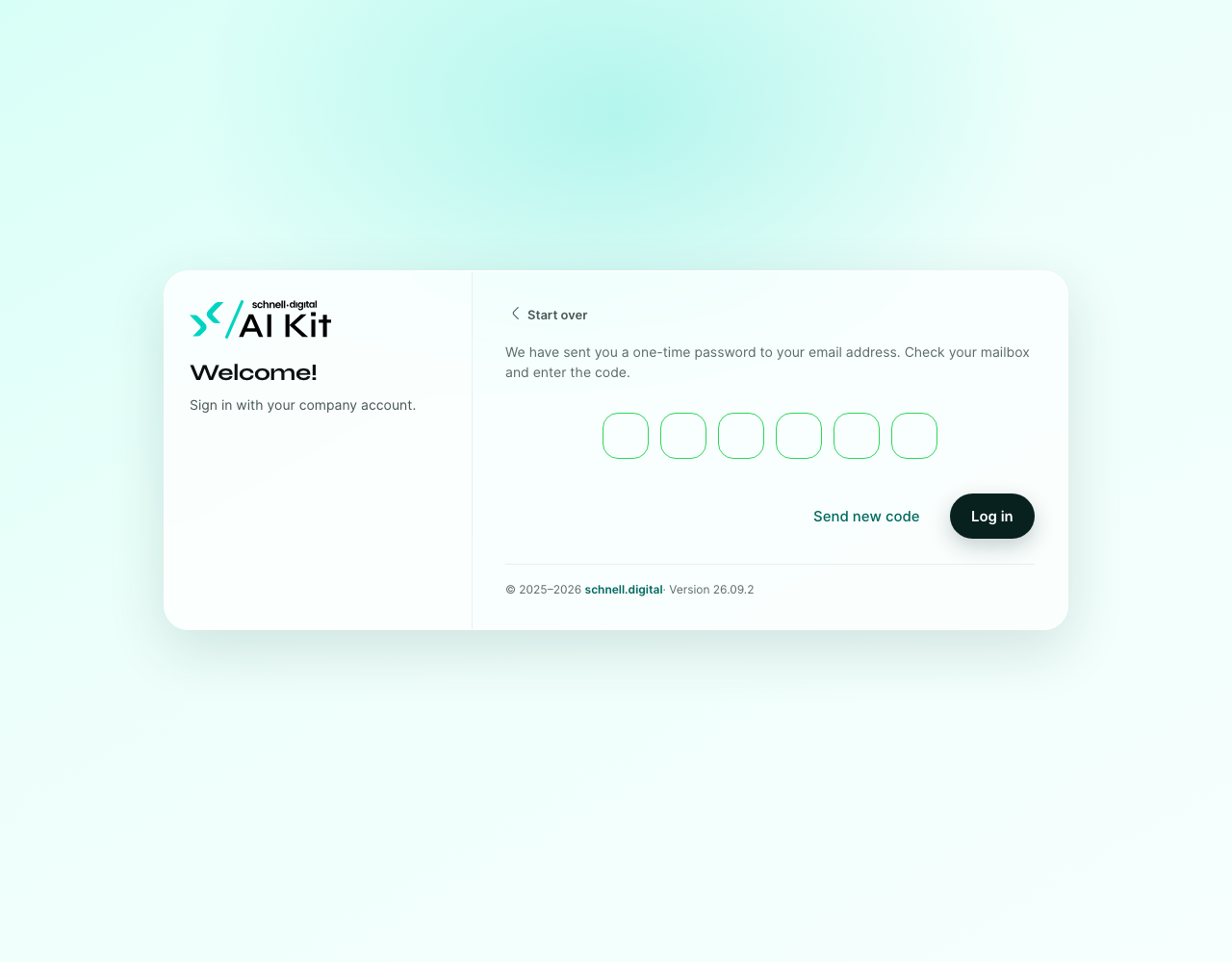
- A code is valid for 5 minutes. Only the most recently sent code counts.
- Send new code appears after 60 seconds. Before that, the AI Kit sends no new code while one is still open.
- After 5 wrong codes, the code is used up — Send new code sends another one. The step itself is valid for 10 minutes; after that, the person signs in again.
- Signing in with a code by email already proves access to the mailbox — then no second code is requested.
- Accounts with a password always sign in with the password — never with a code alone.
The second factor needs working mail delivery (SMTP). It also works without SSO, together with passwords.
Configuration reference
All settings are read at start-up. After a change, restart the AI Kit.
| Setting | Meaning | Default |
|---|---|---|
AIKIT_LOGIN_OAUTH_URL | Issuer URL of the provider. Set = SSO is active. | – (SSO off) |
AIKIT_LOGIN_OAUTH_CLIENT_ID | Client ID of the registration at the provider. Required with SSO; without it, the AI Kit does not start. | – |
AIKIT_LOGIN_OAUTH_CLIENT_SECRET | Client secret. Without it, the AI Kit acts as a public client (PKCE only). | – |
AIKIT_LOGIN_OAUTH_REDIRECT_URI | Address the provider sends people back to — register exactly this one. | <FRONTEND_DOMAIN>/login/callback |
AIKIT_LOGIN_OAUTH_SCOPES | Requested scopes, separated by spaces or commas. openid is always added. | openid profile email |
AIKIT_LOGIN_OAUTH_TOKEN_AUTH | How the secret is sent: client_secret_post (in the request), client_secret_basic (as a header) or none. | from the discovery document, preferably client_secret_post |
AIKIT_LOGIN_OAUTH_ALLOWED_DOMAINS | Only email addresses of these domains, separated by commas. | all |
AIKIT_LOGIN_OAUTH_EMAIL_CLAIM | Claims the email address is taken from — the first one present counts. | email, preferred_username, upn |
AIKIT_LOGIN_OAUTH_LABEL | Name on the button (Continue with …). | Microsoft / Google, otherwise a general text |
AIKIT_LOGIN_OAUTH_AUTHORIZE_PARAMS | Additional parameters for the forwarding, as a=1&b=2. | – |
AIKIT_LOGIN_OAUTH_TOKEN_PARAMS | Additional parameters for the code redemption. | – |
AIKIT_LOGIN_OAUTH_AUTHORIZE_URL, _TOKEN_URL, _USERINFO_URL, _JWKS_URL | Endpoints, if neither the discovery document nor the standard paths fit. | from the discovery document |
AIKIT_LOGIN_MFA | otp: a code by email as second factor. | – (off) |
The AI Kit refuses to start if a value is invalid — for example an unknown AIKIT_LOGIN_MFA, a missing client ID or an Entra URL with common. The start-up log names the reason.
Accounts and email addresses
- Invite with the provider address. The invitation works exactly as before (Manage Users) — the address must be the one the provider reports.
- Only administrators change email addresses. People cannot change their own address in their profile; an Admin does it under Administration → Users & Roles → row menu → Change email address. Any Admin of the installation (Admin in any workspace) may change any person's address. The address must be unique, regardless of upper and lower case.
- Name changes. If someone's address changes at the provider, change it in the AI Kit as well. Until then, the sign-in is rejected because the addresses do not match.
- Address given to someone else. If the provider reports a known address for a different account, the sign-in is rejected. An Admin removes the old link via the row menu → Unlink company account; the next sign-in links the new account.
Emergency access
If the provider is unavailable or misconfigured, remove AIKIT_LOGIN_OAUTH_URL and restart the AI Kit. Sign-in with a code by email then works again for every account. Set the variable again once the provider works.
Check the configuration
At start-up, the AI Kit writes the effective sign-in configuration to its log: the sign-in mode, the provider, the client ID (whether a secret is set, never the secret itself), the redirect URI to register, the scopes and the second factor. It then checks the provider and notes whether it can be used — and if not, why. Every sign-in also leaves a line, with the reason if it was rejected. All these lines start with 🔐, so grep 🔐 finds them.
| What people see | Cause and fix |
|---|---|
| Your sign-in provider cannot be reached right now | Wrong URL, no OpenID Connect provider at that address, or no network connection. Check AIKIT_LOGIN_OAUTH_URL; the start-up log names the reason. |
An error page at the provider (Entra AADSTS50011, Google redirect_uri_mismatch) | The redirect URI is not registered. Register exactly the one from the start-up log. |
| No access yet | No invited account with the address the provider reports. Invite the person with exactly that address. |
| … does not match the one stored here | The address at the provider has changed. Change it under Users & Roles. |
| … linked to a different company account | The address was given to someone else at the provider. Unlink company account, if the new account is right. |
| Your sign-in provider rejected the sign-in | Client ID or secret wrong or expired; possibly set AIKIT_LOGIN_OAUTH_TOKEN_AUTH. |
| Your sign-in provider did not share an email address | Request the scope email or set AIKIT_LOGIN_OAUTH_EMAIL_CLAIM. |
| The sign-in took too long or was started in another window | Simply sign in again. A sign-in must be completed within 10 minutes, in the same browser tab. |
Audit log
With the compliance package, the audit log records every sign-in with its method (code, password or SSO), the second factor and, for failed attempts, the reason. It also shows Company account linked, Company account unlinked and Email address changed.
Recommendations
- ✅ Register the AI Kit at the provider as a single-tenant web application and restrict who may use it there (Entra: Assignment required).
- ✅ Leave multi-factor authentication to your provider. Add
AIKIT_LOGIN_MFA=otponly if the provider cannot enforce it. - ✅ Test the configuration with one invited Admin account before inviting everyone.
- ⚠️ Keep at least two Admins whose addresses exist at the provider.
- ❌ Do not use
commonororganizationsfor Entra ID.
What to do next
- Manage Users — invite people and change email addresses.
- Network Access — connections the AI Kit needs.
- Audit Log — sign-ins and account changes.