Manage Users
Users are how people log into a workspace. This page covers how to invite them, what the available roles mean, and how to change or remove access later.
Roles
| Role | What they can do |
|---|---|
| Admin | Everything — on top of Manager: licensing, server health, creating new workspaces, and granting or revoking the Admin role. |
| Manager | Manages workspace settings, automations and agents, knowledges, models and users: create, edit, delete. Sees the audit log. Except the license, new workspaces and the Admin role (typical "team lead" capacity). |
| Editor | Create and edit automations and agents — not delete them. Uses knowledges and models but does not manage them. |
| Monitor | Read-only view across the workspace, including metrics — and may start runs. For auditors, stakeholders, or junior staff in training. |
| AgentUser | Use the Inbox only — chat with agents, pick up tasks. Changes nothing and cannot see the editor at all. |
Higher roles include the lower ones. An Admin can do everything an Editor can; an Editor can do everything a Monitor can; and so on.
The recommended baseline:
- One or two Admins per workspace.
- A handful of Editors or Managers who build automations.
- The rest as AgentUser — they only ever see the Inbox.
Inviting users
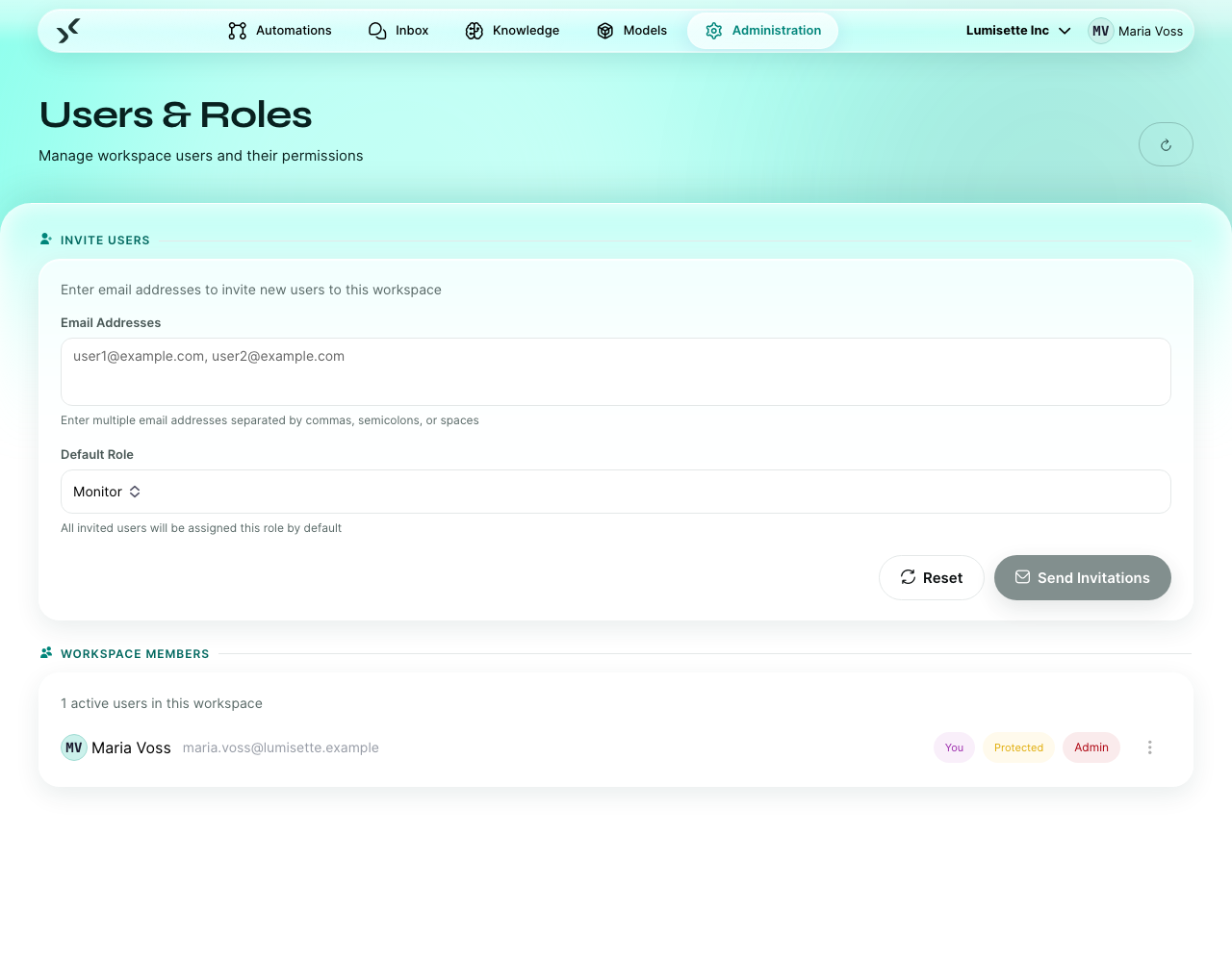
- Open Administration → Users & Roles.
- In the Invite users area at the top, type one or more e-mail addresses separated by commas.
- Pick the Default role for the invitations. Every address in the list will receive an invitation with that role. (You can change individual roles later.)
- Click Send invitations.
Each invitee receives an email with a link. When they click it and log in for the first time, they complete their profile (see Inbox → First Login) and arrive in your workspace.
You can leave the page after sending — the invitations are dispatched asynchronously.
With single sign-on, invite people with the email address they have at your identity provider — only then can they sign in. See Single Sign-On and Second Factor.
Viewing the user list
Below the invite area, the page lists every user in the workspace. For each user you see:
- Name (until the person completes their profile, the part of the address before the @).
- E-mail address.
- Role.
- You next to your own row, Protected next to the last Admin.
Changing someone's role
- Open the kebab menu (three dots) on the user's row.
- Pick the new role from the list.
Managers and Admins can change roles. Granting or revoking the Admin role — and changing Admins at all — is reserved to Admins. Every workspace keeps at least one Admin.
The change applies immediately; what the person sees (menus, buttons) follows on their next page load. Active sessions do not need to be killed.
Changing someone's email address
The email address is the sign-in identity. People cannot change it themselves in their profile — an Admin does it here:
- Open the kebab menu on the user's row.
- Click Change email address, enter the new address and confirm with Change.
Any Admin of the installation — an Admin in any workspace — may change the address of any person, including other Admins and themselves. The address must be unique, regardless of upper and lower case; an address that already belongs to another account is rejected. Open sign-in codes of the person expire.
With single sign-on, the address must match the one at the identity provider. If someone's name and address change there, change the address here as well — until then, their sign-in is rejected.
Unlinking a company account
With single sign-on, the first sign-in links the account to the person's account at the identity provider. If the provider later reports the same address for a different account — for example because the address was given to a new colleague — the sign-in is rejected.
If the new account is right, open the kebab menu on the user's row and click Unlink company account. The entry only appears for linked accounts and only for Admins. The next sign-in links the account again.
Removing a user
- Open the kebab menu on the user's row.
- Click Remove user.
Removing a user revokes their access to this workspace — immediately, even in a running session. If they belong to other workspaces, they keep access there. Managers and Admins can remove users; only Admins remove Admins, and the last Admin stays. The user's account itself is not deleted — that requires a separate operation.
Any automations the user created remain in place. They are not owned by an individual; ownership is per-workspace.
Recommendations
- ✅ Use Editor as the default role for new builders. Promote to Manager only if they also need to manage users.
- ✅ Invite people in batches. The platform sends one email per address.
- ✅ Keep at least two Admins per workspace. Single-Admin workspaces become locked if that person leaves.
- ✅ Review the user list quarterly. People change roles inside the organization more often than they get pruned from systems.
- ⚠️ A user with the Manager role can invite further users and change roles — only the Admin role is reserved to Admins. Choose Managers carefully.
- ⚠️ Removing a user does not delete their historical activity. Past jobs they ran are kept.
- ❌ Do not share user accounts. Conversations and ownership are per-user; sharing breaks the audit trail.
Frequently asked questions
The invited person says they did not receive the email. Check the spam folder first. If after a few minutes there is still nothing, invite the address again with the same role — the person keeps their account and receives a new invitation email. (The invitation sets the selected Default role.)
Can a user belong to several workspaces? Yes. Invite them in each workspace. They switch between workspaces from the top toolbar.
Can a user have different roles in different workspaces? Yes. The role is per-workspace.
What to do next
- Manage your Workspace — the workspace's own settings.
- Licensing — quotas including the user quota.
- Single Sign-On and Second Factor — sign-in through your identity provider.