Benutzer verwalten
Über Benutzerkonten melden sich Personen in einem Workspace an. Diese Seite beschreibt, wie Sie Benutzer einladen, was die verfügbaren Rollen bedeuten und wie Sie Zugänge später ändern oder entziehen.
Rollen
| Rolle | Was sie darf |
|---|---|
| Admin | Alles – zusätzlich zum Manager: Lizenzierung, Serverzustand, neue Workspaces anlegen und die Rolle Admin vergeben oder entziehen. |
| Manager | Verwaltet Workspace-Einstellungen, Automationen und Agenten, Wissensbasen, Modelle und Benutzer: anlegen, bearbeiten, löschen. Sieht das Audit-Log. Ausgenommen sind Lizenz, neue Workspaces und die Admin-Rolle (typisch für eine Teamleitung). |
| Editor | Automationen und Agenten anlegen und bearbeiten – nicht löschen. Wissensbasen und Modelle nutzt er, verwaltet sie aber nicht. |
| Monitor | Nur-Lese-Zugriff auf den gesamten Workspace, auch auf die Kennzahlen – und darf Läufe starten. Für Prüfer, Stakeholder oder Nachwuchskräfte in der Einarbeitung. |
| AgentUser | Nur den Posteingang nutzen – mit Agenten chatten, Aufgaben übernehmen. Ändert nichts und sieht den Editor überhaupt nicht. |
Höhere Rollen schließen die niedrigeren ein. Ein Admin kann alles, was ein Editor kann; ein Editor kann alles, was ein Monitor kann; und so weiter.
Die empfohlene Grundaufteilung:
- Ein oder zwei Admins pro Workspace.
- Eine Handvoll Benutzer mit der Rolle Editor oder Manager, die Automationen bauen.
- Alle anderen als AgentUser – sie sehen ausschließlich den Posteingang.
Benutzer einladen
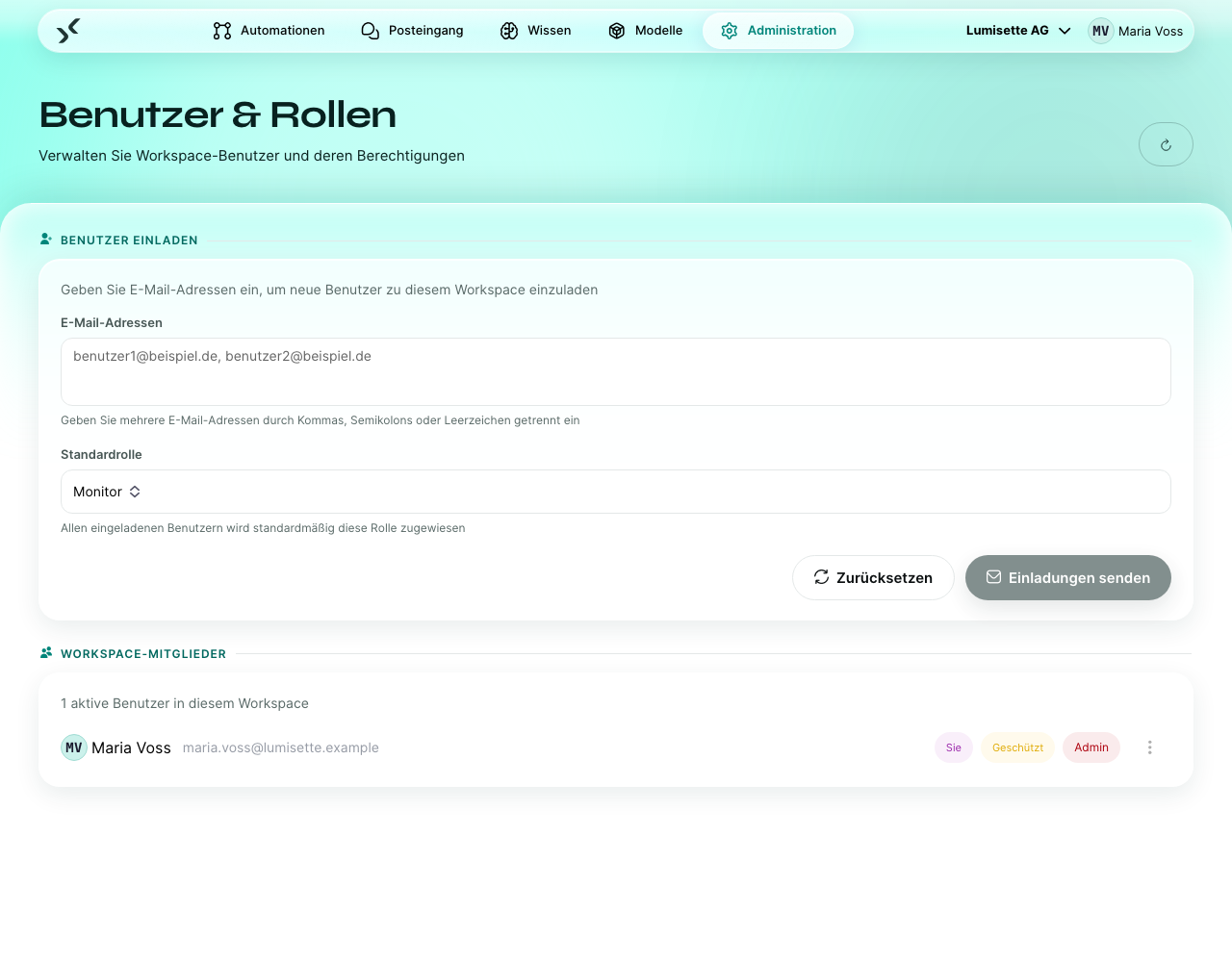
- Öffnen Sie Administration → Benutzer & Rollen.
- Geben Sie oben im Bereich Benutzer einladen eine oder mehrere E-Mail-Adressen ein, durch Kommas getrennt.
- Wählen Sie die Standardrolle für die Einladungen. Jede Adresse in der Liste erhält eine Einladung mit dieser Rolle. (Einzelne Rollen können Sie später ändern.)
- Klicken Sie auf Einladungen senden.
Jede eingeladene Person erhält eine E-Mail mit einem Link. Klickt sie darauf und meldet sich zum ersten Mal an, vervollständigt sie ihr Profil (siehe Posteingang → Erste Anmeldung) und landet in Ihrem Workspace.
Sie können die Seite nach dem Senden verlassen – die Einladungen werden im Hintergrund verschickt.
Mit Single Sign-On laden Sie Personen mit der E-Mail-Adresse ein, die sie bei Ihrem Anmeldeanbieter haben – nur dann können sie sich anmelden. Siehe Single Sign-On und zweiter Faktor.
Die Benutzerliste ansehen
Unter dem Einladungsbereich listet die Seite alle Benutzer des Workspace auf. Zu jedem Benutzer sehen Sie:
- Name (solange die Person ihr Profil noch nicht vervollständigt hat, der Teil der Adresse vor dem @).
- E-Mail-Adresse.
- Rolle.
- Sie an Ihrer eigenen Zeile, Geschützt am letzten Admin.
Die Rolle einer Person ändern
- Öffnen Sie das Drei-Punkte-Menü in der Zeile des Benutzers.
- Wählen Sie die neue Rolle aus der Liste.
Rollen ändern dürfen Manager und Admins. Die Rolle Admin vergeben oder entziehen – und Admins überhaupt ändern – dürfen nur Admins. Jeder Workspace behält mindestens einen Admin.
Die Änderung gilt sofort; was die Person sieht (Menüs, Knöpfe), passt sich beim nächsten Laden der Seite an. Aktive Sitzungen müssen nicht beendet werden.
Die E-Mail-Adresse einer Person ändern
Die E-Mail-Adresse ist die Anmeldekennung. Personen können sie in ihrem Profil nicht selbst ändern – das erledigt ein Admin hier:
- Öffnen Sie das Drei-Punkte-Menü in der Zeile des Benutzers.
- Klicken Sie auf E-Mail-Adresse ändern, geben Sie die neue Adresse ein und bestätigen Sie mit Ändern.
Jeder Admin der Installation – Admin in irgendeinem Workspace – darf die Adresse jeder Person ändern, auch die anderer Admins und die eigene. Die Adresse muss eindeutig sein, unabhängig von Groß- und Kleinschreibung; eine Adresse, die schon zu einem anderen Konto gehört, wird abgewiesen. Offene Anmeldecodes der Person verfallen.
Mit Single Sign-On muss die Adresse der beim Anmeldeanbieter entsprechen. Ändern sich dort Name und Adresse einer Person, ändern Sie die Adresse auch hier – bis dahin wird ihre Anmeldung abgewiesen.
Eine SSO-Verknüpfung lösen
Mit Single Sign-On verknüpft die erste Anmeldung das Konto mit dem Konto der Person beim Anmeldeanbieter. Meldet der Anbieter später dieselbe Adresse für ein anderes Konto – etwa weil die Adresse an eine neue Kollegin vergeben wurde –, wird die Anmeldung abgewiesen.
Ist das neue Konto richtig, öffnen Sie das Drei-Punkte-Menü in der Zeile des Benutzers und klicken auf SSO-Verknüpfung lösen. Der Eintrag erscheint nur bei verknüpften Konten und nur für Admins. Die nächste Anmeldung verknüpft das Konto neu.
Einen Benutzer entfernen
- Öffnen Sie das Drei-Punkte-Menü in der Zeile des Benutzers.
- Klicken Sie auf Benutzer entfernen.
Das Entfernen entzieht dem Benutzer den Zugang zu diesem Workspace – sofort, auch in einer laufenden Sitzung. Gehört er weiteren Workspaces an, behält er dort seinen Zugang. Benutzer entfernen dürfen Manager und Admins; Admins entfernen nur Admins, und der letzte Admin bleibt. Das Benutzerkonto selbst wird nicht gelöscht – das ist ein eigener Vorgang.
Automationen, die der Benutzer erstellt hat, bleiben erhalten. Sie gehören keiner einzelnen Person; Eigentümer ist jeweils der Workspace.
Empfehlungen
- ✅ Nehmen Sie Editor als Standardrolle für neue Ersteller von Automationen. Machen Sie jemanden nur dann zum Manager, wenn er auch Benutzer verwalten muss.
- ✅ Laden Sie Personen gesammelt ein. Die Plattform sendet eine E-Mail pro Adresse.
- ✅ Halten Sie mindestens zwei Admins pro Workspace. Ein Workspace mit nur einem Admin ist blockiert, wenn diese Person geht.
- ✅ Prüfen Sie die Benutzerliste einmal im Quartal. Personen wechseln innerhalb der Organisation öfter ihre Rolle, als sie aus Systemen entfernt werden.
- ⚠️ Ein Benutzer mit der Rolle Manager kann weitere Benutzer einladen und Rollen ändern – nur die Rolle Admin bleibt Admins vorbehalten. Wählen Sie Manager sorgfältig aus.
- ⚠️ Das Entfernen eines Benutzers löscht nicht seine bisherigen Aktivitäten. Frühere Läufe, die er gestartet hat, bleiben erhalten.
- ❌ Teilen Sie keine Benutzerkonten. Konversationen und Zuständigkeiten hängen am einzelnen Benutzer; geteilte Konten machen die Nachvollziehbarkeit zunichte.
Häufige Fragen
Die eingeladene Person sagt, sie habe keine E-Mail erhalten. Prüfen Sie zuerst den Spam-Ordner. Ist nach ein paar Minuten immer noch nichts da, laden Sie die Adresse mit derselben Rolle erneut ein – die Person behält ihr Konto und erhält eine neue Einladungs-E-Mail. (Die Einladung setzt die gewählte Standardrolle.)
Kann ein Benutzer mehreren Workspaces angehören? Ja. Laden Sie ihn in jedem Workspace ein. Zwischen den Workspaces wechselt er über die obere Werkzeugleiste.
Kann ein Benutzer in verschiedenen Workspaces verschiedene Rollen haben? Ja. Die Rolle gilt jeweils pro Workspace.
Nächste Schritte
- Workspace verwalten – die Einstellungen des Workspace selbst.
- Lizenzierung – Kontingente, darunter das Benutzerkontingent.
- Single Sign-On und zweiter Faktor – Anmeldung über Ihren Anmeldeanbieter.