Einführung
Ein Modell ist die KI, mit der Ihre Automationen arbeiten. Das AI Kit betreibt selbst keine KI – es verbindet sich mit Anbietern (OpenAI, Anthropic, Mistral) oder mit einer selbst betriebenen Alternative (Ollama). Jede dieser Verbindungen ist ein Modell in Ihrem Workspace.
Dieser Abschnitt erklärt, welche Arten von Modellen es gibt, worauf Sie bei der Auswahl achten sollten und wie Sie jeden Anbieter Schritt für Schritt anbinden.
Warum Modelle wichtig sind
Fast jede Automation, die mit KI etwas Sinnvolles tut, ruft mindestens einmal ein Modell auf. Das gewählte Modell bestimmt:
- Was die KI kann. Ein kleines Modell erstellt kurze Zusammenfassungen gut; ein großes Modell bewältigt anspruchsvolle Schlussfolgerungen über Tausende von Wörtern.
- Wie schnell es antwortet. Kleinere Modelle sind in der Regel schneller.
- Was es kostet. Die Preise der Anbieter unterscheiden sich je Modell, je Token und teilweise je Region.
- Wohin die Daten gehen. Externe Anbieter senden den Prompt an ihre eigene Infrastruktur. Selbst betriebene Modelle verlassen Ihr Haus nie.
Sie können mehrere Modelle mit einem Workspace verbinden und in verschiedenen Automationen unterschiedliche Modelle verwenden – sogar in verschiedenen Schritten derselben Automation.
Zwei Arten von Modellen
| Art | Wofür | Wo Sie es auswählen |
|---|---|---|
| Chat-Modelle | Text erzeugen, Fragen beantworten, Tools aufrufen, Schlussfolgerungen ziehen. | In Schritten wie KI-Aktion und in Agenten. |
| Embedding-Modelle | Text in Zahlen umwandeln, die eine Wissensbasis durchsuchen kann. | In jeder Konfiguration einer Wissensbasis. |
Die meisten Anbieter bieten beide Arten an. Beim Anbinden eines Anbieters können Sie nur die Chat-Seite, nur die Embedding-Seite oder beide bereitstellen. Viele Automationen kommen mit einem einzigen Chat-Modell und einem einzigen Embedding-Modell gut aus.
Wie Sie auswählen
Beginnen Sie mit einem Chat-Modell und einem Embedding-Modell je Anbieter. Fügen Sie weitere nur hinzu, wenn Sie einen konkreten Bedarf haben.
Für die Chat-Seite:
- Schnelle, günstige, ausreichend gute Antworten? Wählen Sie ein kleines Modell (GPT-5.4 mini, Claude Haiku, Mistral Small).
- Hochwertige Antworten, Schlussfolgerungen, komplexe Anweisungen? Wählen Sie ein großes Modell (GPT-5.6 Terra, Claude Sonnet, Mistral Large).
- Daten sollen auf Ihren eigenen Servern bleiben? Betreiben Sie ein Open-Source-Modell selbst mit Ollama.
Auf der Embedding-Seite spielt die Wahl im Alltag eine geringere Rolle; entscheidend ist Einheitlichkeit. Verwenden Sie für alle Wissensbasen, die Sie gemeinsam durchsuchen wollen, dasselbe Embedding-Modell.
Denkaufwand
Agenten und KI-Aktionen haben einen Aufwand-Schalter. Ob er auch bestimmt, wie lange ein Modell nachdenkt, legen Sie je Modell in der Karte Denkaufwand fest: Automatisch, Aus oder eine eigene Zuordnung je Stufe. Mistral kennt diese Einstellung nicht – das Modell entscheidet selbst.
Wo Modelle in der Oberfläche erscheinen
Der Reiter Modelle in der Hauptnavigation listet alle Modelle auf, die mit dem Workspace verbunden sind.
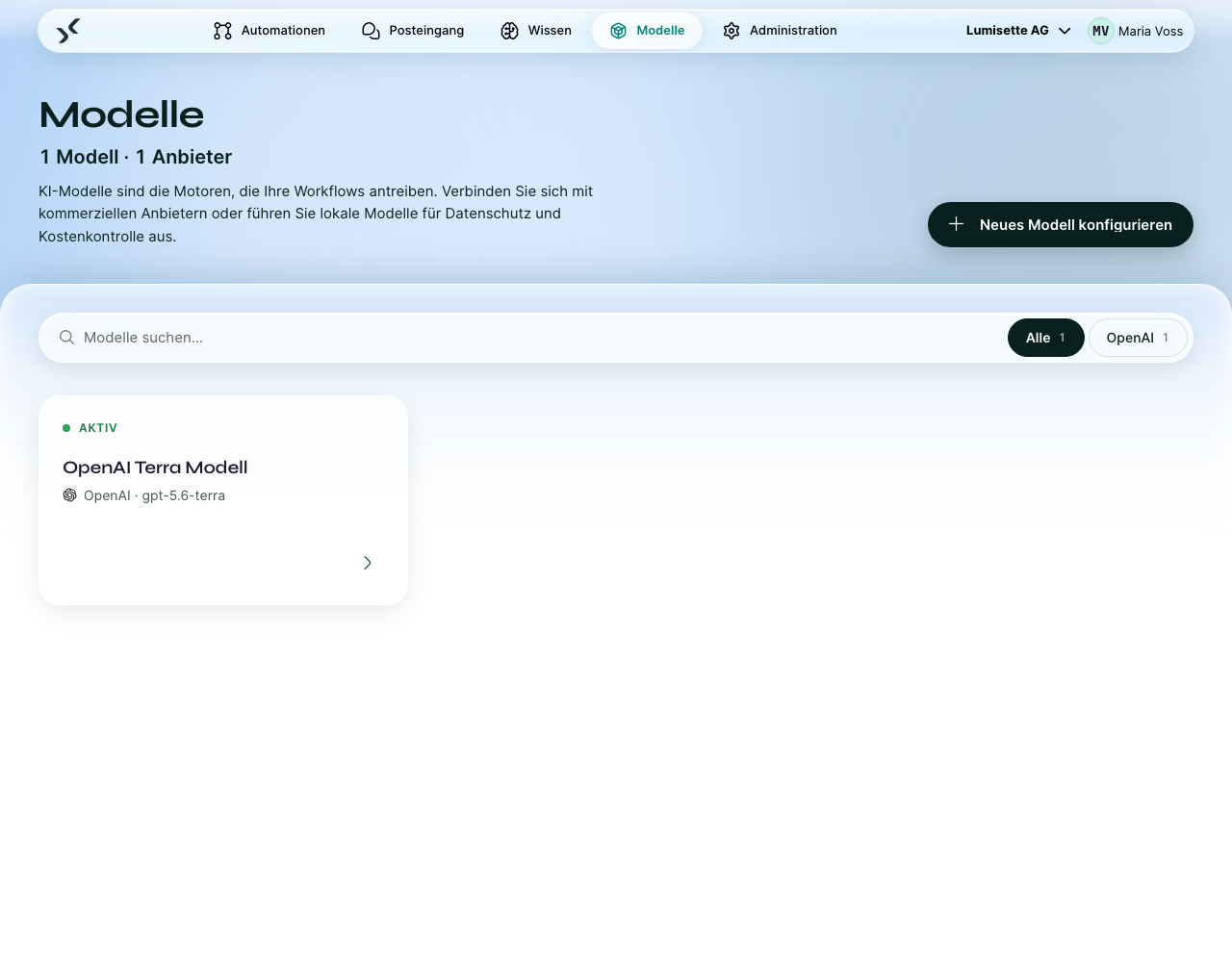
Klicken Sie auf eine Karte, um ein Modell zu bearbeiten. Mit Neues Modell konfigurieren fügen Sie eines hinzu. Siehe Neues Modell anlegen.
Nächste Schritte
- Neues Modell anlegen – die allgemeine Schritt-für-Schritt-Anleitung.
- Bring-your-own-Key (BYOK) – das Lizenz- und Zugangsdatenmodell.
- Seiten je Anbieter: OpenAI · Anthropic · Mistral · Ollama.