Ollama (selbst betrieben)
Betreiben Sie Open-Source-Modelle auf Ihrer eigenen Infrastruktur und verbinden Sie sie mit dem AI Kit. Keine Daten verlassen jemals Ihr Netzwerk.
Wann sich der Eigenbetrieb lohnt
- Sie haben Vorgaben zu Datenhaltung oder Datenschutz, die externe Anbieter ausschließen.
- Sie arbeiten in einer abgeschotteten Umgebung ohne Internetzugang.
- Sie wollen planbare monatliche Kosten – Serverkosten statt Kosten je Token.
- Sie wollen neuere Open-Source-Modelle schnell ausprobieren.
Wann sich der Eigenbetrieb nicht lohnt:
- Sie erwarten bei schwierigen Aufgaben die absolut höchste Qualität – die führenden proprietären Modelle liegen weiterhin vorn.
- Ihr Volumen ist gering – bei einer Handvoll Anfragen am Tag ist die Abrechnung je Token günstiger als eigene Hardware.
- In Ihrem Team gibt es niemanden, der sich mit dem Betrieb von Servern auskennt.
Was Sie brauchen
- Einen Rechner mit installiertem Ollama. Für brauchbare Chat-Leistung ist eine aktuelle GPU nahezu Pflicht – kleinere Modelle laufen aber auch auf einer modernen CPU mit viel Arbeitsspeicher annehmbar.
- Netzwerkverbindung zwischen dem Server des AI Kit und dem Ollama-Server (derselbe Host ist in Ordnung, ein Server im selben Netzwerk ebenfalls; eine Verbindung über das Internet ist unüblich).
Ollama installieren
Unter Linux (ein Befehl):
curl -fsSL https://ollama.com/install.sh | sh
Unter macOS oder Windows laden Sie das Installationsprogramm von ollama.com herunter.
Prüfen Sie die Installation:
ollama --version
Ein Modell herunterladen
Ollama behandelt Modelle wie Container. Laden Sie die gewünschten Modelle herunter, bevor Sie sie im AI Kit anbinden:
# A balanced chat model
ollama pull llama3.3

# A small chat model (faster, lower quality)
ollama pull llama3.2

# An embedding model
ollama pull nomic-embed-text
Modelle werden einmal heruntergeladen und auf der Festplatte zwischengespeichert. Der erste Lauf nach dem Herunterladen ist langsamer, weil das Modell erst in den Arbeitsspeicher geladen wird.
📷 SCREENSHOT: Ein Terminal, in dem
ollama pull llama3.3abgeschlossen ist undollama listdie verfügbaren Modelle anzeigt.
Ollama erreichbar machen
Standardmäßig lauscht Ollama auf 127.0.0.1:11434. Damit das AI Kit Ollama von einem anderen Host (oder aus einem Docker-Container heraus) erreicht, setzen Sie auf der Ollama-Seite die Umgebungsvariable für den Host:
# Linux example
OLLAMA_HOST=0.0.0.0:11434 ollama serve
Binden Sie Ollama an eine private IP statt an 0.0.0.0, wenn der Rechner in einem Netzwerk steht. Stellen Sie Ollama hinter eine Firewall – es hat bauartbedingt keine Authentifizierung.
Aus dem AI Kit verbinden
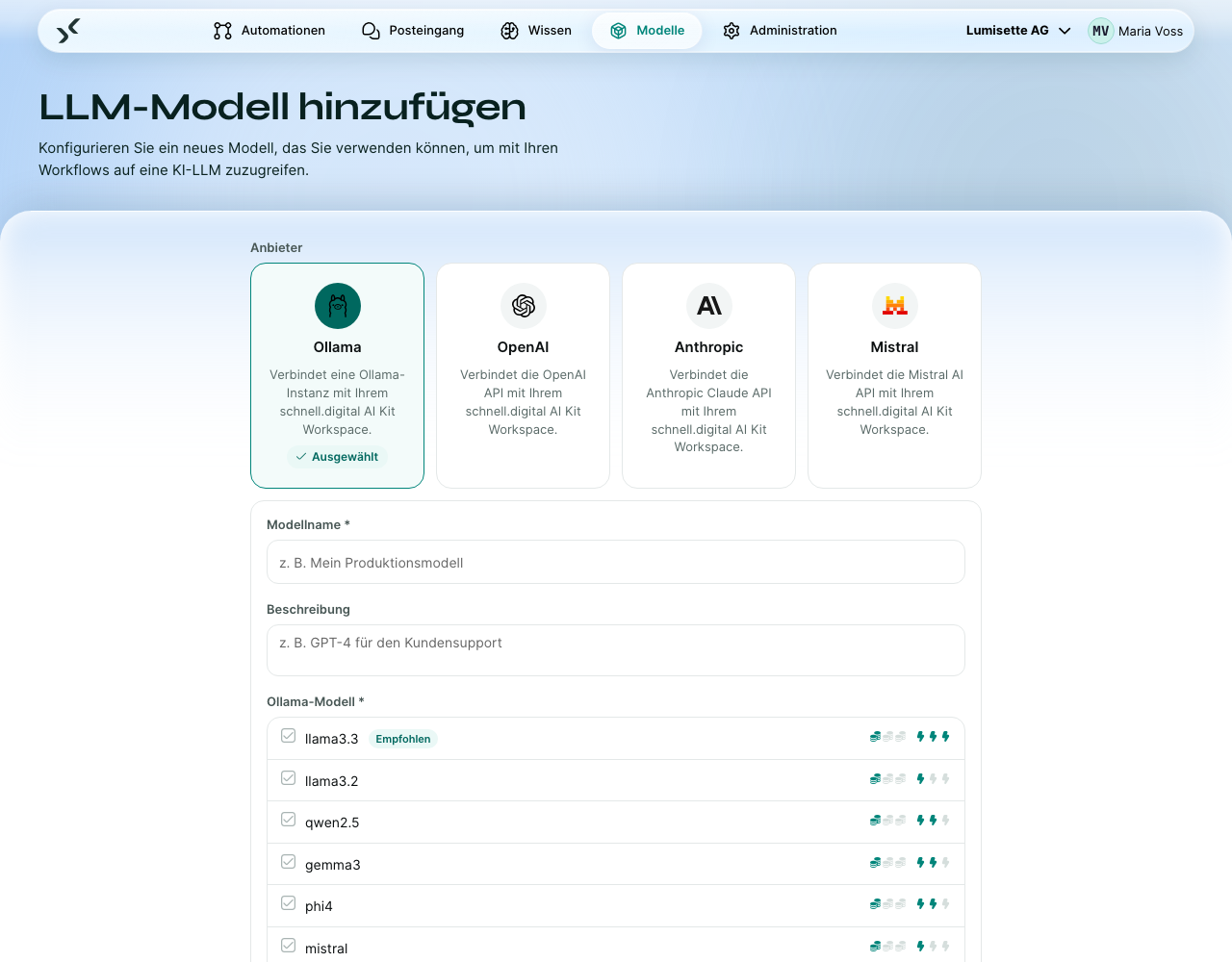
- Öffnen Sie den Reiter Modelle und klicken Sie auf Neues Modell konfigurieren.
- Wählen Sie Ollama als Anbieter.
- Geben Sie einen Anzeigenamen ein, z. B. „Llama 3.1 (lokal)“.
- Wählen Sie das Modell – die Liste bietet
llama3.3(empfohlen),llama3.2,qwen2.5,gemma3,phi4undmistral. Für alle anderen wählen Sie Benutzerdefiniert / Andere und tragen den genauen Namen ein, den Sie beiollama pullverwendet haben. - Tragen Sie die Endpunkt-URL ein – zum Beispiel
http://ollama.local:11434oderhttp://192.168.10.20:11434. - Wählen Sie das Modell aus der Liste. Für Embeddings binden Sie ein zweites Ollama-Modell an und wählen über die Option Benutzerdefiniert / Andere die ID des heruntergeladenen Embedding-Modells (z. B.
nomic-embed-text). - Klicken Sie auf Erstellen. Das Modell wird gespeichert und steht im Workspace zur Verfügung.
Hinweise zur Hardware
| Modellgröße | RAM (CPU) | VRAM (GPU) | Kommentar |
|---|---|---|---|
| Chat-Modell mit 3 Mrd. Parametern | 8 GB | 4 GB | Brauchbar, mäßige Qualität. |
| Chat-Modell mit 7–8 Mrd. Parametern | 16 GB | 8 GB | Vernünftige Standardwahl. |
| Chat-Modell mit 13 Mrd. Parametern | 32 GB | 16 GB | Bessere Qualität, auf der CPU langsamer. |
| Chat-Modell ab 30 Mrd. Parametern | ab 64 GB | ab 24 GB | GPU dringend empfohlen. |
| Embeddings | 4–8 GB | 4 GB | Günstig im Betrieb; die Last entsteht vor allem durch die Chat-Modelle. |
Für die interaktive Nutzung (Agenten) zählt die Antwortzeit – investieren Sie in eine GPU. Für Workflows im Hintergrund, bei denen ein paar Sekunden Verzögerung nicht stören, kann eine CPU genügen.
Empfehlungen
- ✅ Laden Sie mindestens ein Chat-Modell und ein Embedding-Modell herunter, bevor Sie das AI Kit konfigurieren. Andernfalls schlagen Tests fehl.
- ✅ Verwenden Sie eine stabile Endpunkt-URL (einen Hostnamen, keine IP). Server ziehen gelegentlich um; mit Hostnamen korrigieren Sie das an einer Stelle.
- ✅ Betreiben Sie Ollama auf einem Server mit ausreichend Speicherplatz für die Modelle, die Sie herunterladen wollen (10–50 GB für eine kleine Sammlung).
- ✅ Aktualisieren Sie Ollama und die Modelle regelmäßig. Neue Versionen bringen Verbesserungen bei Qualität und Geschwindigkeit.
- ⚠️ Ein Modell, das eine Weile nicht genutzt wurde, wird aus dem Arbeitsspeicher entladen. Der erste Prompt nach einer Ruhephase ist langsamer. Das ist normal.
- ❌ Stellen Sie Ollama nicht direkt ins öffentliche Internet. Es hat keine Authentifizierung.
- ❌ Lassen Sie die AI Kits mehrerer Workspaces nicht gegen eine einzige Ollama-Instanz laufen, die nur für einen ausgelegt ist. Parallele Zugriffe ohne genügend RAM oder VRAM bringen das System ins Stocken.
Häufige Fragen
Kann ich Ollama und OpenAI nebeneinander verwenden? Ja. Binden Sie beide als getrennte Modelle an. Verschiedene Automationen können frei verschiedene Modelle verwenden.
Kann ich dieselbe Ollama-Instanz für Embeddings und für den Chat verwenden?
Ja. Laden Sie ein Embedding-Modell herunter (nomic-embed-text ist eine gute Standardwahl) und binden Sie es als zweites Modell mit eingeschaltetem Schalter Embeddings an.
Was ist mit einem API-Schlüssel für Ollama? Ollama kennt keine API-Schlüssel. Auf der Seite des AI Kit konfigurieren Sie nur die Endpunkt-URL. Eine Authentifizierung, falls Sie eine brauchen, schalten Sie Ollama vor (einen Reverse Proxy mit HTTP-Basic-Auth oder ein privates Netzwerk).
Nächste Schritte
- Best Practices → Datenschutz – wann Sie selbst betriebene Modelle externen Anbietern vorziehen sollten.
- Sicherheit → Netzwerkzugriff – Ollama und das AI Kit im selben privaten Netzwerk betreiben.