Einführung
Automationen sind das Herzstück des AI Kit. Hier zeigt die Plattform, was sie leistet: Sie setzen aus fertigen Bausteinen ein kleines Programm zusammen, die Plattform führt es für Sie aus, und die Ergebnisse landen im Posteingang, in Ihrem E-Mail-Postfach, in einer Datenbank oder wo immer Sie sie haben möchten.
Wenn Sie zuerst die Begriffe kennenlernen möchten (Workspace, Trigger, Schritt, …), lesen Sie Erste Schritte → Einführung und kommen Sie dann hierher zurück.
Zwei Arten von Automationen
Jede Automation gehört zu einem von zwei Typen. Die Plattform fragt Sie danach, wenn Sie eine neue Automation erstellen.
Workflows
Ein Workflow läuft selbstständig von Anfang bis Ende. Er hat einen Trigger (wann?) und eine Folge von Schritten, die nacheinander ausgeführt werden. Ein Benutzer ist nur beteiligt, wenn Sie ausdrücklich einen interaktiven Schritt hinzufügen.
Typische Workflows:
- „Jeden Montag um 8:00 Uhr die offenen Tickets aus dem Support-Tool abrufen, zusammenfassen und die Zusammenfassung an die Teamleitung senden.“
- „Wenn eine neue Datei in diesem Ordner landet, den Text extrahieren, eine KI um eine Kategorisierung bitten und das Ergebnis an eine Tabelle anhängen.“
- „Wenn dieser Webhook aufgerufen wird, den Kunden in unserem CRM nachschlagen und mit einer persönlichen E-Mail antworten.“
Agenten
Ein Agent führt eine Konversation. Auf der anderen Seite ist immer ein Benutzer. Der Agent hat eine Persona, einen System-Prompt, der beschreibt, was er kann, und Zugriff auf Modelle und Wissen. Er entscheidet selbst, wann die Konversation beendet ist.
Typische Agenten:
- Ein Onboarding-Assistent der Personalabteilung, der neue Kolleginnen und Kollegen durch ihre erste Woche begleitet.
- Ein Recherche-Assistent für eine bestimmte Wissensbasis („Fragen Sie alles zu unserem Produktkatalog“).
- Ein interner Helpdesk, der Anfragen einordnet und sie entweder direkt löst oder eskaliert.
Für Endanwender sieht beides gleich aus: Agenten starten immer im Posteingang.
Wo Sie Ihre Automationen finden
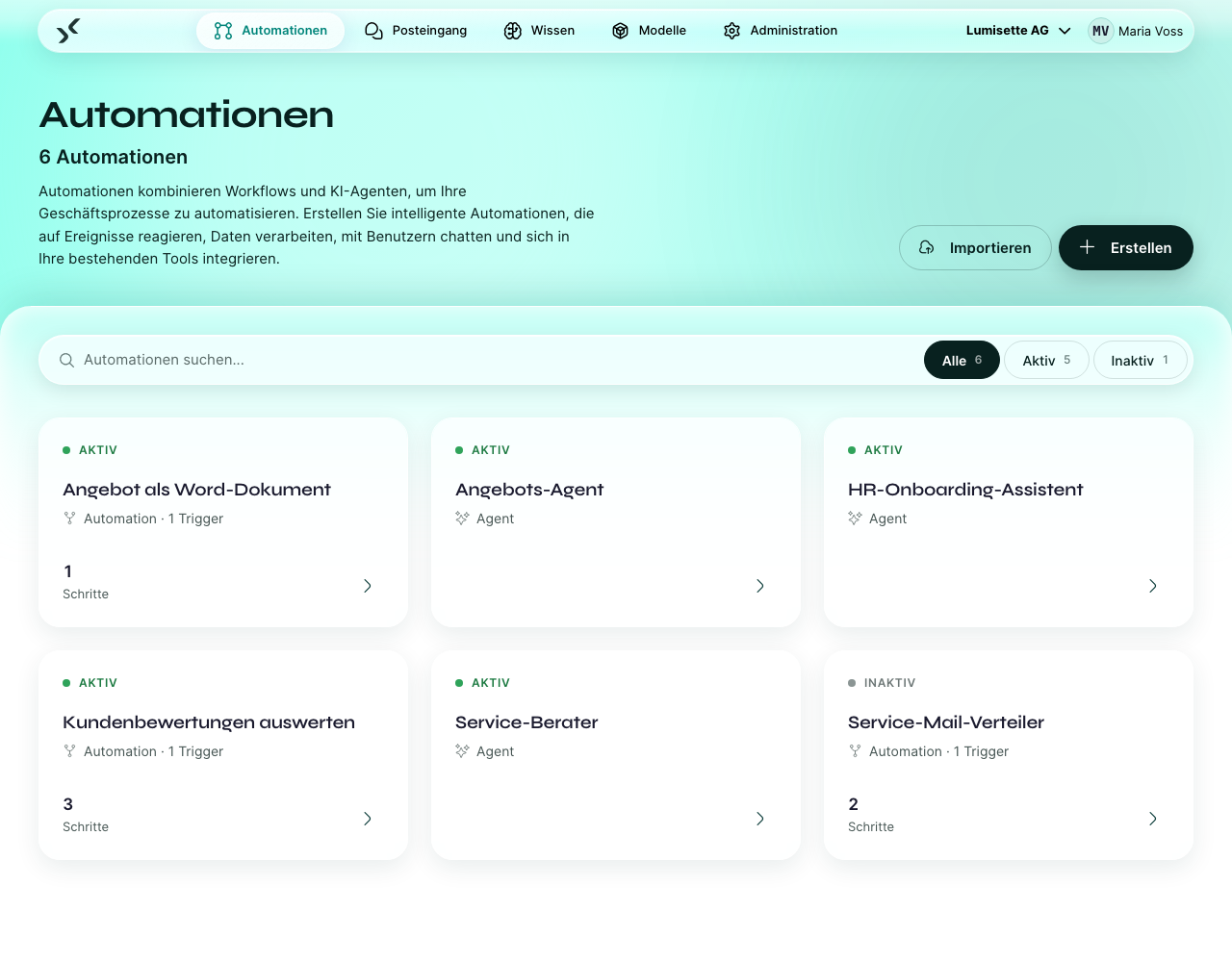
Automationen finden Sie im Reiter Automationen der Hauptnavigation. Die Seite listet Workflows und Agenten gemeinsam auf – den Unterschied zeigen ein Symbol und eine Beschriftung auf jeder Karte.
Filter
Die Liste der Automationen bietet vier Filter:
- Alle – alles.
- Aktiv – nur Automationen, deren Trigger gerade scharf geschaltet ist.
- Inaktiv – Automationen, die deaktiviert wurden.
- Mit Fehlern – Automationen, die kürzlich fehlgeschlagen sind oder deren Trigger gerade gestört ist. Praktisch, wenn Sie morgens ankommen und wissen möchten, was Ihre Aufmerksamkeit braucht.
Suche
Das Suchfeld durchsucht Name und Beschreibung. Nutzen Sie es, sobald Sie mehr als eine Handvoll Automationen haben.
So lesen Sie eine Automationskarte
Jede Karte zeigt:
- Name und eine kurze Beschreibung.
- Den Typ (Workflow oder Agent).
- Den Trigger (Cron, Webhook, Mail usw.) – auf einen Blick sehen Sie, was die Automation startet.
- Den aktuellen Status – aktiv, inaktiv, Fehler.
- Die Anzahl der letzten Läufe – wie oft die Automation in letzter Zeit gelaufen ist.
Klicken Sie auf eine Karte, um den Editor zu öffnen.
Was Sie in der Liste tun können
| Aktion | Wo Sie sie finden |
|---|---|
| Eine neue Automation erstellen | Der Knopf Erstellen oben rechts in der Liste. |
| Eine vorhandene Definition importieren | Der Knopf Importieren neben Erstellen – praktisch, wenn Kolleginnen und Kollegen Automationen weitergeben oder Sie früher eine exportiert haben. |
| Eine einzelne Automation exportieren | Das Export-Symbol auf jeder Karte. Die exportierte Datei ist eine vollständige, in sich geschlossene Definition. |
| Den Editor öffnen | Auf die Karte klicken. |
| Den Trigger starten / stoppen | Im Trigger-Monitor unter Administration. |
| Vergangene Läufe ansehen | Die Karte öffnen und dort die Ansicht Jobs aufrufen. |
📷 SCREENSHOT: Eine hervorgehobene Workflow-Karte, auf der das Export-Symbol und das Abzeichen „Aktiv“ gut zu sehen sind.
Nächste Schritte
- Bereit für Ihre erste Automation? Neue Automation erstellen.
- Möchten Sie zuerst verstehen, wie die Teile zusammenspielen? Grundkonzepte.
- Sie suchen den Katalog der Integrationen? Integrationen → Einführung.