Neue Automation erstellen (Assistent)
Diese Seite führt Sie von Anfang bis Ende durch den Assistenten für neue Automationen – vom „Ich habe eine Idee“ bis zum „Die Automation existiert, und ich kann sie bearbeiten“.
Der Assistent ist für die wenigen Entscheidungen da, die Sie beim Anlegen treffen müssen. Der eigentliche Aufbau (Schritte hinzufügen, Integrationen konfigurieren) geschieht danach im Editor.
Bevor Sie beginnen
Stellen Sie sicher, dass:
- mindestens ein KI-Modell mit Ihrem Workspace verbunden ist. Schritt 2 des Assistenten braucht eines, Leer beginnen in Schritt 1 nicht. Siehe Modelle → Neues Modell erstellen.
- Sie ungefähr wissen, was die Automation tun soll – der Assistent fragt nicht nach Details, der Editor schon.
- Sie im Workspace die Rechte Editor, Manager oder Admin haben. Endanwender (Rolle AgentUser) können keine Automationen erstellen.
Der Assistent hat zwei Schritte, und die Zeile unter dem Seitentitel zeigt, in welchem Sie sich befinden: Schritt 1 von 2.
Schritt 1 – Beschreiben
Öffnen Sie den Reiter Automationen und klicken Sie auf Erstellen. Der Assistent öffnet sich mit dem ersten Schritt unter der Überschrift Beschreibung.
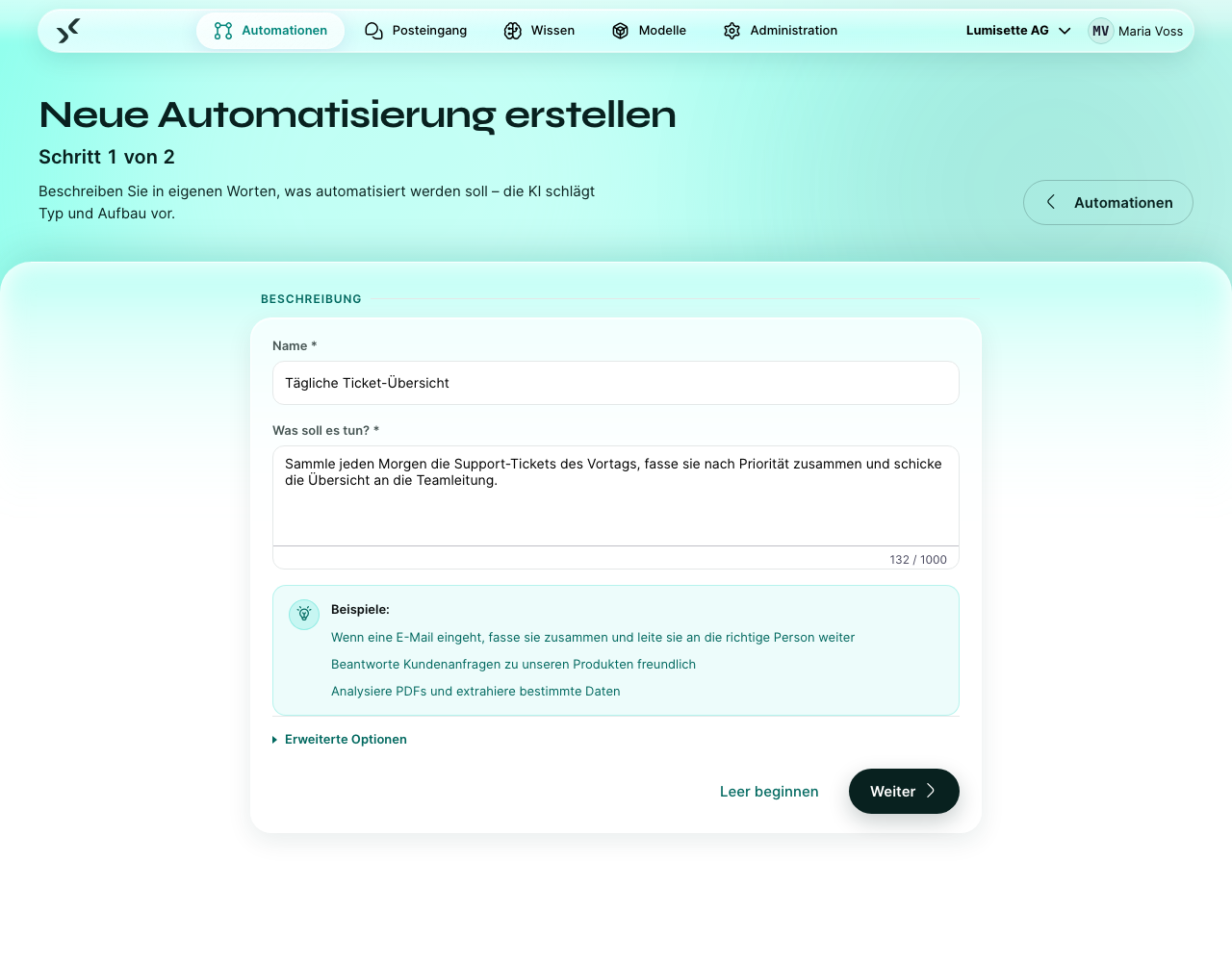
- Name – ein kurzer, einprägsamer Name. Er wird Teil von URLs und Webhook-Adressen; wählen Sie ihn daher aussagekräftig, aber nicht zu lang.
- Was soll es tun? – beschreiben Sie die Aufgabe in eigenen Worten, in ein oder zwei Sätzen. Diesen Text liest der KI-Assistent in Schritt 2.
Beide Felder sind Pflicht. Solange nicht beide ausgefüllt sind, bleiben beide Knöpfe unten deaktiviert.
Unter der Beschreibung steht ein Kasten Beispiele: mit drei Vorschlägen, etwa „Wenn eine E-Mail eingeht, fasse sie zusammen und leite sie an die richtige Person weiter“. Sie sind anklickbar – ein Klick schreibt das Beispiel in das Beschreibungsfeld, sodass Sie es anpassen können, statt alles selbst zu tippen.
Erweiterte Optionen
Erweiterte Optionen ist ein zugeklappter Abschnitt unter den Beispielen. Aufgeklappt bietet er zwei Dinge:
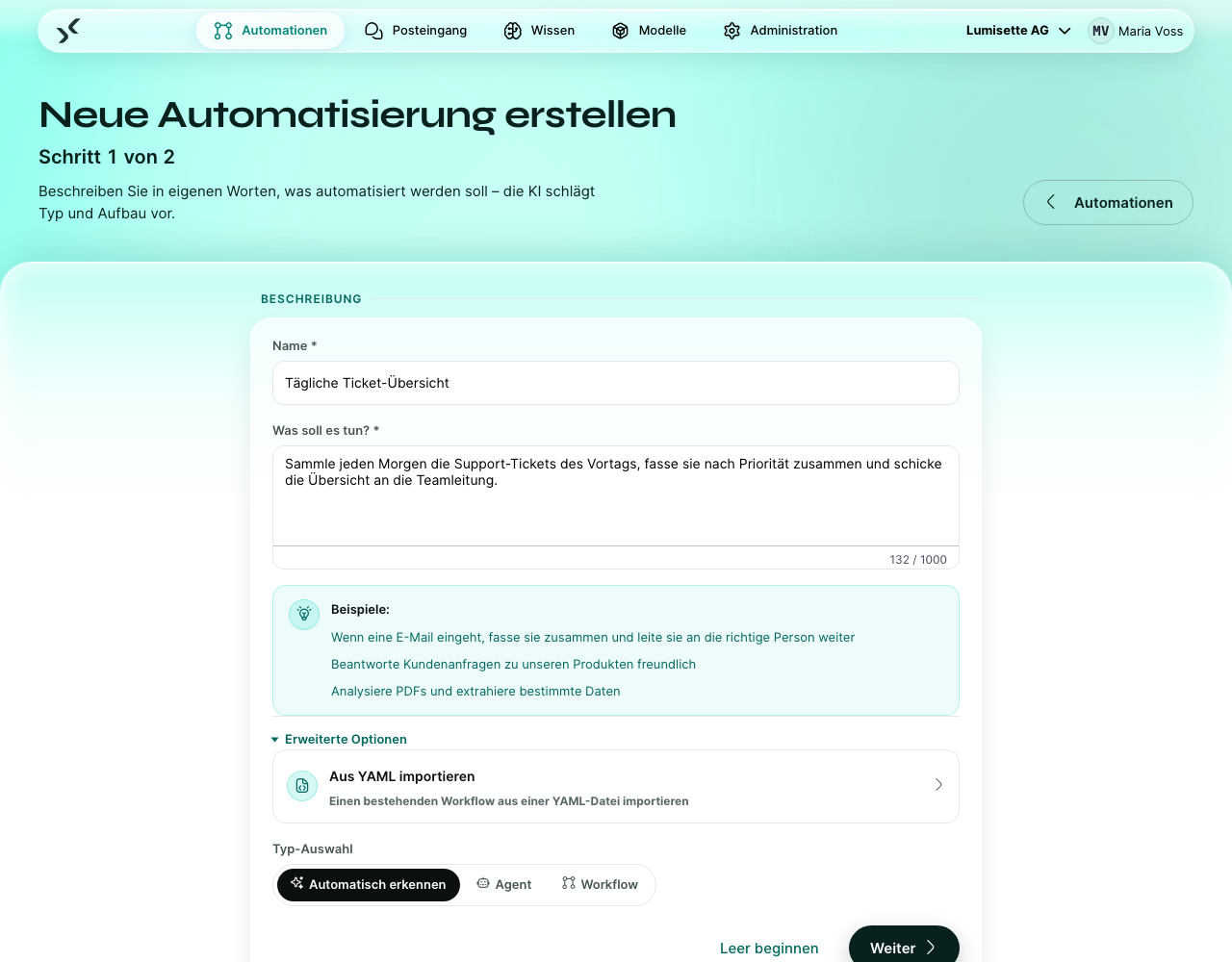
- Aus YAML importieren – führt Sie zu einem eigenen Schritt mit einem Textbereich für eine Workflow-Definition (zum Beispiel aus einem anderen Workspace exportiert). Workflow importieren bleibt deaktiviert, bis Inhalt vorhanden ist, und Zurück bringt Sie zu Schritt 1. Beim Import entfällt der KI-Assistent vollständig.
- Typ-Auswahl – drei Möglichkeiten: Automatisch erkennen (Standard), Agent oder Workflow. Lassen Sie „Automatisch erkennen“ eingestellt, wenn Sie nicht schon wissen, was Sie möchten; der KI-Assistent in Schritt 2 entscheidet und erklärt seine Gründe.
Die zwei Wege aus Schritt 1
- Weiter – übergibt Ihre Beschreibung an den KI-Assistenten, der sie analysiert und Sie zu Schritt 2 führt. Nur dieser Teil des Assistenten braucht ein funktionierendes KI-Modell.
- Leer beginnen – überspringt den KI-Assistenten und legt sofort eine leere Automation nur mit Name und Beschreibung an. Sie landen im Editor mit einer leeren Struktur. Auf diesem Weg erstellen Sie auch eine Automation, wenn noch kein Modell verbunden ist.
Abbrechen in der Werkzeugleiste der Seite führt zurück zur Liste der Automationen, ohne etwas anzulegen.
Schritt 2 – Prüfen und Modell wählen
Schritt 2 zeigt, was der KI-Assistent aus Ihrer Beschreibung gemacht hat: Prüfen Sie den Vorschlag und wählen Sie das KI-Modell, mit dem gearbeitet wird.
Empfehlung
Unter Empfehlung nennt der KI-Assistent sein Urteil – Agent empfohlen oder Workflow empfohlen – zusammen mit dem Grund, aus dem er zu diesem Schluss gekommen ist.
Sie sind nicht daran gebunden. Mit Typ ändern: unter der Begründung wählen Sie selbst Agent oder Workflow. („Automatisch erkennen“ wird hier nicht angeboten; an diesem Punkt ist die Frage so oder so entschieden.)
- Workflow – für unbeaufsichtigte, zeitgesteuerte oder ereignisgesteuerte Automationen. Die Reihenfolge der Aktionen ist vorhersehbar.
- Agent – für chatbasierte Assistenten. Der Benutzer lenkt die Konversation.
Sie können den Typ später auch im Editor ändern, das ist aber selten nötig.
KI-Modell auswählen
Unter der Empfehlung listet der Assistent jedes Modell auf, das mit dem Workspace verbunden ist. Wählen Sie das Modell, das diese Automation standardmäßig verwenden soll. Es ist in jedem Schritt vorausgefüllt, den der Editor für Sie anlegt, und Sie können es später je Schritt wechseln.
Hat der Workspace keine Modelle, weist der Assistent darauf hin und bietet einen Weg an, eines zu erstellen.
Erstellen
Klicken Sie auf Automation erstellen. Die Automation wird gespeichert, und Sie landen im Editor.
Die Automation ist noch nicht aktiv – Trigger lösen erst aus, wenn Sie sie im Trigger-Monitor starten (siehe Administration → Trigger-Monitor). So haben Sie Zeit, alles in Ruhe aufzubauen, bevor es live geht.
Wie geht es weiter: der Editor
Im Editor können Sie:
- einen Trigger hinzufügen (ein Workflow kann mehrere haben – siehe Integrationen → Einführung).
- Schritte nacheinander hinzufügen und ihre Ein- und Ausgaben konfigurieren.
- bei Agenten die Persona festlegen (Rolle, Ziel, Kommunikationsstil) und Wissensbasen anbinden.
- die Automation mit Manuell ausführen testen.
- vergangene Jobs ansehen und prüfen, was in jedem Lauf passiert ist.
- die Definition mit Exportieren als YAML-Datei sichern oder weitergeben.
Für die Bearbeitung von Workflows lesen Sie weiter unter Workflows. Für die Bearbeitung von Agenten siehe Agenten.
Empfehlungen
- ✅ Nutzen Sie Manuell ausführen während des Aufbaus als Testwerkzeug – es umgeht den Trigger und lässt Sie die Eingabe simulieren. So können Sie zehnmal hintereinander nachbessern, ohne auf den Cron von morgen zu warten.
- ✅ Wählen Sie einen Namen, der den Zweck erklärt, nicht die Technik. „Tägliche Ticket-Zusammenfassung“ ist besser als „GPT-4-Cron-Job“.
- ✅ Lassen Sie den Trigger der Automation (im Trigger-Monitor) gestoppt, bis „Manuell ausführen“ mit realistischen Eingaben erfolgreich ist.
- ⚠️ Der Name ist Teil der URL der Automation. Eine spätere Umbenennung ändert die URL.
- ⚠️ Wenn Sie eine YAML-Datei importieren, prüft der Import nur die Struktur. Erst beim ersten Lauf über Manuell ausführen zeigen sich Konfigurationsprobleme (fehlende Modelle, falsche Wissens-IDs).
- ✅ Nutzen Sie Leer beginnen, wenn Sie die Struktur schon kennen oder noch kein Modell verbunden ist – der KI-Assistent in Schritt 2 braucht eines, der Rest des Assistenten nicht.
- ❌ Wählen Sie kein Modell, das Sie sich bei häufiger Nutzung nicht leisten können. Das Standardmodell später zu wechseln ist ein Klick; der Wechsel, nachdem ein Workflow schon eine Woche lang läuft, ist aufwendiger.
Nächste Schritte
- Grundkonzepte – die Bausteine innerhalb einer Automation.
- Workflows oder Agenten – die Bearbeitung je nach Typ.
- Integrationen → Einführung – der Katalog der Bausteine.
- Administration → Trigger-Monitor – wie Sie den Trigger starten, sobald die Automation fertig ist.