Neues Modell anlegen
Ein Modell anzubinden ist eine einmalige Einrichtung. Sobald ein Modell verbunden ist, kann jede Automation im Workspace es verwenden. Diese Seite beschreibt den allgemeinen Ablauf; die Seiten der einzelnen Anbieter nennen, was Sie in welches Feld eintragen.
Bevor Sie beginnen
- Sie benötigen im Workspace die Rolle Editor, Manager oder Admin.
- Für externe Anbieter (OpenAI, Anthropic, Mistral) benötigen Sie einen API-Schlüssel dieses Anbieters. Wie Sie ihn erhalten, steht auf der jeweiligen Anbieterseite.
- Für selbst betriebenes Ollama benötigen Sie eine laufende Ollama-Instanz, die der Server des AI Kit erreichen kann.
Schritt für Schritt
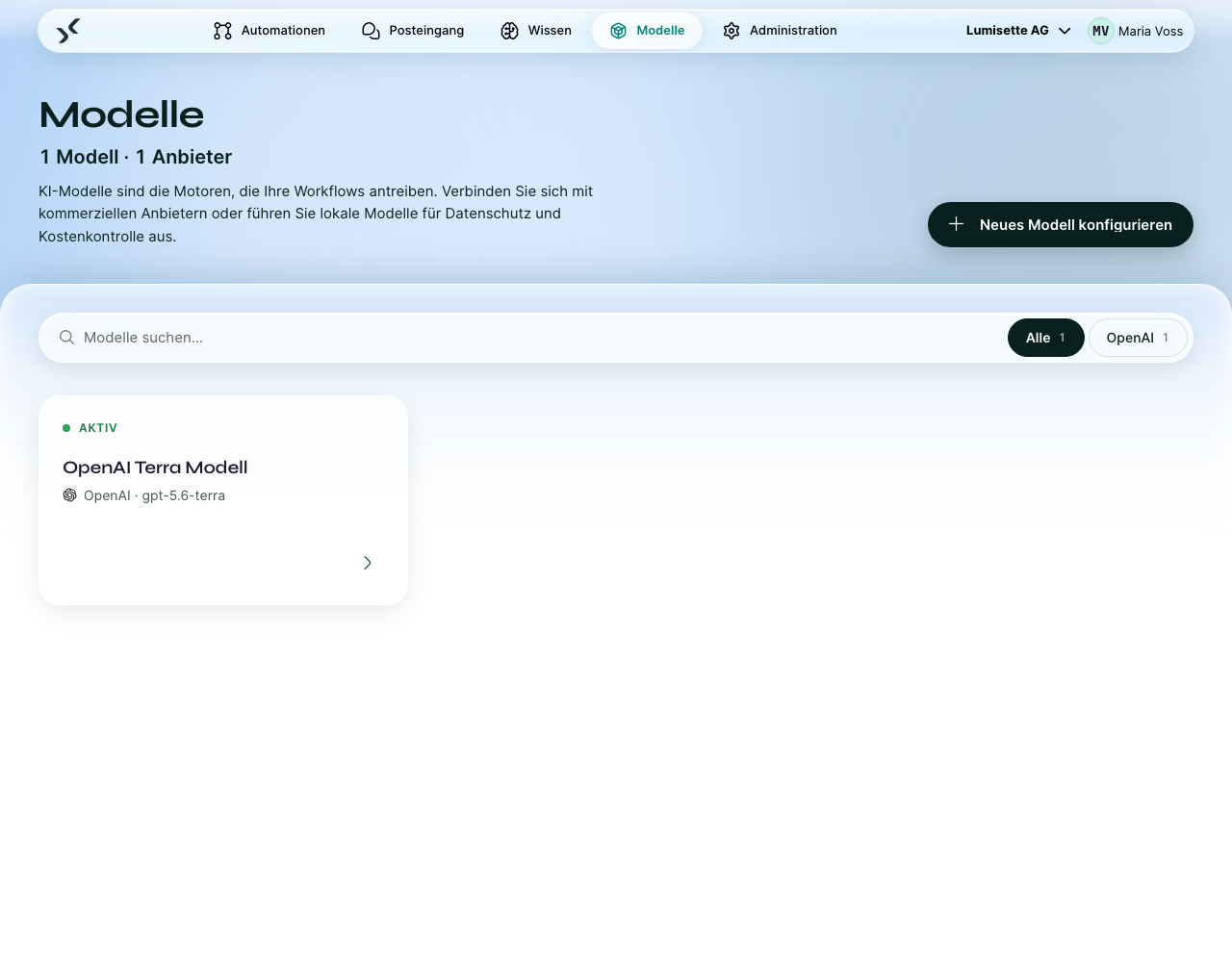
1. Reiter Modelle öffnen und auf Neues Modell konfigurieren klicken
Die Liste unter Modelle zeigt alle Modelle, die bereits mit dem Workspace verbunden sind. Neues Modell konfigurieren in der Werkzeugleiste der Seite öffnet das Formular.
2. Anbieter auswählen
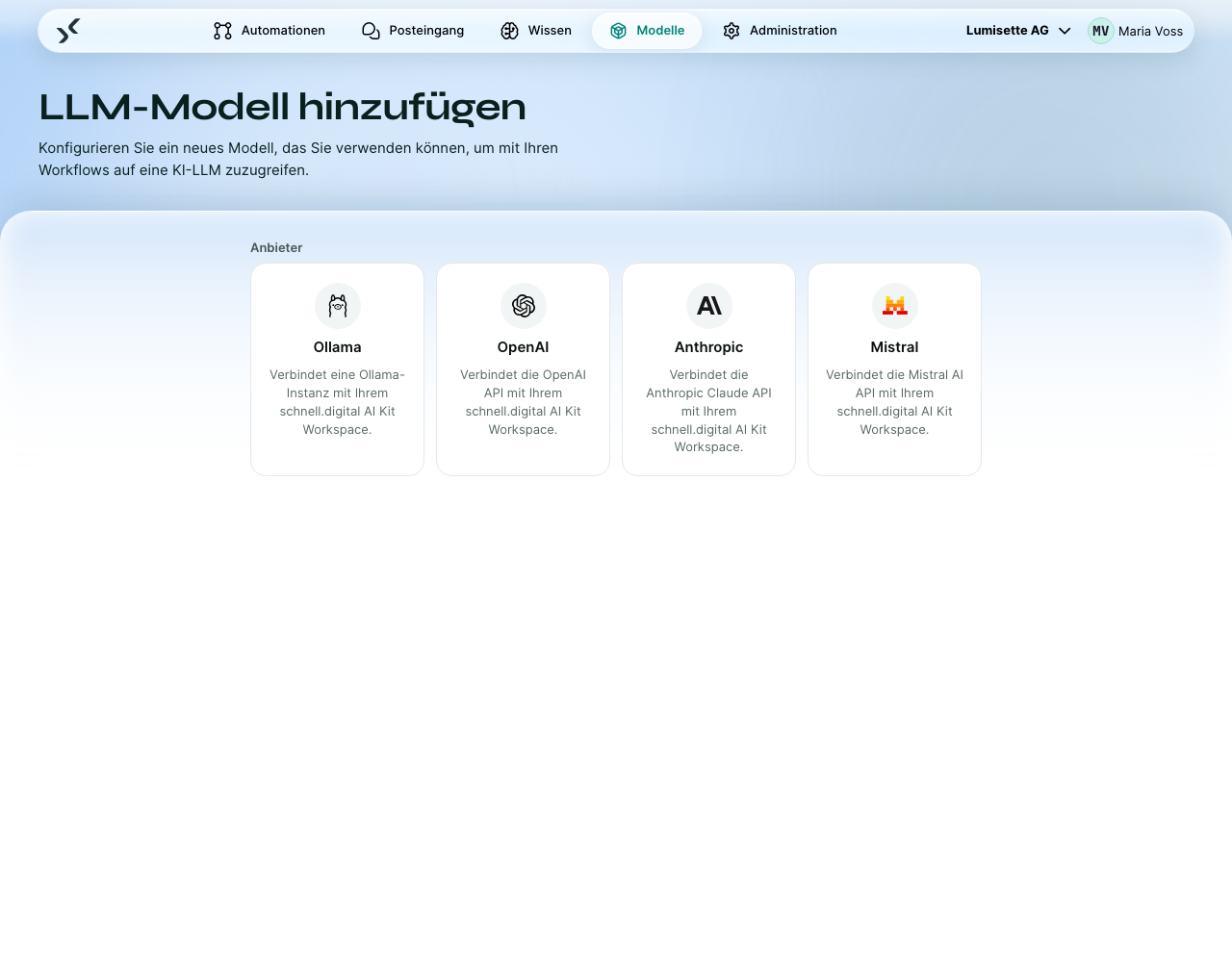
Zuerst kommt der Anbieter, und vorher erscheint nichts anderes: Wählen Sie Ollama, OpenAI, Anthropic oder Mistral – der Rest des Formulars erscheint dann unter der Auswahl. Die Feldbezeichnungen tragen anschließend den Namen des Anbieters – OpenAI-Zugriffstoken, Anthropic-API-Schlüssel und so weiter.
3. Dem Modell einen Anzeigenamen geben
Den Anzeigenamen sehen Benutzer, wenn sie in einem Schritt ein Modell auswählen. Wählen Sie einen aussagekräftigen Namen:
- „OpenAI GPT-5.6 Terra“ oder „OpenAI GPT-5.4 mini“ – so bleibt der Anbieter sichtbar.
- „Standardmodell“ – passt gut, wenn es nur ein Modell gibt.
Sie können ein Modell später umbenennen, ohne dass eine Automation, die es verwendet, dadurch fehlschlägt.
4. Beschreibung ergänzen (optional)
Eine kurze Beschreibung hilft Kolleginnen und Kollegen, die Modelle auseinanderzuhalten. Das ist nützlich, wenn der Workspace mehrere verbundene Modelle hat.
5. API-Schlüssel eingeben
Fügen Sie bei OpenAI, Anthropic und Mistral Ihren API-Schlüssel in das Schlüsselfeld des Anbieters ein. Der Wert wird verschlüsselt gespeichert und nach dem Speichern nicht mehr angezeigt – Sie können ihn nur ersetzen.
Bei Ollama tritt an die Stelle des API-Schlüssels die Endpunkt-URL Ihrer Ollama-Instanz (siehe Ollama (selbst betrieben)).
6. Modell aus der Liste des Anbieters auswählen
Unter den Feldern für die Zugangsdaten zeigt der Assistent eine Liste gängiger Modelle des gewählten Anbieters sowie die Option Benutzerdefiniert / Andere für IDs, die nicht vorgegeben sind.
- Für OpenAI:
gpt-5.6-terra(empfohlen),gpt-5.6,gpt-5.6-luna,gpt-5.4-mini,gpt-5.4-nanooder Benutzerdefiniert / Andere. - Für Anthropic, Mistral, Ollama: siehe die jeweilige Anbieterseite.
Jeder Eintrag zeigt eine Bewertung für Kosten und Leistung, sodass die Abwägung vor der Auswahl sichtbar ist.
Wählen Sie Benutzerdefiniert / Andere, blendet der Assistent ein Freitextfeld ein, in das Sie die genaue Modell-ID eintragen. Nutzen Sie das, wenn der Anbieter ein neues Modell veröffentlicht hat, nachdem das AI Kit erstellt wurde.
7. Erstellen
Klicken Sie auf Erstellen. Vor dem Speichern prüft die Plattform die Zugangsdaten beim Anbieter – ein falscher Schlüssel oder eine Modell-ID, die der Anbieter nicht kennt, wird hier gemeldet und nicht erst später in einer fehlschlagenden Automation. Ist die Prüfung bestanden, wird das Modell gespeichert und steht allen Automationen im Workspace zur Verfügung.
Ein Modell bearbeiten
Nach dem Anlegen landen Sie im Modell-Editor, in dem dieselben Felder bearbeitbar sind. Sie können Anzeigename, Beschreibung, Schlüssel und sogar die Modell-ID jederzeit ändern – Automationen, die das Modell verwenden, müssen Sie dafür nicht anpassen.
Empfehlungen
- ✅ Verwenden Sie aussagekräftige Anzeigenamen. „Schnelles OpenAI“ ist besser als „Modell 1“.
- ✅ Bleiben Sie bei den empfohlenen Modellen des jeweiligen Anbieters, sofern Sie keinen konkreten Grund für ein anderes haben. Die Markierung „Empfohlen“ gibt es, weil wir diese Modelle getestet haben.
- ✅ Binden Sie je Anwendungsfall ein eigenes Modell an, wenn die Kosten eine Rolle spielen (ein kleines, günstiges und ein großes, leistungsfähiges).
- ⚠️ Der API-Schlüssel ist nach dem Speichern nicht mehr sichtbar. Behandeln Sie ihn wie ein Passwort – bewahren Sie das Original sicher auf, falls Sie ihn austauschen müssen.
- ⚠️ Anbieter nehmen gelegentlich Modell-IDs außer Betrieb. Funktioniert ein Modell plötzlich nicht mehr, prüfen Sie die Abkündigungshinweise des Anbieters.
- ❌ Binden Sie kein Modell mit einem persönlichen API-Schlüssel an, den eine Einzelperson bezahlt. Verwenden Sie einen Schlüssel, der an ein Abrechnungskonto für die gemeinsame Nutzung gebunden ist.
Nächste Schritte
- Bring-your-own-Key (BYOK) – was BYOK bedeutet und wie Sie API-Schlüssel planen.
- Seiten je Anbieter: OpenAI · Anthropic · Mistral · Ollama.