Create a New Model
Connecting a model is a one-time setup. Once a model is connected, every automation in the workspace can use it. This page walks through the generic flow; the provider-specific pages list what to enter in each field.
Before you start
- You need Editor, Manager, or Admin rights in the workspace.
- For external providers (OpenAI, Anthropic, Mistral), you need an API token from that provider. See the relevant provider page for how to obtain one.
- For self-hosted Ollama, you need a running Ollama instance reachable from the AI Kit server.
Step by step
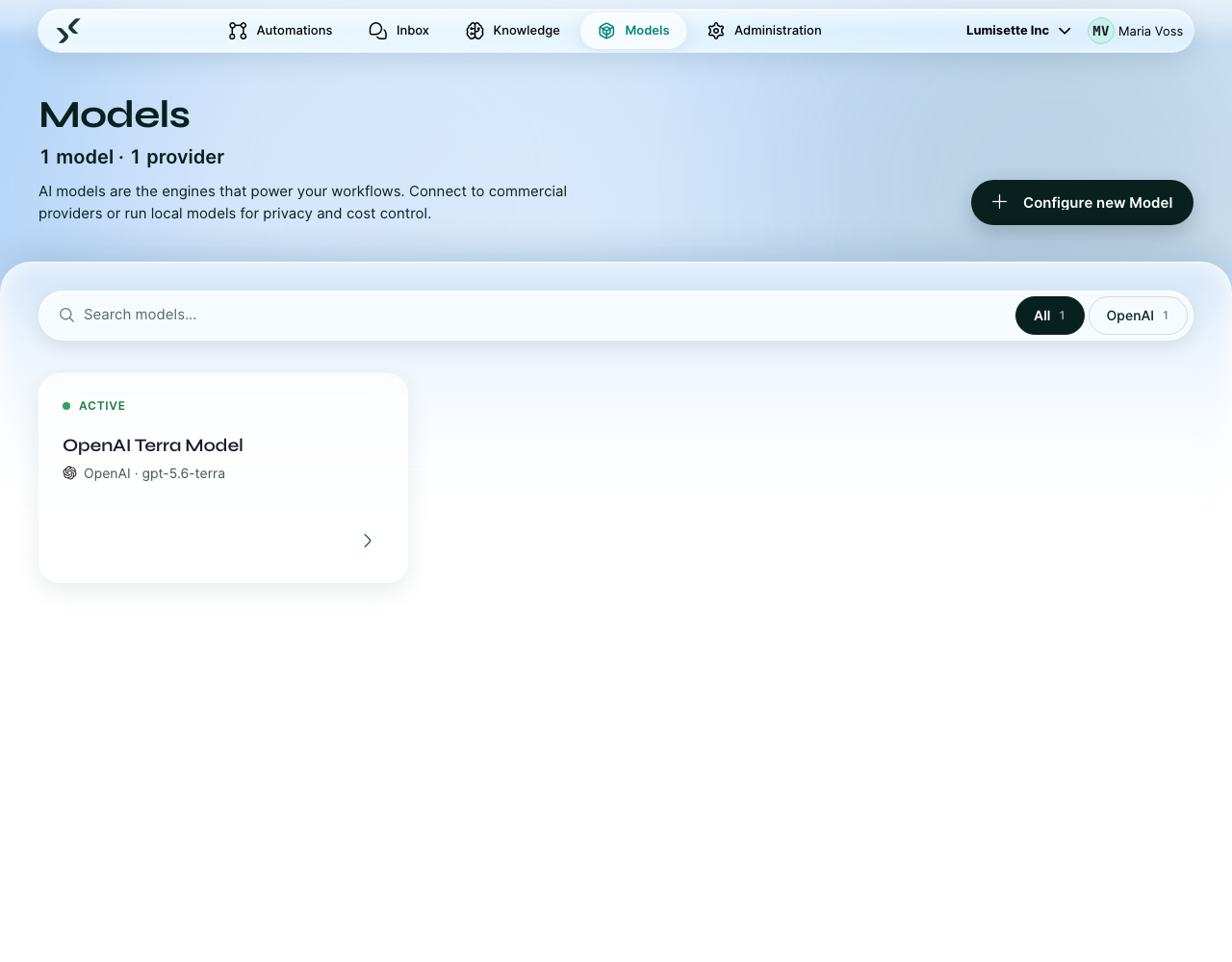
1. Open the Models tab and click Configure new Model
The Models list shows every model already connected to the workspace. Configure new Model in the page toolbar opens the form.
2. Pick a provider
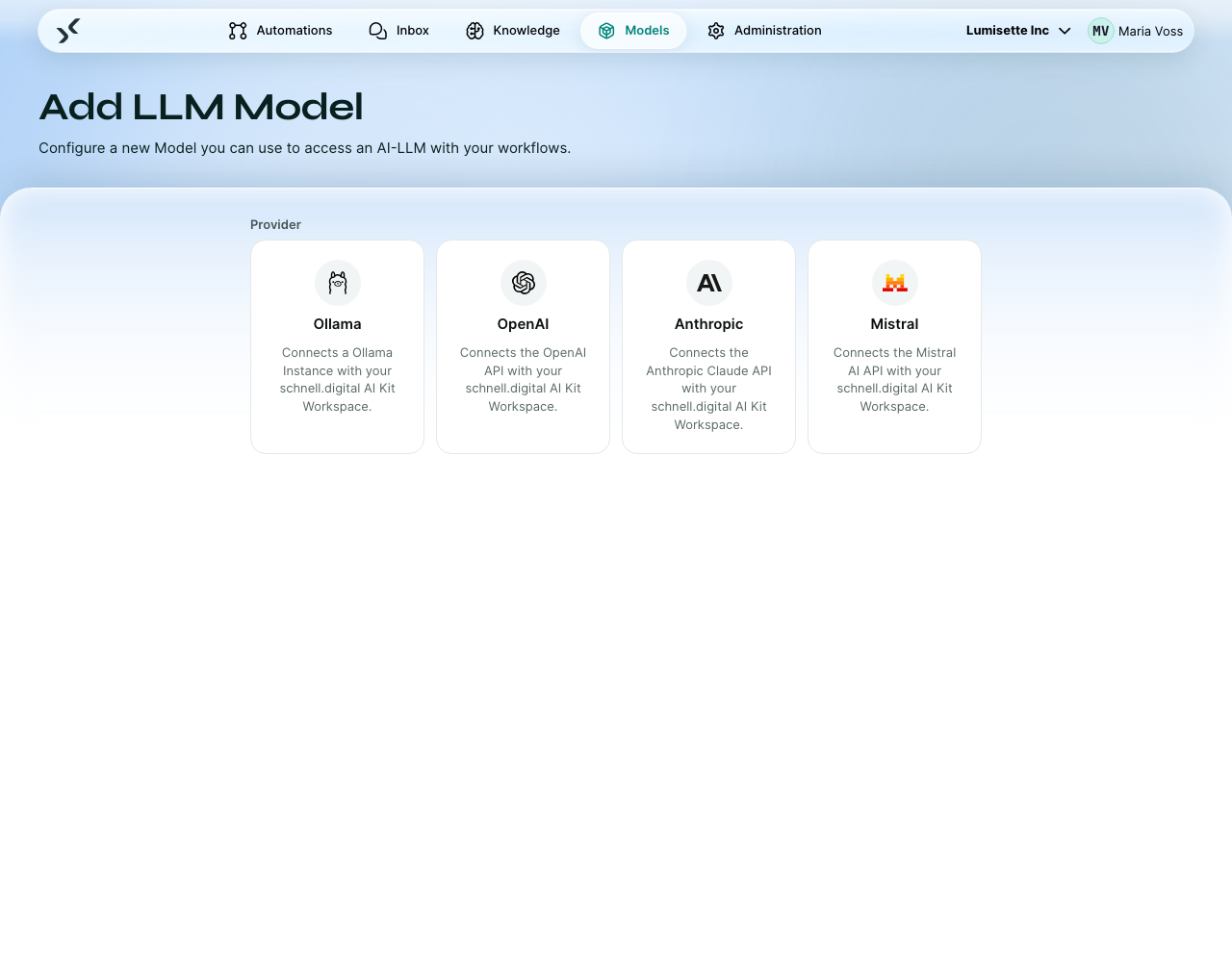
Provider comes first, and nothing else exists until you answer it: pick Ollama, OpenAI, Anthropic, or Mistral, and the rest of the form appears below the choice. The field labels then carry the provider's name — OpenAI Access Token, Anthropic API Key, and so on.
3. Give the model a display name
The display name is what users see when they pick a model in a step. Pick something descriptive:
- "OpenAI GPT-5.6 Terra" or "OpenAI GPT-5.4 mini" — keeps the provider visible.
- "Default Model" — works fine when there is only one.
You can rename a model later without breaking any automation that uses it.
4. Add a description (optional)
A short description helps colleagues understand which model is which. Useful when the workspace has several connected models.
5. Enter the API token
For OpenAI, Anthropic, and Mistral, paste your API token into the provider's token field. The value is stored encrypted and is not shown again after you save it — you can only replace it.
For Ollama, replace the API token field with the endpoint URL of your Ollama instance (see Ollama (self-hosted)).
6. Pick the model from the provider's list
Below the credential fields, the wizard shows a list of common models for the chosen provider, plus a Custom / Other option for IDs that are not pre-listed.
- For OpenAI:
gpt-5.6-terra(recommended),gpt-5.6,gpt-5.6-luna,gpt-5.4-mini,gpt-5.4-nano, or Custom / Other. - For Anthropic, Mistral, Ollama: see the relevant provider page.
Each entry shows a cost and a performance rating, so the trade-off is visible before you choose.
If you pick Custom / Other, the wizard exposes a free-text field where you type the exact model ID. Use this when the provider released a new model after the AI Kit was built.
7. Create
Click Create. Before saving, the platform checks the credentials against the provider — a wrong token or a model ID the provider does not know is reported here, not later in a failing automation. Once it passes, the model is saved and available to every automation in the workspace.
Editing a model
After creation you land on the model editor, where the same fields are editable. You can change the display name, description, token, or even the model ID at any time — automations referencing the model do not need to be touched.
Recommendations
- ✅ Use descriptive display names. "Fast OpenAI" beats "Model 1".
- ✅ Stick to the recommended models per provider unless you have a specific reason to pick another. The "Recommended" tag exists because we have tested them.
- ✅ Connect a dedicated model per use case if cost matters (one small/cheap, one large/capable).
- ⚠️ The API token is invisible after saving. Treat it like a password — store the original somewhere safe in case you need to rotate it.
- ⚠️ Providers occasionally retire model IDs. If a model abruptly stops working, check the provider's deprecation notes.
- ❌ Do not connect a model with a personal API token paid by an individual. Use a token tied to a billing account that is meant for shared use.
What to do next
- Bring-your-own-Key (BYOK) — what BYOK means and how to plan API tokens.
- Provider-specific pages: OpenAI · Anthropic · Mistral · Ollama.