Workflows
Ein Workflow ist eine Automation, die selbstständig von Anfang bis Ende läuft, mit einer klar festgelegten Abfolge von Schritten. Diese Seite beschreibt alles, was Sie im Workflow-Editor tun können und was nicht für Agenten gilt.
Die gemeinsamen Konzepte (Trigger, Schritte, Speicher, Bedingungen) finden Sie unter Grundkonzepte. Die eigene Seite zu Agenten ist Agenten.
Wann ein Workflow (und kein Agent) das Richtige ist
Bauen Sie einen Workflow, wenn:
- die Automation ohne anwesenden Benutzer laufen soll – nach Zeitplan, bei einem Ereignis, über einen Webhook.
- die Abfolge der Aktionen vorhersehbar ist – Sie kennen Schritt 1, Schritt 2, Schritt 3.
- Sie klare Ein- und Ausgaben möchten – Trigger-Daten hinein, eine Wirkung heraus (E-Mail gesendet, Datei geschrieben, Ticket aktualisiert).
Bauen Sie stattdessen einen Agenten, wenn die Interaktion offen ist, der Benutzer den Ablauf bestimmt und die Reihenfolge der Aktionen von der Konversation abhängt. Siehe Agenten.
Der Editor
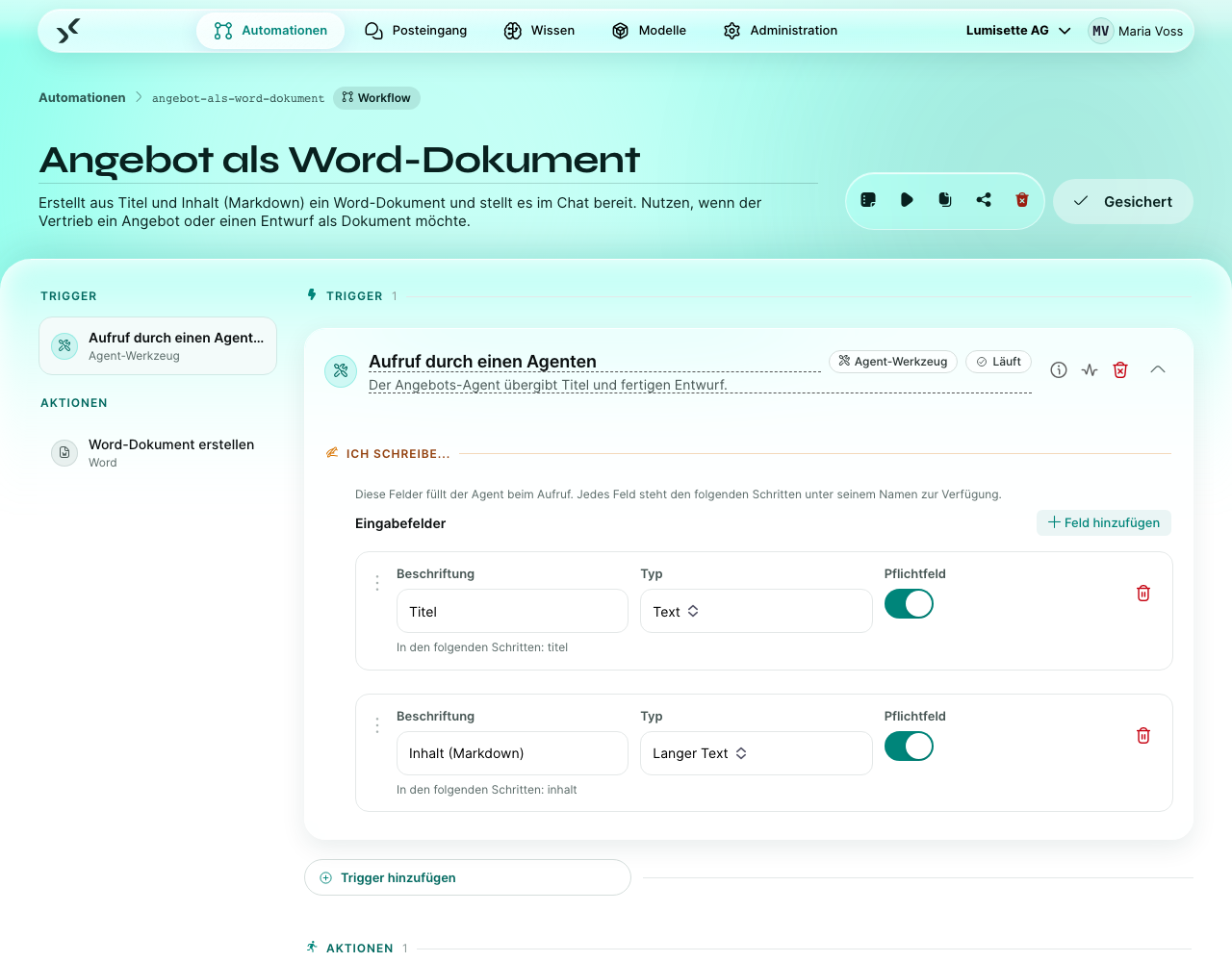
Wenn Sie einen Workflow im Reiter Automationen öffnen, erscheint der Editor mit drei Hauptbereichen:
- Werkzeugleiste – oben: Name, Beschreibung und die Aktionsknöpfe Jobs, Manuell ausführen, Duplizieren, Exportieren, Element entfernen, Änderungen sichern.
- Trigger – die Trigger, die für diesen Workflow konfiguriert sind (einer oder mehrere).
- Schritte – eine senkrechte Liste der Aufgaben in der Reihenfolge ihrer Ausführung.
Den Trigger hinzufügen
Ein neuer Workflow beginnt ohne Trigger. Wählen Sie aus der Liste der verfügbaren Trigger-Integrationen – der vollständige Katalog ist unter Integrationen beschrieben.
Nach der Auswahl konfigurieren Sie die Felder des Triggers direkt an Ort und Stelle. Trigger brauchen in der Regel:
- den Zeitpunkt oder die Quelle (Cron-Ausdruck, Webhook-Geheimnis, Mail-Ordner, …).
- einen oder mehrere Ausgabenamen – wo im Speicher der Trigger die empfangenen Daten ablegen soll.
Ein Workflow kann mehr als einen Trigger haben (Trigger hinzufügen) – zum Beispiel einen Zeitplan und den Trigger Agent-Werkzeug. Er läuft, sobald einer davon auslöst. Um einen Trigger zu ändern, ersetzen Sie ihn – die Schritte bleiben erhalten.
Schritte hinzufügen
Um eine Aufgabe hinzuzufügen, tippen Sie den Namen der Integration in das Eingabefeld für Integrationen unter dem letzten Schritt. Das Feld vervollständigt Ihre Eingabe anhand des Katalogs der verfügbaren Integrationen. Wählen Sie die gewünschte aus, und der Schritt erscheint darunter.
Felder eines Schritts gibt es im Allgemeinen in drei Arten:
- Einfache Eingaben – Sie tippen einen Wert ein oder wählen aus einer Liste.
- Speicher-Eingaben – Sie verweisen auf einen Namen, der bereits im Speicher steht. Der Schritt liest diesen Wert zur Laufzeit.
- Speicher-Ausgaben – Sie benennen einen Speicherschlüssel. Der Schritt schreibt sein Ergebnis dorthin.
Einige Felder verhalten sich besonders – das ist auf der Seite der jeweiligen Integration vermerkt:
- Modellfelder – Auswahl aus den im Workspace konfigurierten Modellen.
- Wissensfelder – Auswahl aus den im Workspace konfigurierten Wissensbasen.
- Persona-Felder – Auswahl aus den im Workspace konfigurierten Personas.
- Geschützte Felder – Zugangsdaten, API-Schlüssel, Passwörter. Die Plattform speichert sie verschlüsselt und zeigt sie nach dem Speichern nie wieder an.
- OAuth-Felder – für Integrationen wie Google Kalender; die Plattform führt Sie durch den Verbindungsablauf.
Speichern und Fehler beheben
Änderungen sichern prüft den Workflow zuerst. Fehlt etwas oder ist etwas ungültig, wird nichts gespeichert:
- Ein Kasten oben listet die Probleme je Schritt auf, mit dem Namen des Schritts und dem betroffenen Feld – z. B. Webhook → Gemeinsamer Schlüssel: Pflichtangabe fehlt. Klicken Sie auf den Namen eines Schritts, um direkt dorthin zu springen.
- Der betroffene Schritt erhält einen roten Rahmen und einen Fehlerzähler. Aufgeklappt zeigt er seine Probleme oben in der Karte; auch die Schrittliste links markiert ihn.
- Optionale Felder dürfen leer bleiben – ein geleertes Feld führt nie zu einem Fehler.
- Platzhalter wie
{memory://customer/email}in einem Feld, das eine E-Mail-Adresse oder eine Zahl erwartet, werden geprüft, wenn der Workflow läuft, nicht beim Speichern.
Korrigieren Sie die Felder und speichern Sie erneut; die Markierungen verschwinden, sobald der Workflow gültig ist.
Umsortieren und entfernen
- Ziehen Sie einen Schritt an seinem Griff, um die Reihenfolge zu ändern.
- Klicken Sie auf das Papierkorb-Symbol eines Schritts, um ihn zu entfernen. Was dieser Schritt in den Speicher geschrieben hat, verschwindet mit ihm – stellen Sie sicher, dass kein späterer Schritt noch davon abhängt.
Bedingungen für Schritte
Um einen Schritt an eine Bedingung zu knüpfen, klicken Sie auf Bedingung hinzufügen. Wählen Sie Strukturierte Eingabe für eine Logikformel oder Natürliche Sprache für einen Satz, den die KI beurteilt. Siehe Grundkonzepte → Bedingungen.
Schritte automatisch wiederholen
Neben Bedingung hinzufügen sorgt der Knopf Bei Fehler wiederholen dafür, dass ein Schritt es erneut versucht, wenn er aus einem vorübergehenden Grund scheitert – eine Zeitüberschreitung, ein überlastetes KI-Modell (z. B. „429 Too Many Requests“) oder ein Netzwerkfehler. Ein Klick öffnet den Abschnitt Bei Fehler... mit zwei voreingestellten Wiederholungen; ändern Sie dort die Anzahl, oder entfernen Sie den Abschnitt mit dem Papierkorb-Symbol (oder Aus). Die erste Wiederholung wartet 10 Sekunden, jede weitere doppelt so lange.
Fehler, die einfach wieder auftreten würden – eine fehlende Datei, falsche Zugangsdaten, ein aufgebrauchtes Kontingent, eine ungültige Konfiguration –, werden nicht wiederholt. Der Schritt schlägt sofort fehl, damit Sie die Ursache beheben können.
Freigabeschritte
Der Schritt Freigabe einholen hält einen normalen Workflow an, bis jemand im Posteingang freigibt oder ablehnt; spätere Schritte verzweigen nach der Entscheidung. Setzen Sie ihn überall dort ein, wo die KI vorbereitet und ein Mensch entscheidet – Rechnungen, Angebote, ausgehende Mails.
Interaktive Schritte
Sie können an beliebiger Stelle eines Workflows einen interaktiven Schritt einfügen. Er hält den Lauf an und stellt einem Benutzer eine Frage (freier Text, Auswahl, Datei-Upload). Die Konversation erscheint im Posteingang. Sobald der Benutzer antwortet, setzt der Workflow mit dem nächsten Schritt fort, die Antwort steht im Speicher.
Setzen Sie interaktive Schritte sparsam ein – jeder davon ist eine Übergabe, die die Automation blockiert, bis jemand antwortet.
Manuell ausführen
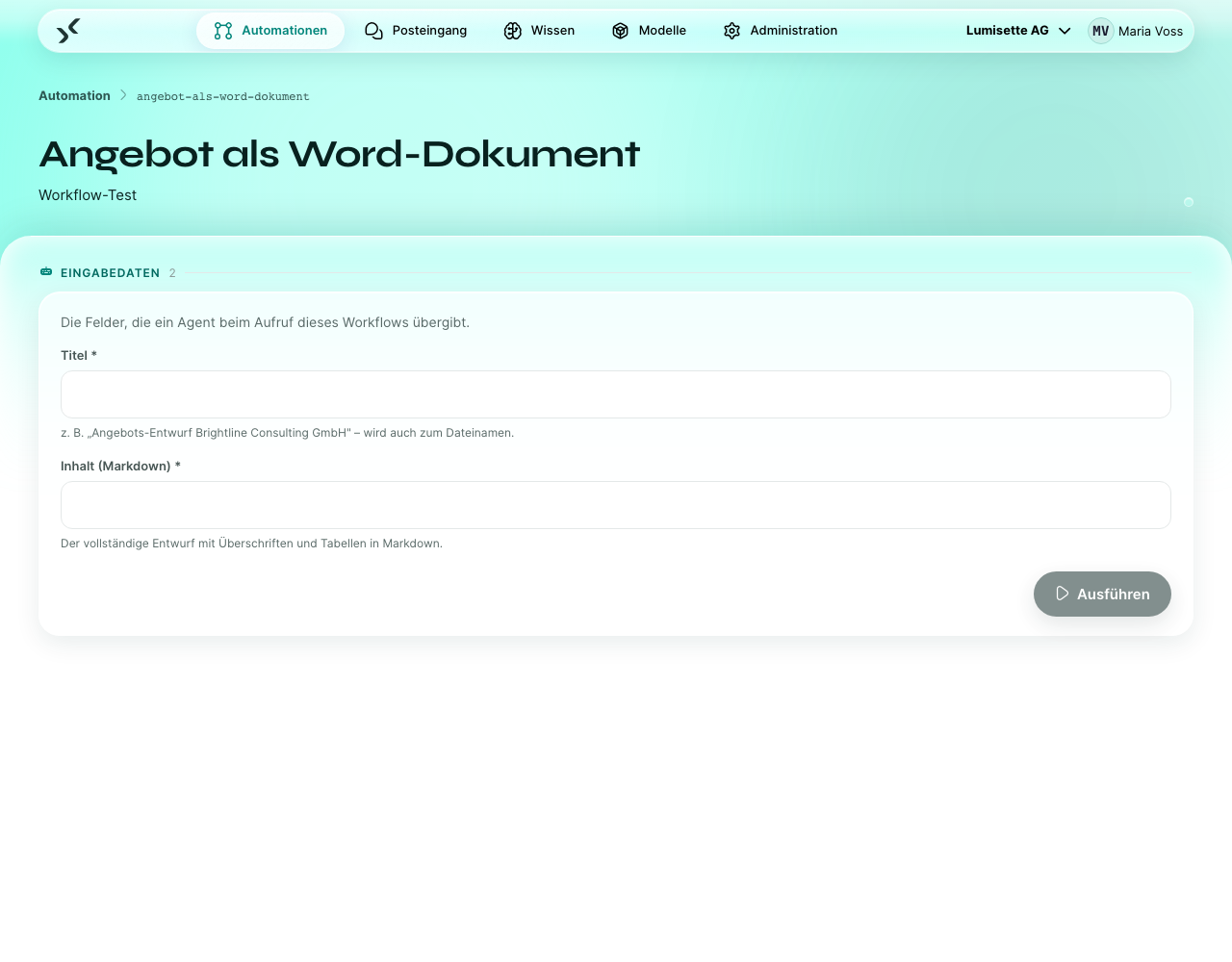
Der Knopf Manuell ausführen führt Sie auf eine eigene Seite. Dort geben Sie die Daten ein, die sonst der Trigger liefern würde (bei zeitgesteuerten Triggern gar keine), und starten den Workflow sofort.
Nutzen Sie „Manuell ausführen“ für:
- Tests während des Aufbaus.
- das erneute Ausführen einer Eingabe mit geänderten Daten (einen fehlgeschlagenen Lauf wiederholen Sie unverändert mit den Wiederholen-Knöpfen in den Details des Laufs).
- einmalige Vorgänge, für die sonst ein echter Trigger nötig wäre.
Jobs – vergangene Läufe
Jede Ausführung eines Workflows erzeugt einen Lauf – außer, ein Agent führt den Workflow als Werkzeug aus: Diese Ausführung gehört zur Konversation des Agenten. Die Ansicht Jobs (erreichbar über den Knopf Jobs in der Werkzeugleiste) listet die Läufe auf, die neuesten zuerst, mit:
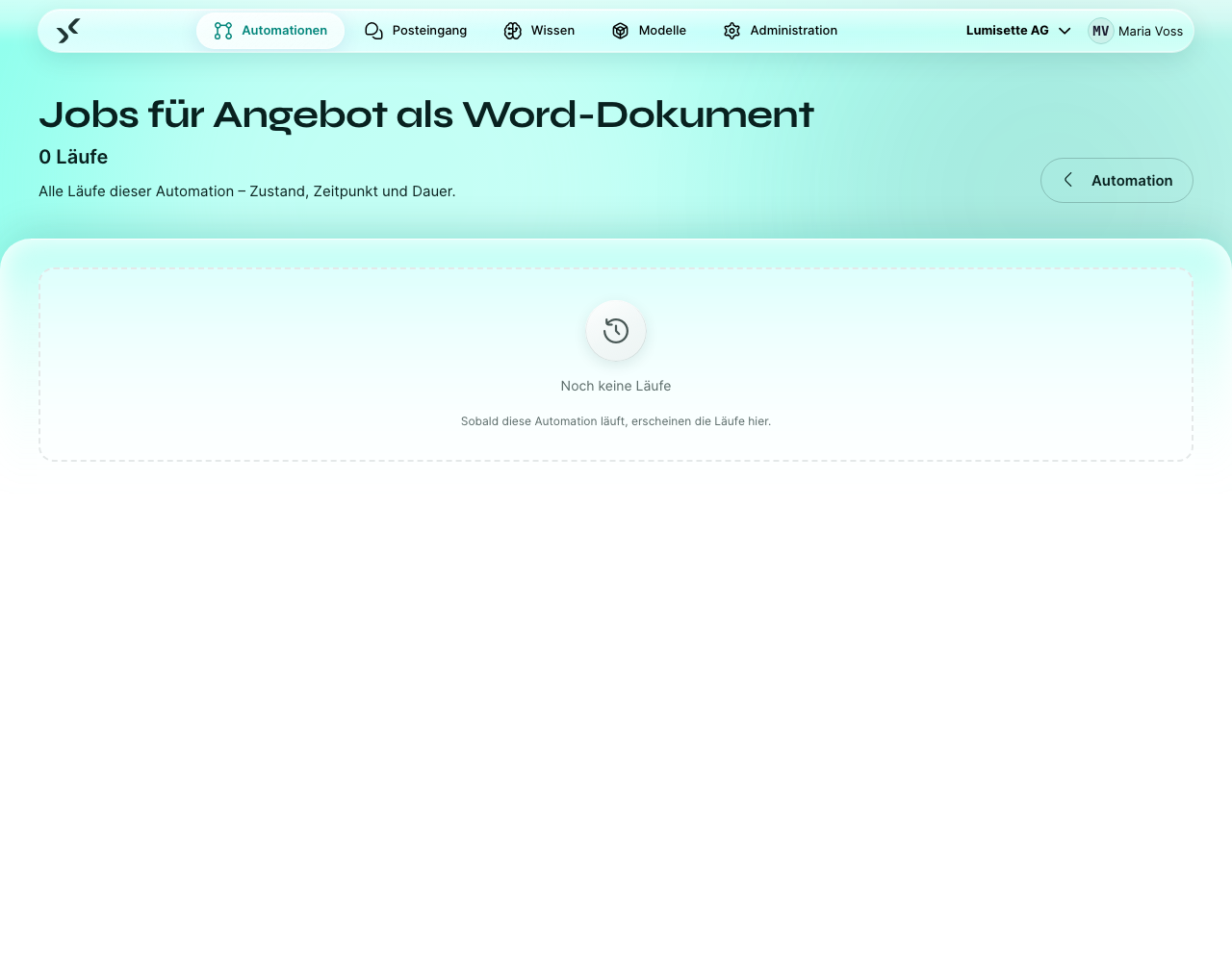
- einem Status – „Laufend“, „Abgeschlossen“, „Fehlgeschlagen“, „Wartet“ (angehalten für eine Benutzereingabe).
- Start- und Endzeit, Dauer.
- dem Trigger, der ihn ausgelöst hat.
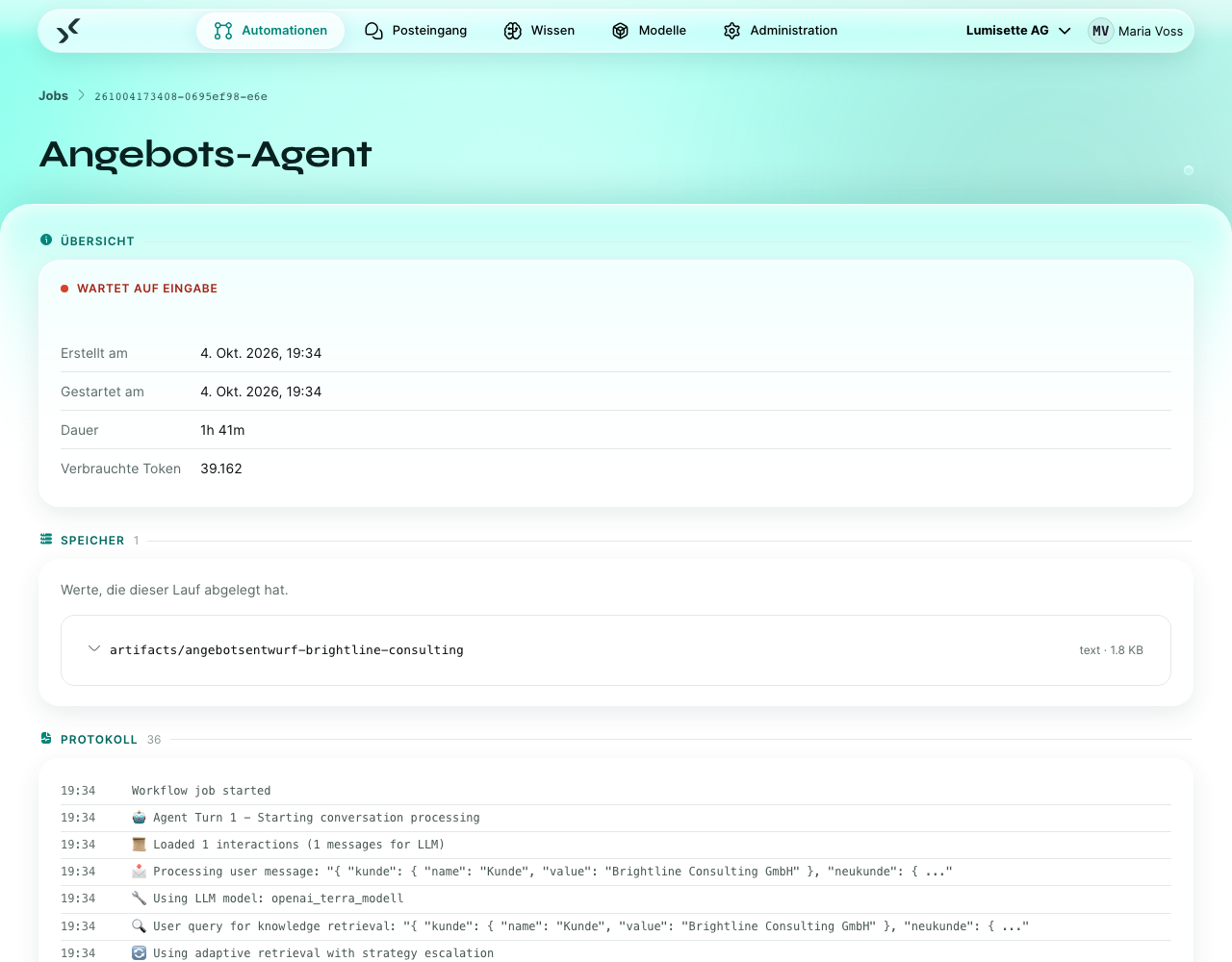
Klicken Sie auf einen Lauf, um die Details des Laufs zu öffnen: ein chronologisches Protokoll von allem, was der Lauf getan hat – jeder gestartete Schritt, jeder Modellaufruf, jeder Wissensabruf, jeder Fehler. Die Protokolleinträge sind mit Emojis markiert (📩 für eingehende Nachrichten, 🤖 für Runden des Agenten, 📊 für Metriken, 🔍 für Abfragen beim Wissensabruf, …), sodass Sie auch große Läufe schnell überblicken. Das ist Ihr Werkzeug zur Fehlersuche, wenn etwas schiefgeht.
Dateien als Ergebnis
Dateien aus Schritten wie Excel und Word, Mail-Anhänge aus E-Mail eingegangen und im Posteingang hochgeladene Dateien werden als Dateien des Laufs aufbewahrt – mit Name und Dateityp. Sie werden zusammen mit dem Lauf gelöscht.
- In den Details des Laufs listet der Abschnitt Speicher jeden Wert auf, den der Lauf abgelegt hat. Dateien sind mit Datei gekennzeichnet; Ansehen öffnet eine Vorschau – Tabellen bei Excel und CSV, den formatierten Text bei Word, Bilder und Textdateien direkt – und bietet die Datei unter ihrem ursprünglichen Namen zum Herunterladen an.
- Schritte können ihre Datei auch als Karte im Posteingang zeigen (Option Datei im Posteingang zeigen); Öffnen bietet dieselbe Vorschau und denselben Download.
- Um eine Datei über den Lauf hinaus zu behalten, speichern Sie sie mit Datei ablegen – in einem Ordner auf dem Server, auf einem Netzlaufwerk oder per WebDAV.
Einen fehlgeschlagenen Lauf wiederholen
Ein fehlgeschlagener oder abgebrochener Lauf zeigt in seinen Details zwei Knöpfe (ab der Rolle Editor):
- Ab Fehler wiederholen setzt bei dem Schritt fort, der fehlgeschlagen ist. Bereits abgeschlossene Schritte laufen nicht erneut – eine schon gesendete E-Mail wird nicht zweimal gesendet –, und ihre Ergebnisse im Speicher werden weiterverwendet. Nutzen Sie das, nachdem Sie die Ursache behoben haben (zum Beispiel ist die fehlende Datei wieder da).
- Von vorn wiederholen führt alle Schritte mit den ursprünglichen Trigger-Daten erneut aus.
Beides geschieht im selben Lauf; die Übersicht zeigt, wie oft er wiederholt wurde (Wiederholt). Konversationen mit Agenten werden nicht wiederholt – schreiben Sie stattdessen eine neue Nachricht.
E-Mail-Benachrichtigungen
Der Abschnitt Benachrichtigungen unter den Schritten sendet eine E-Mail, wenn ein Lauf dieses Workflows einen bestimmten Stand erreicht:
- Benachrichtigen, wenn ein Lauf … – schalten Sie fehlschlägt, auf eine Eingabe wartet und/oder abgeschlossen ist ein.
- Empfänger – E-Mail-Adressen, eine Rolle (Rolle: Editor und höher erreicht alle im Workspace mit mindestens dieser Rolle) oder Wer den Lauf gestartet hat. Externe Adressen sind erlaubt.
- Zustellung – Sofort sendet eine E-Mail je Lauf. Täglich gesammelt sammelt die Läufe und sendet um 7 Uhr eine Übersicht.
Jede E-Mail nennt den Workflow und den Workspace, zeigt bei fehlgeschlagenen Läufen die Fehlermeldung und verlinkt direkt auf den Lauf – bei Läufen, die auf eine Eingabe warten, auf die Konversation im Posteingang.
Damit die Postfächer ruhig bleiben, erhält ein Empfänger höchstens zehn sofortige E-Mails pro Workflow und Stunde; weitere Läufe in dieser Stunde werden in einer Sammel-E-Mail zusammengefasst.
Benachrichtigungen setzen voraus, dass für Ihre Installation der Mailversand (SMTP) eingerichtet ist. Agenten senden keine Benachrichtigungen. Admins können sich zusätzlich über jeden fehlgeschlagenen Lauf im Workspace benachrichtigen lassen – siehe Workspace verwalten.
Aktivieren und deaktivieren
Trigger werden im Trigger-Monitor unter Administration gestartet und gestoppt, nicht im Editor. Der Editor speichert nur die Konfiguration; der Trigger-Monitor entscheidet, ob diese Konfiguration gerade lauscht.
- Läuft – der Trigger ist scharf geschaltet (bei Cron: eingeplant). Der Workflow läuft, wenn der Trigger auslöst.
- Gestoppt – der Workflow existiert, läuft aber nicht automatisch. „Manuell ausführen“ funktioniert weiterhin.
Diese Trennung erlaubt es Editoren ohne Admin-Rechte, Workflows zu bauen und zu testen, ohne jemals die Berechtigung zu haben, sie live zu schalten – diese Entscheidung trifft ein Admin im Trigger-Monitor.
Exportieren und importieren
Der Knopf Exportieren in der Werkzeugleiste des Editors lädt den gesamten Workflow als YAML-Datei herunter – jeden Schritt, jede Konfiguration, jede Bedingung. Die Datei enthält keine geschützten Werte (Zugangsdaten) – diese bleiben in dem Workspace, in dem sie angelegt wurden.
Der Knopf Importieren in der Liste der Automationen nimmt eine YAML-Datei entgegen und legt daraus einen neuen Workflow an. Modelle, Wissensbasen und Personas werden über ihre ID referenziert – der Import gelingt auch, wenn diese Referenzen noch nicht existieren, aber der Workflow läuft erst, wenn Sie sie verknüpft haben.
Nutzen Sie das, um:
- Workflows zwischen Workspaces zu teilen.
- einen wichtigen Workflow vor größeren Änderungen zu sichern.
- eine neue Installation aus einer Vorlagenbibliothek aufzubauen.
Weitere Aktionen der Werkzeugleiste
- Duplizieren – legt eine Kopie des Workflows unter einem neuen Namen an. Praktisch für Varianten oder um eine Kopie zu bearbeiten, während das Original weiterläuft.
- Element entfernen – löscht den Workflow. Vorhandene Läufe bleiben in der Ansicht „Jobs“ erhalten, aber es lassen sich keine neuen Läufe mehr starten. Einen Workflow, den ein Agent als Werkzeug nutzt, können Sie nicht entfernen; die Meldung nennt die Agenten.
Empfehlungen
- ✅ Lassen Sie den Trigger im Trigger-Monitor gestoppt, bis „Manuell ausführen“ mit realistischen Eingaben erfolgreich war.
- ✅ Geben Sie Speicherschlüsseln sprechende Namen.
customer_recordist viel leichter zu lesen alsdata1. - ✅ Halten Sie Workflows kurz. Hat ein Workflow mehr als zehn oder zwölf Schritte, teilen Sie ihn besser in zwei auf – der eine ruft den anderen über einen Webhook auf.
- ✅ Prüfen Sie die Ansicht Jobs, nachdem ein Workflow einen Tag lang produktiv gelaufen ist. Still fehlschlagende Läufe sind eine häufige Überraschung.
- ⚠️ Wenn Sie einen Schritt verschieben, wird nicht automatisch geprüft, ob die neuen Nachbarn damit zurechtkommen. Führen Sie den Workflow nach dem Umsortieren erneut manuell aus.
- ⚠️ Exportierte YAML-Dateien sind gut lesbar, bleiben aber über größere Plattformversionen hinweg nicht stabil. Exportieren Sie regelmäßig neu, wenn Sie Sicherungen aufbewahren.
- ❌ Verwenden Sie keine deterministischen Bedingungen für Dinge, die Urteilsvermögen erfordern – sie werden brüchig sein. Nutzen Sie stattdessen Bedingungen in natürlicher Sprache.
- ❌ Tragen Sie geschützte Werte nicht direkt in ein einfaches Feld eines Schritts ein. Verwenden Sie immer eine Eingabe vom Typ „geschütztes Feld“.
Nächste Schritte
- Integrationen → Einführung – Katalog aller verfügbaren Trigger und Aktionen.
- Administration → Trigger-Monitor – den Trigger starten, sobald der Workflow fertig ist.
- Modelle → Einführung – die KI-Engines anbinden, auf die Workflows angewiesen sind.
- Wissen → Einführung – eigene Daten hinzufügen, die die KI durchsuchen kann.
- Metriken → Verbrauch – sehen, was jeder Workflow im Betrieb kostet.