Verbrauch der Automationen
Diese Seite beschreibt, wie Sie die Verbrauchsdiagramme im Reiter Metriken lesen und für Entscheidungen nutzen.
Der Reiter Metriken
Der Reiter beantwortet zwei Fragen auf zwei Ebenen: Summen sagt, wie viel, Verlauf sagt, wann.
Filter
Über den Zahlen stehen drei Filter. Sie wirken, sobald Sie sie ändern – einen Knopf zum Anwenden gibt es nicht. Die Zeile unter dem Seitentitel nennt immer die aktuelle Auswahl, zum Beispiel Letzte 30 × Tag.
- Zeitraum – Tag, Woche oder Monat. Bestimmt die Auflösung des Diagramms.
- Zeitspanne – wie viele Zeiträume angezeigt werden.
- Workflow – Alle Workflows oder eine bestimmte Automation.
In der Werkzeugleiste der Seite stehen zwei Knöpfe:
- Aktualisieren – lädt die Daten neu vom Server.
- Exportieren – lädt die aktuelle Ansicht als CSV herunter (siehe Analysieren und exportieren). Der Knopf bleibt deaktiviert, solange es nichts zu exportieren gibt.
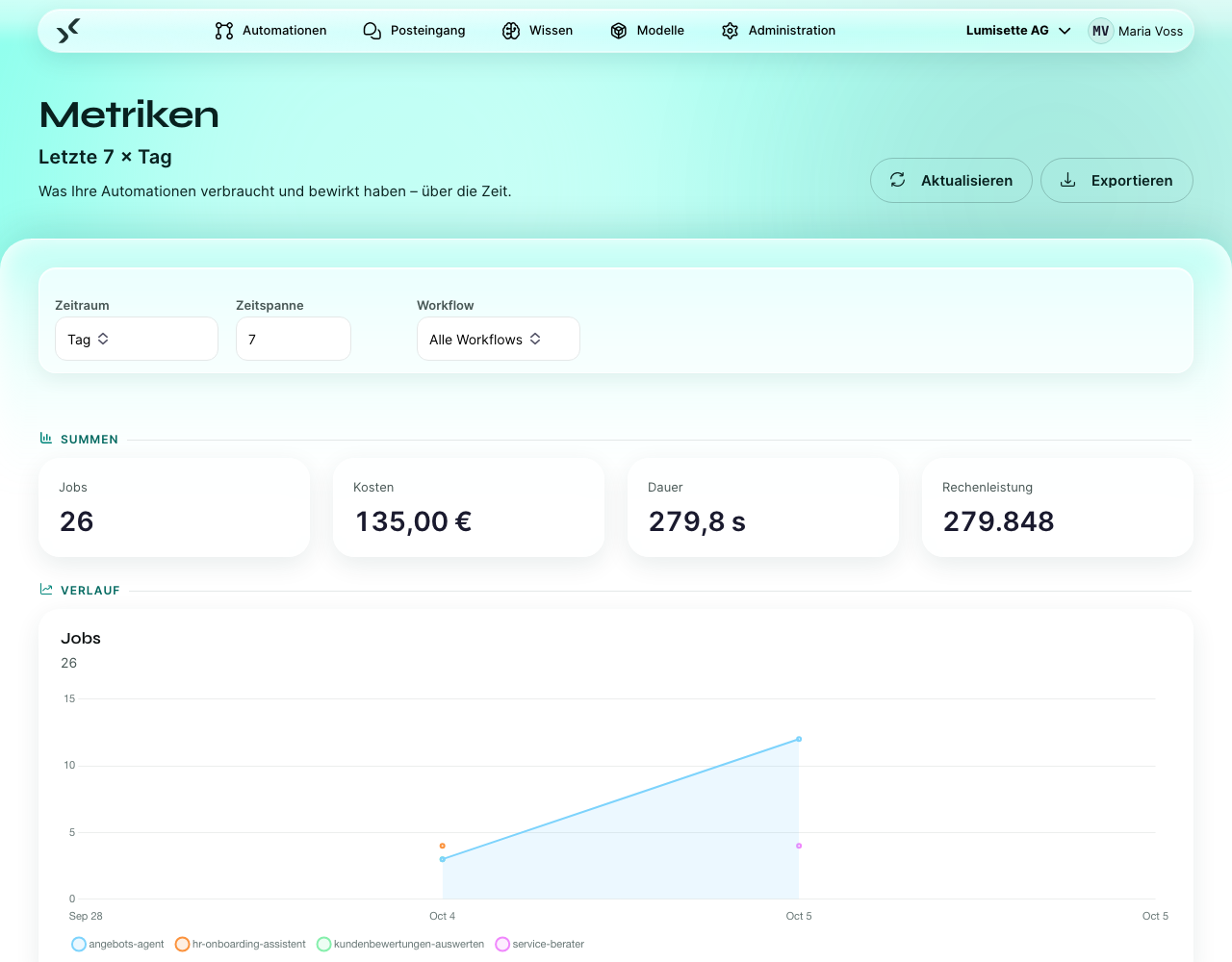
Summen
Vier Kacheln fassen die gesamte gewählte Zeitspanne zusammen:
- Jobs – wie viele Läufe von Automationen.
- Kosten – geschätzte Gesamtkosten, KI und manuelle Arbeit zusammen.
- Dauer – gesamte Laufzeit in Sekunden.
- Rechenleistung – Token insgesamt.
Verlauf
Unter den Summen schlüsseln fünf Diagramme dieselbe Zeitspanne nach Zeiträumen auf:
- Jobs – Anzahl der Läufe. Hilfreich, um Trends in der Nutzung zu erkennen.
- Kosten – KI-Kosten und manuelle Kosten, Letztere als gestrichelte Linie. Das wichtigste Diagramm für Budgetentscheidungen.
- KI-Token-Kosten – Eingabekosten im Vergleich zu Ausgabekosten. Hilfreich, wenn die Kosten unklar sind und Sie wissen möchten, was sie treibt: Bei den meisten Anbietern sind Ausgabe-Token teurer als Eingabe-Token.
- Dauer – Laufzeit je Zeitraum, dazu die daraus abgeleiteten Kosten der Dauer als gestrichelte Linie. Starke Ausschläge hängen oft mit Störungen beim Anbieter oder einem langen Systemprompt zusammen.
- Rechenleistung – Token je Zeitraum.
Liefert die Auswahl keine Daten, sagt die Seite das (Keine Messwerte im gewählten Zeitraum), statt leere Diagramme zu zeigen. Sind Metriken nicht Teil Ihrer Lizenz, sagt die Seite auch das.
So lesen Sie die Diagramme
Kosten
Achten Sie auf Trends, nicht auf absolute Zahlen:
- Eine flache Linie bei hohen Kosten ist in Ordnung, wenn die Workflows nützliche Arbeit leisten.
- Eine flache Linie bei niedrigen Kosten ist in Ordnung.
- Eine langsam ansteigende Linie bedeutet, dass etwas wächst – die Nutzung, der Umfang der Inhalte oder ein allmählich ausufernder Systemprompt.
- Ein plötzlicher Ausschlag bedeutet, dass sich etwas geändert hat – eine neue Automation wurde aktiviert, eine Wissensbasis ist stark gewachsen, oder ein Agent hängt in einer fehlerhaften Schleife.
Token
Sind die Kosten hoch, ohne dass Sie den Grund kennen, weist das Token-Diagramm oft auf die Ursache hin:
- Viele Eingabe-Token – der Prompt selbst, der Kontextspeicher oder der Abruf aus der Wissensbasis bringt zu viel mit.
- Viele Ausgabe-Token – das Modell soll lange Antworten schreiben, wo kurze genügen würden.
Dauer
Langsame Schritte sind meist:
- eine KI-Aktion mit sehr langer Eingabe oder einem langsamen Modell,
- eine Abfrage gegen eine sehr große Wissensbasis,
- eine netzwerkgebundene Integration („HTTP-Anfrage ausführen“, „Datenbankabfrage“), die auf ein langsames Ziel trifft.
Fallen die Ausschläge bei der Dauer mit Störungen beim Anbieter am selben Tag zusammen, liegt die Ursache beim Anbieter.
Anzahl der Läufe
Ein gesunder Workspace zeigt meist eine gleichbleibende oder wachsende Zahl von Läufen, wobei sich Fehler auf ein oder zwei Automationen konzentrieren – das sind dann die Kandidaten für eine Prüfung. Der Reiter Metriken zählt Läufe; welche davon fehlgeschlagen sind, sehen Sie in der Liste der Läufe der Automation selbst, wo die Filter die Läufe nach Zustand trennen.
Eine typische Untersuchung
Sie bemerken, dass die Kosten in diesem Monat doppelt so hoch sind wie im Vormonat. Gehen Sie so vor:
- Stellen Sie Workflow: Alle Workflows, Zeitraum: Monat, Zeitspanne: 6 ein. Der Anstieg ist im Kostendiagramm zu sehen.
- Stellen Sie unter Workflow den Kandidaten mit den höchsten Kosten ein. Die Diagramme folgen sofort.
- Das Kostendiagramm dieser Automation zeigt Ihnen, ob sie der Treiber ist.
- Falls ja, öffnen Sie den Editor der Automation. Sehen Sie sich die letzten Läufe an, um zu erkennen, welche Eingabemenge jeder Schritt verarbeitet.
- Oft ist die Ursache eine gewachsene Wissensbasis (längerer abgerufener Kontext = mehr Eingabe-Token) oder eine Systemanweisung, die jemand stark verlängert hat.
Empfehlungen
- ✅ Prüfen Sie die Metriken mindestens wöchentlich, solange ein Workspace neu ist. Überraschungen fallen früh leichter auf.
- ✅ Nutzen Sie bei Untersuchungen den Workflow-Filter, nicht die Gesamtansicht.
- ✅ Wenn Sie optimieren, messen Sie vorher und nachher. Ändern Sie eine Sache, lassen Sie es einige Tage laufen und vergleichen Sie.
- ⚠️ Die tägliche Auflösung schwankt stark. Für das Erkennen von Trends ist die wöchentliche Ansicht meist die richtige.
- ⚠️ Die angezeigten Kosten sind eine Schätzung; maßgeblich ist die Rechnung des Anbieters. Meist stimmen beide eng überein, aber gleichen Sie monatlich ab, wenn es auf Genauigkeit ankommt.
- ❌ Optimieren Sie Automationen mit offensichtlichem geschäftlichem Nutzen nicht aggressiv auf Kosten. Die teuerste Automation ist die, die laufen sollte und es nicht tut.
Nächste Schritte
- Analysieren und exportieren – die Zahlen für weitere Auswertungen herausholen.
- Modelle → BYOK – mit der Abrechnung des Anbieters abgleichen.