Analysieren und exportieren
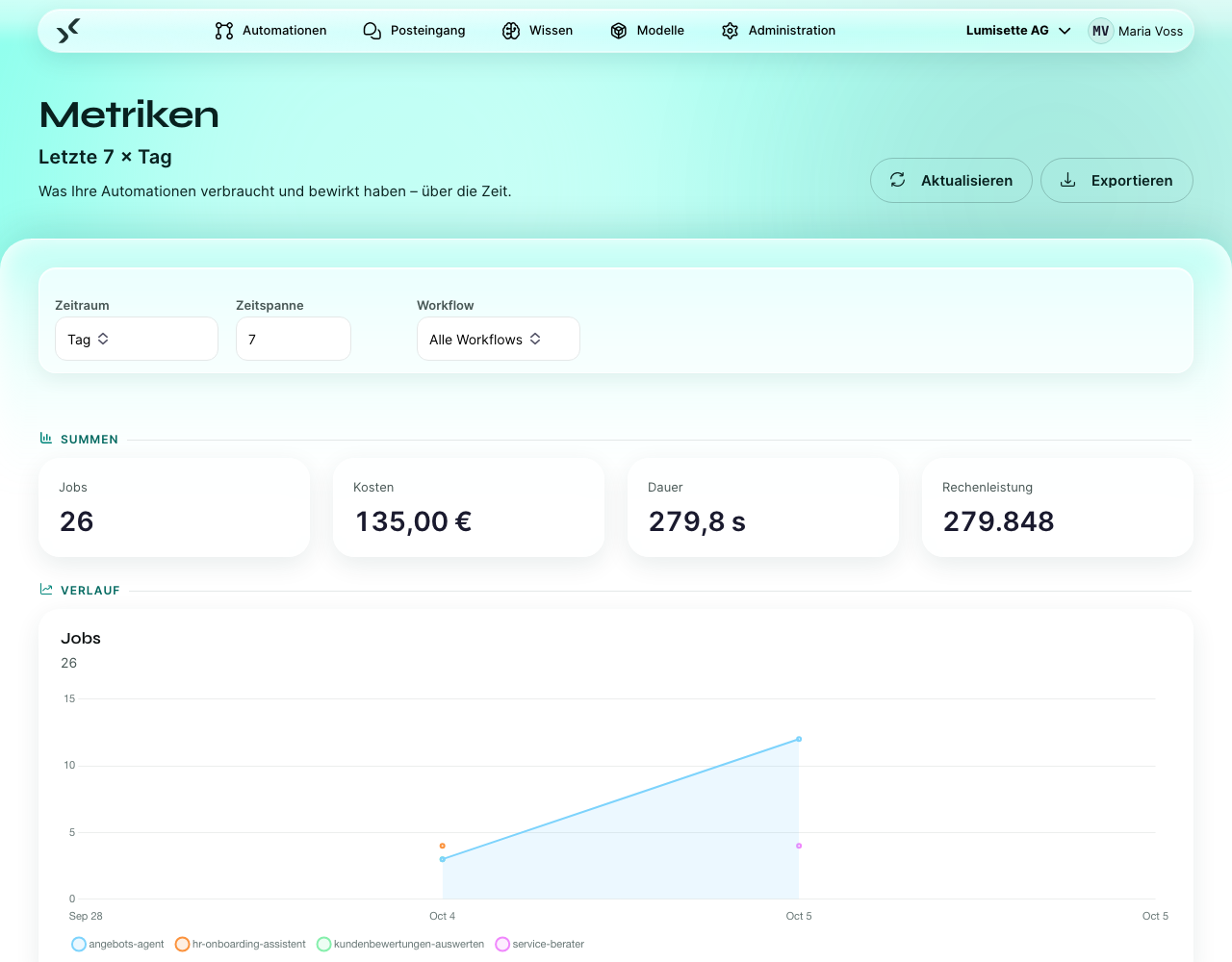
Sobald Sie im Reiter Metriken eine Ansicht haben, die eine interessante Frage beantwortet, können Sie die zugrunde liegenden Daten exportieren und weiter auswerten – in einer Tabellenkalkulation, einem BI-Werkzeug oder einfach, um sie mit Kolleginnen und Kollegen zu teilen, die das AI Kit nicht nutzen.
Exportieren
Klicken Sie in der Werkzeugleiste der Seite auf Exportieren. Der Knopf verwendet Ihre aktuellen Filter: denselben Zeitraum, dieselbe Zeitspanne, denselben Workflow-Filter. Typischerweise gehen Sie also so vor:
- Passen Sie die Filter an, bis die Ansicht auf dem Bildschirm dem entspricht, was Sie möchten.
- Klicken Sie auf Exportieren.
- Die Plattform lädt eine Datei namens
metriken_<workspace>_<workflow|alle>_<date>.csvherunter.
Der Knopf bleibt deaktiviert, solange es nichts zu exportieren gibt.
Was Sie erhalten
Eine CSV-Datei mit Kopfzeile und einer Zeile je Kombination aus Zeitraum und Workflow. Die Spalten sind genau diese, in dieser Reihenfolge:
| Spalte | Bedeutung |
|---|---|
period | Beginn des Zeitraums |
workflowId | Die ID der Automation |
jobs | Anzahl der Läufe in diesem Zeitraum |
tokens | Token insgesamt |
inputTokens / outputTokens | Aufteilung des obigen Werts |
tokenCost | Kosten dieser Token |
inputCost / outputCost | Aufteilung des obigen Werts |
durationSeconds | Gesamte Laufzeit |
durationCosts | Aus der Laufzeit abgeleitete Kosten |
manualCost | Manuell erfasste Kosten |
currency | Währung aller Kostenspalten (die Währung des Workspace) |
Die Werte stehen in Anführungszeichen, sodass ein Name einer Automation mit Komma die Zeile nicht zerlegt. Die Datei beginnt mit einer Byte-Order-Mark – sie sorgt dafür, dass Excel Umlaute korrekt anzeigt.
Es gibt keine Spalte für Erfolg/Fehler – der Export enthält Verbrauchsdaten. Welche Läufe fehlgeschlagen sind, sehen Sie in der Liste der Läufe der Automation selbst.
Auswertungsmuster
Monatlicher Kostenbericht für die Finanzabteilung
Zeitraum Monat, Zeitspanne 12, Alle Workflows. Exportieren. Das Ergebnis ist eine Zeile je Monat und Automation – daraus lässt sich per Pivot gut ein Säulendiagramm je Automation oder eine Übersichtstabelle machen.
Betriebslast für die Betriebsbesprechung
Zeitraum Woche, Zeitspanne 8, Alle Workflows. Exportieren. Werten Sie jobs und durationSeconds je Automation per Pivot aus, um zu sehen, welche Automationen die Last tragen und welche langsamer geworden sind. Für die Zuverlässigkeit – welche Läufe fehlgeschlagen sind – nutzen Sie die Liste der Läufe der Automation, nicht diesen Export.
Kosten je Geschäftsbereich
Folgen Ihre Automationen einer Namenskonvention (z. B. „[Vertrieb] Tägliche Zusammenfassung“, „[HR] Urlaubs-Agent“), können Sie das Präfix in Klammern in Ihrer Tabellenkalkulation herauslösen und die Kosten nach Geschäftsbereich gruppieren.
Abgleich mit den Rechnungen der Anbieter
Die Rechnung des Anbieters (OpenAI, Anthropic, Mistral) ist die maßgebliche Kostenangabe. Ein monatlicher Abgleich ist eine sinnvolle Routine:
- Exportieren Sie die Metriken des Monats.
- Summieren Sie die Spalte
tokenCost(addieren SiedurationCosts, wenn Ihr Workspace die Laufzeit bepreist). - Vergleichen Sie das Ergebnis mit der Rechnung des Anbieters.
Meist stimmen beide auf 1–3 % überein. Größere Abweichungen haben typischerweise eine dieser Ursachen:
- Der Preis des Anbieters hat sich im Lauf des Monats geändert, und der im AI Kit hinterlegte Preis stammt von vor oder nach der Änderung.
- Eine Automation außerhalb des AI Kit nutzt denselben API-Schlüssel.
- Der Anbieter berechnet etwas, das in der Sicht des AI Kit nicht als Token erscheint (hochgeladene Dateien, Fine-Tuning, separate APIs).
Aktualisieren Sie bei Bedarf den Preis am Modell oder tauschen Sie die Schlüssel aus.
Werkzeuge, die gut mit dem Export funktionieren
Das CSV-Format ist bewusst schlicht. Es öffnet sich problemlos in:
- Excel und Google Sheets – für schnelle Auswertungen und Berichte.
- Power BI und Tableau – für dauerhafte Dashboards.
- Python (pandas) – für einmalige Analysen, die Erkennung von Auffälligkeiten oder das Zusammenführen mit anderen Datenquellen.
Die Plattform bringt kein eigenes BI-Werkzeug mit. Den meisten Teams genügen der Export und eine Tabellenkalkulation; für ernsthafte Dashboards binden Sie den Export in Ihre bestehende Analyse-Pipeline ein.
Empfehlungen
- ✅ Setzen Sie zuerst die Filter und exportieren Sie dann. Der Export gibt genau das wieder, was auf dem Bildschirm steht.
- ✅ Verwenden Sie die monatliche Auflösung für die Finanzabteilung, die wöchentliche für den Betrieb und die tägliche nur zur Fehlersuche.
- ✅ Gleichen Sie einmal im Monat mit der Rechnung des Anbieters ab. Kleine Abweichungen sind in Ordnung; große sind ein Warnsignal.
- ⚠️ Der Export ist eine Momentaufnahme. Wiederholen Sie eine Auswertung einen Monat später, können die Zahlen leicht abweichen, weil die zugrunde liegenden Daten inzwischen bereinigt worden sein können.
- ❌ Verwenden Sie den Export nicht als Audit-Protokoll. Er enthält zusammengefasste Daten; die Details je Lauf finden Sie in der Ansicht „Jobs“ der jeweiligen Automation.
Nächste Schritte
- Administration → Lizenzierung – Kontingente, Pläne, Upgrades.
- Modelle → BYOK – mit den Rechnungen der Anbieter abgleichen.