Workflows
A workflow is an automation that runs from start to finish on its own, with a clearly defined sequence of steps. This page covers everything you can do inside the workflow editor that does not apply to agents.
For the shared concepts (triggers, steps, memory, conditions), see Core Concepts. For the type-specific page on agents, see Agents.
When to build a workflow (and not an agent)
Build a workflow when:
- The automation should run without a user present — on a schedule, on an event, on a webhook.
- The sequence of actions is predictable — you know step 1, step 2, step 3.
- You want clear inputs and outputs — trigger data in, side effect out (email sent, file written, ticket updated).
Build an agent instead when the interaction is open-ended, the user drives the flow, and the order of actions depends on the conversation. See Agents.
The editor
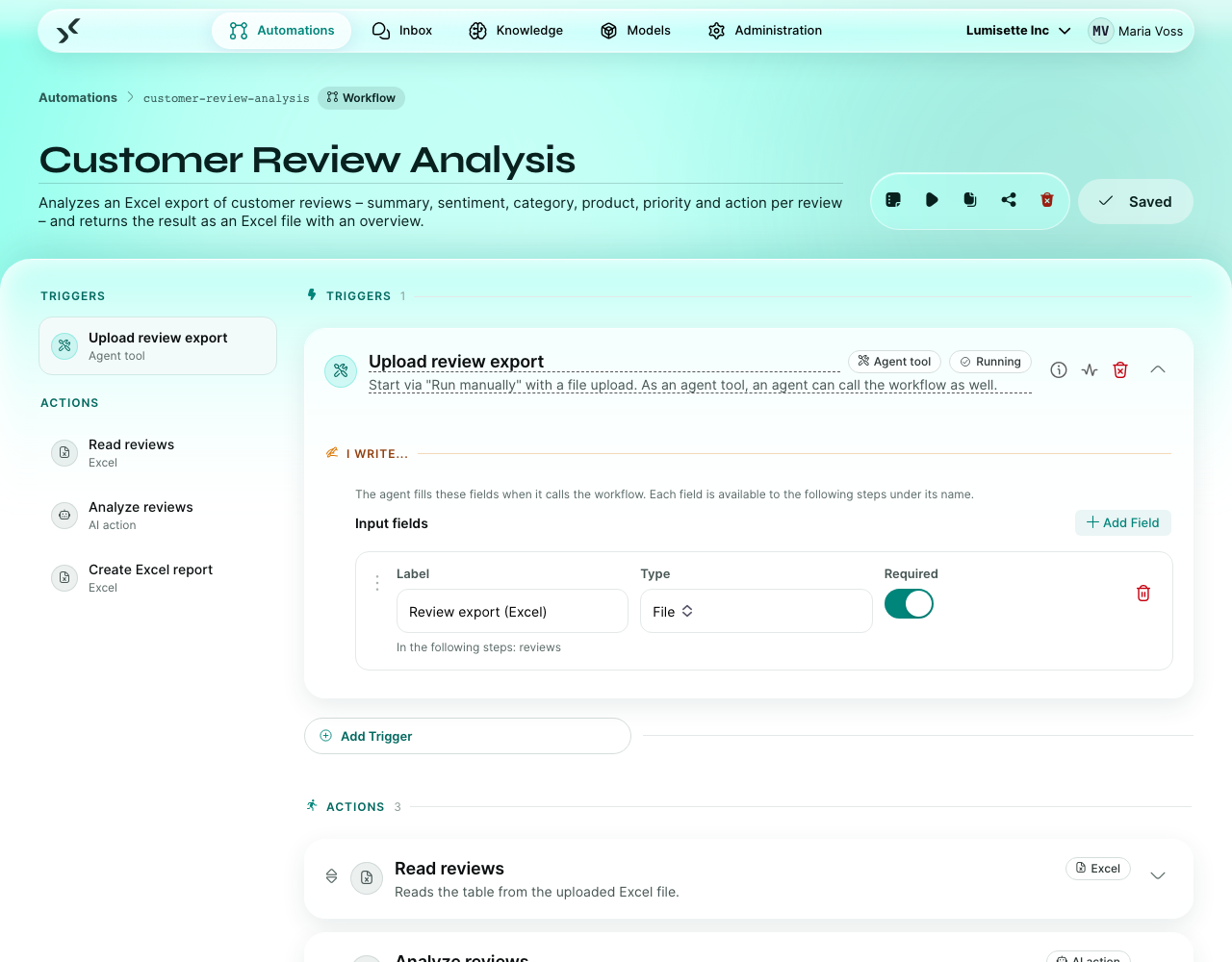
When you open a workflow from the Automations tab, the editor appears with three main areas:
- Toolbar — at the top: name, description, and the action buttons Jobs, Manual Run, Duplicate, Export, Remove, Save.
- Triggers — the triggers configured for this workflow (one or more).
- Steps — a vertical list of tasks, in execution order.
Adding the trigger
A new workflow starts without a trigger. Pick from the list of available trigger integrations — the full catalog is documented under Integrations.
After selecting the trigger you configure its fields right there. Triggers usually need:
- The timing or source (cron expression, webhook secret, mail folder, …).
- One or more output names — where in memory the trigger should drop the data it received.
A workflow can have more than one trigger (Add Trigger) — for example a schedule and the trigger Agent tool. It runs whenever one of them fires. To change a trigger, replace it — the steps remain.
Adding steps
To add a task, type the integration name into the integration input field below the last step. The field auto-completes against the catalog of available integrations. Pick the one you want, and the step appears below.
Step fields generally come in three flavors:
- Plain inputs — you type a value or pick from a list.
- Memory inputs — you point to a name already in memory. The step reads that value at runtime.
- Memory outputs — you name a memory key. The step writes its result there.
A few fields have special behavior — these are noted on each integration's page:
- Model fields — pick from the workspace's configured models.
- Knowledge fields — pick from the workspace's configured knowledge bases.
- Persona fields — pick from the workspace's configured personas.
- Secured fields — credentials, API keys, passwords. The platform stores these encrypted and never shows them again after you save.
- OAuth fields — for integrations like Google Calendar; the platform takes you through the connection flow.
Saving and fixing errors
Save checks the workflow first. If something is missing or invalid, nothing is saved:
- A box at the top lists the problems per step, with the step's name and the affected field — e.g. Webhook → Shared Key: Required entry is missing. Click a step's name to jump to it.
- The affected step gets a red frame and an error counter. Opened, it shows its problems at the top of the card; the step list on the left marks it as well.
- Optional fields may stay empty — clearing one never causes an error.
- Placeholders such as
{memory://customer/email}in a field that expects an email address or a number are checked when the workflow runs, not when you save.
Fix the fields and save again; the markers disappear as soon as the workflow is valid.
Reordering and removing
- Drag a step by its handle to reorder.
- Click the trash icon on a step to remove it. Memory written by that step disappears with it — make sure no later step still depends on it.
Conditions on steps
To make a step conditional, click Add condition. Pick deterministic for a logic formula or natural language for a sentence the AI judges. See Core Concepts → Conditions.
Retrying steps automatically
Next to Add condition, the button Retry on error makes a step try again when it fails for a temporary reason — a timeout, an overloaded AI model (e.g. "429 Too Many Requests") or a network error. Clicking it opens the section On error... with two retries preset; change the number there, or remove the section with the trash icon (or Off). The first retry waits 10 seconds, each further one twice as long.
Errors that would simply happen again — a missing file, wrong credentials, an exhausted quota, an invalid configuration — are not retried. The step fails right away so you can fix the cause.
Approval steps
The step Request approval pauses a normal workflow until someone approves or rejects in the Inbox, and later steps branch on the decision. Use it wherever the AI prepares and a person decides — invoices, offers, outgoing mails.
Interactive steps
You can insert an interactive step anywhere in a workflow. It pauses the run and asks a user a question (free-form text, choices, file upload). The conversation shows up in the Inbox. Once the user answers, the workflow resumes from the next step with the answer in memory.
Use interactive steps sparingly — every one of them is a hand-off that blocks the automation until someone responds.
Manual Run
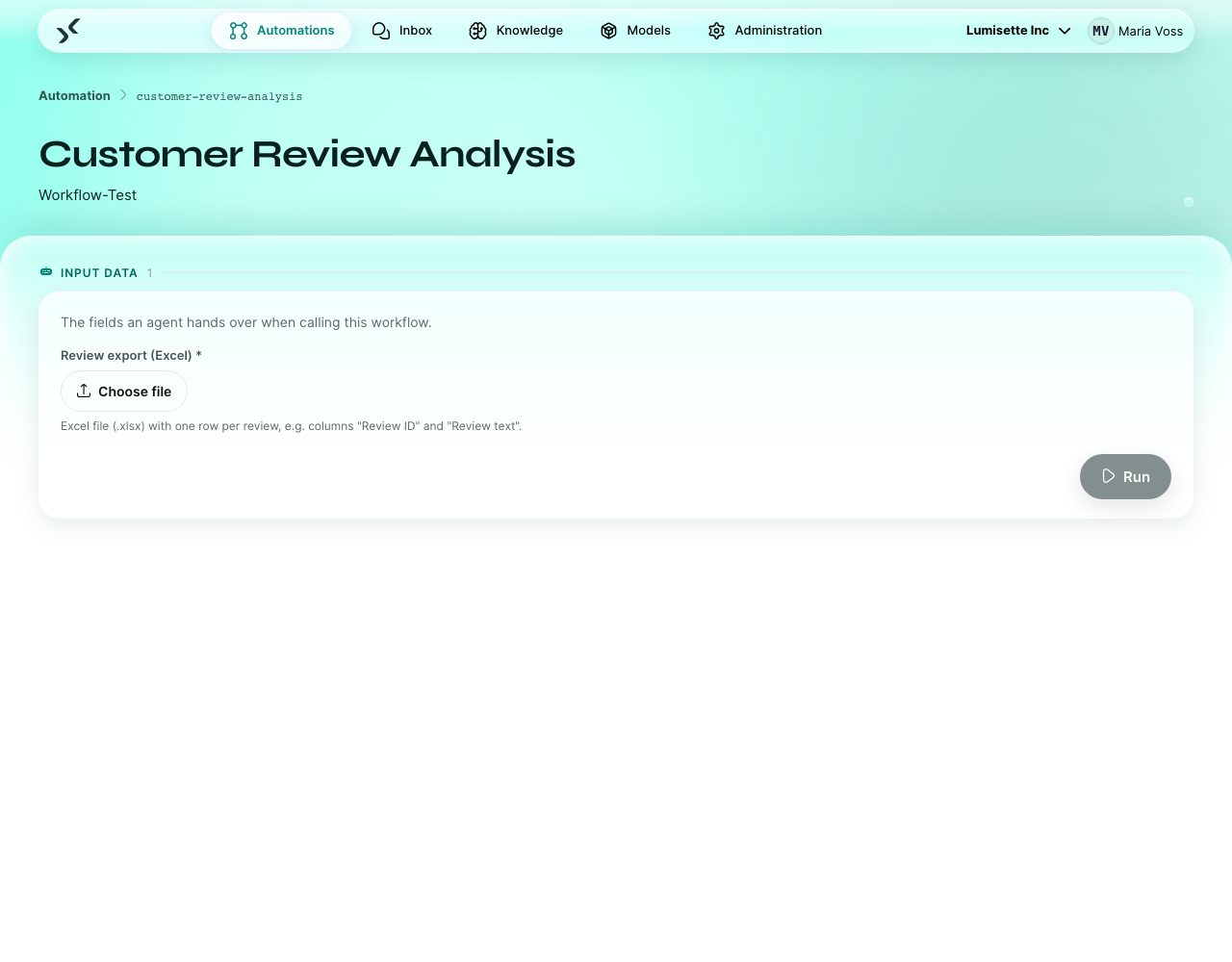
The Manual Run button takes you to a dedicated page where you provide the data that the trigger would normally supply (or no data at all, for time-based triggers), and start the workflow immediately.
Use Manual Run for:
- Testing while building.
- Re-running an input with changed data (to repeat a failed run unchanged, use Retry in the job details).
- One-off operations that would otherwise need a real trigger.
Jobs — past runs
Every run of a workflow produces a job — except when an agent runs it as a tool: that run belongs to the agent's conversation. The Jobs view (reachable via the Jobs button in the toolbar) lists them, newest first, with:
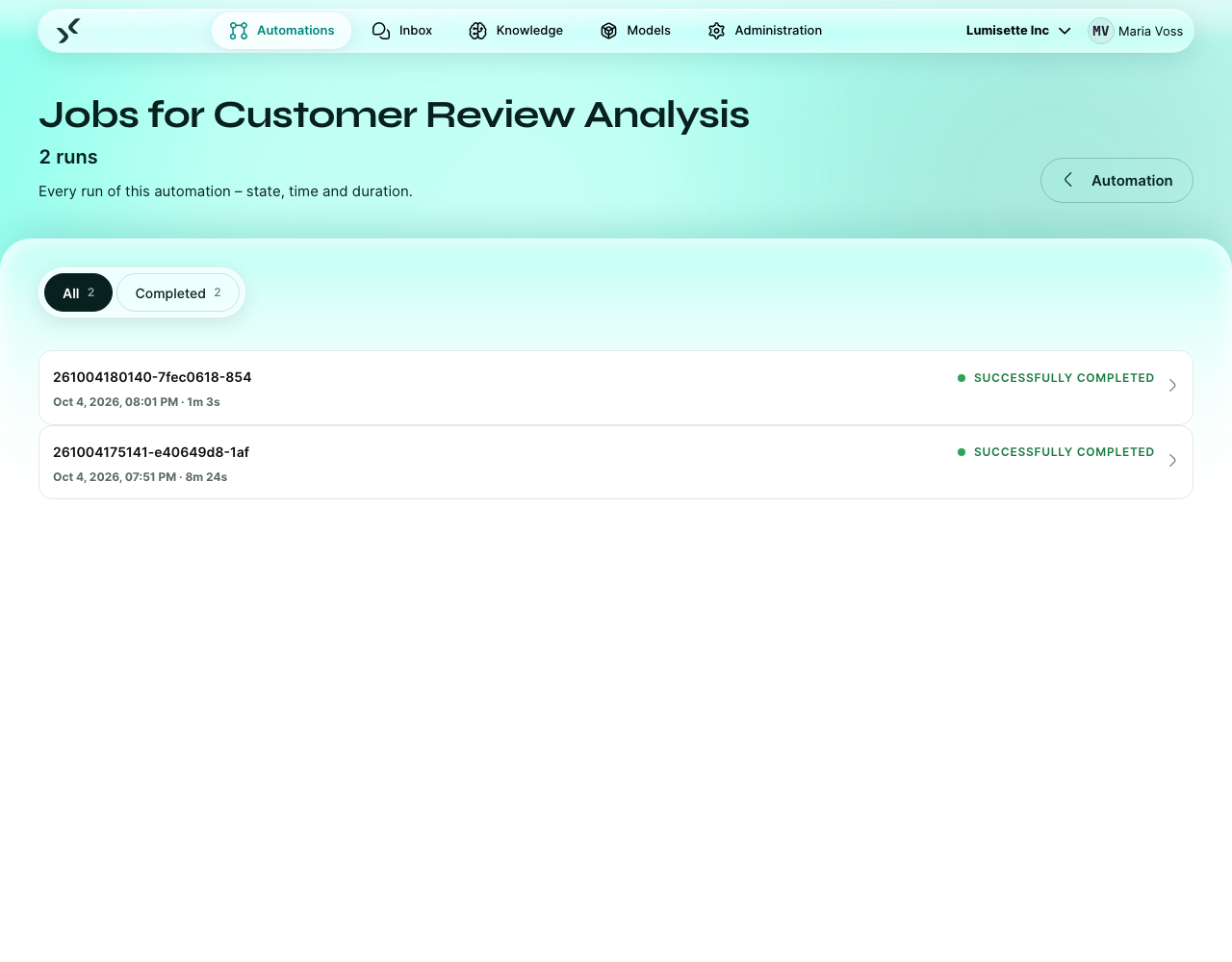
- A status — running, completed, failed, waiting (paused on a user input).
- Start and end time, duration.
- The trigger that fired it.
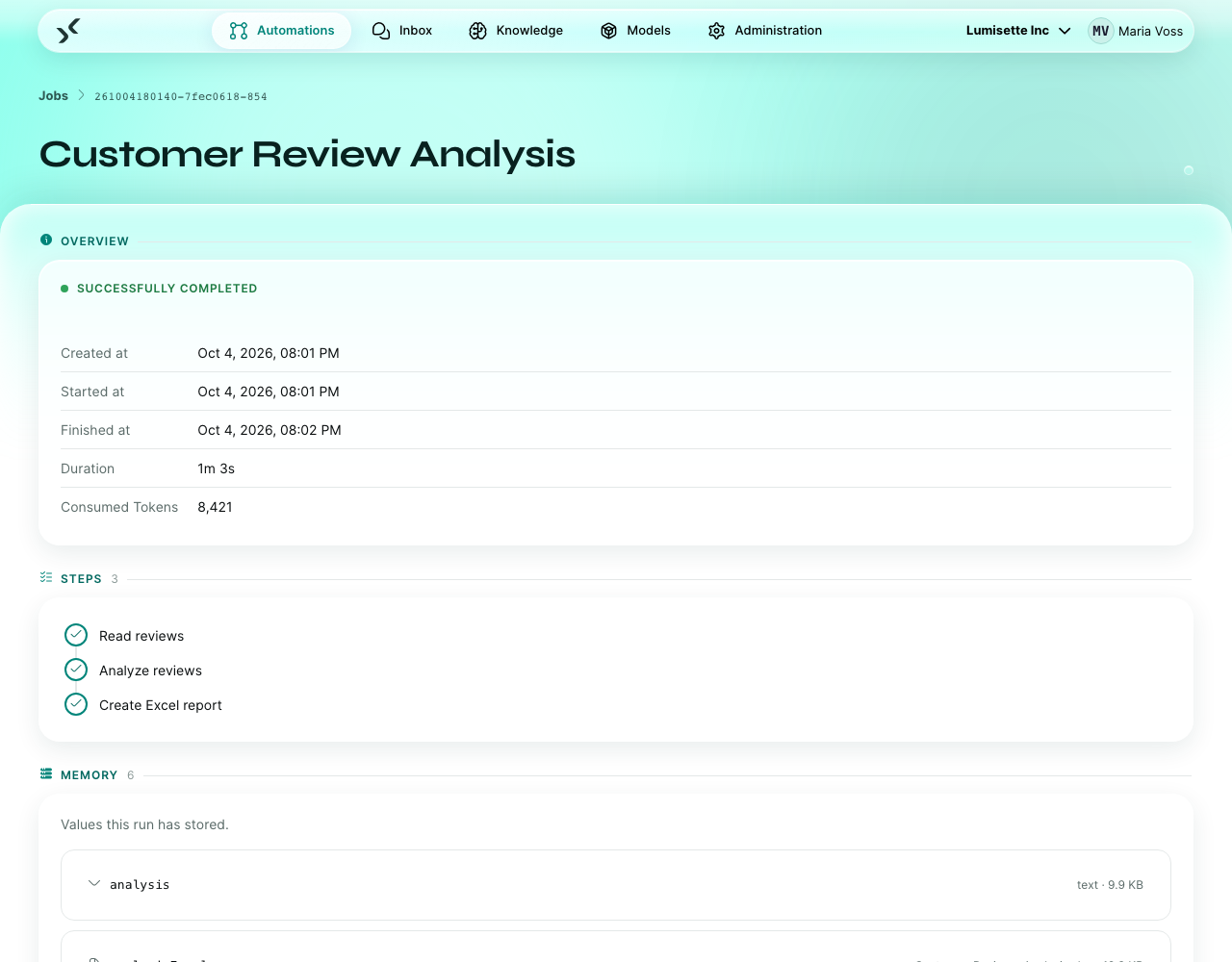
Click a job to open the job details: a chronological log of everything the run did — every step that started, every model call, every retrieval, every error. The log entries are emoji-tagged (📩 for incoming messages, 🤖 for agent turns, 📊 for metrics, 🔍 for retrieval queries, …) so you can scan large runs quickly. This is your debugging tool when something goes wrong.
Files as results
Steps such as Excel and Word, mail attachments from Email received and files uploaded in the Inbox are kept as files of the run — with name and file type. They are deleted together with the job.
- In the job details, the Memory section lists every value the run stored. Files are marked File; View opens a preview — tables for Excel and CSV, the formatted text for Word, images and text files directly — and lets you download the file under its original name.
- Steps can also show their file as a card in the Inbox (option Show file in inbox); Open shows the same preview and download.
- To keep a file beyond the run, save it with Store file — to a folder on the server, a network drive or WebDAV.
Retrying a failed run
A failed or cancelled run shows two buttons in the job details (Editor role or higher):
- Retry from failure continues at the step that failed. Steps that already completed are not run again — an e-mail already sent is not sent twice — and their results in memory are reused. Use this after you fixed the cause (for example, the missing file is back).
- Retry from start runs all steps again with the original trigger data.
Both run in the same job; the overview shows how often it was retried (Retried). Agent conversations are not retried — write a new message instead.
Email notifications
The Notifications section below the steps sends an email when a run of this workflow reaches a certain state:
- Notify when a run … — switch on fails, waits for input and/or completes.
- Recipients — email addresses, a role (Role: Editor and above reaches everyone in the workspace with at least that role) or Whoever started the run. External addresses are allowed.
- Delivery — Immediately sends one email per run. Daily digest collects the runs and sends one overview at 7 am.
Each email names the workflow and the workspace, shows the error message for failed runs and links directly to the run — or, for runs waiting for input, to the conversation in the Inbox.
To keep inboxes quiet, a recipient gets at most ten immediate emails per workflow and hour; further runs in that hour are bundled into one summary email.
Notifications require mail delivery (SMTP) to be configured for your installation. Agents do not send notifications. Admins can additionally be notified of every failed run in the workspace — see Manage your Workspace.
Activating and deactivating
Triggers are started and stopped from the Trigger Monitor under Administration, not from the editor. The editor only stores the configuration; the Trigger Monitor decides whether that configuration is currently listening.
- Running — the trigger is armed (or, for cron, scheduled). The workflow will run when the trigger fires.
- Stopped — the workflow exists but will not run automatically. Manual Run still works.
This split lets non-Admin editors build and test workflows without ever having permission to put them live — that decision sits with an Admin in the Trigger Monitor.
Exporting and importing
The Export button on the editor's toolbar downloads the entire workflow as a YAML file — every step, every configuration, every condition. The file does not contain secured values (credentials) — those stay in the workspace they were created in.
The Import button on the Automations list takes a YAML file and creates a new workflow from it. Models, knowledges, and personas are referenced by ID — the import succeeds even if those references don't exist yet, but the workflow won't run until you wire them up.
Use this to:
- Share workflows between workspaces.
- Back up an important workflow before making large changes.
- Bootstrap a new installation from a template library.
Other toolbar actions
- Duplicate — creates a copy of the workflow under a new name. Useful for variants or for editing a copy while the original keeps running.
- Remove — deletes the workflow. Existing jobs remain in the Jobs view but no new runs can be started. A workflow that an agent uses as a tool cannot be removed; the message names the agents.
Recommendations
- ✅ Keep the trigger stopped in the Trigger Monitor until Manual Run has succeeded with realistic input.
- ✅ Give memory keys descriptive names.
customer_recordis far easier to read thandata1. - ✅ Keep workflows short. If a workflow has more than ten or twelve steps, consider splitting it into two — one calls the other via a webhook.
- ✅ Check the Jobs view after a workflow has been running in production for a day. Quietly failing jobs are a common surprise.
- ⚠️ Reordering a step does not automatically check that the new neighbors are happy with the change. Re-run manually after reordering.
- ⚠️ Exported YAML files are human-readable but not stable across major platform versions. Re-export periodically if you keep backups.
- ❌ Do not use deterministic conditions for things that require judgement — they will be brittle. Use natural-language conditions instead.
- ❌ Do not put secured values directly into a workflow step's plain field. Always use a secured-field-type input.
What to do next
- Integrations → Introduction — catalog of all available triggers and actions.
- Administration → Trigger Monitor — start the trigger once the workflow is ready.
- Models → Introduction — connect the AI engines workflows depend on.
- Knowledge → Introduction — add your own data for the AI to search.
- Metrics → Consumption — see how much each workflow costs to run.