Email received
Run an automation for every new email in a mailbox folder — with attachments, filters and follow-up actions.
What it does
Connects to an IMAP mailbox, watches one folder and starts the workflow once per new email. The email arrives in memory with sender, recipients, subject, plain text and the HTML body converted to Markdown (the most readable form for AI steps). Attachments are stored as real files, so later steps can open them directly — the Excel and Word actions, the approval step, the File Writer.
When the trigger starts, it also processes the unread emails that are already waiting — mail that arrived while the service was restarting is not lost. Each email is processed only once, even if it stays unread.
After an email has been handed over, the trigger can mark it as read, tag it and move it to another folder.
It replaces the older E-Mail Inbox Watcher, which did not pass on attachments.
What you configure
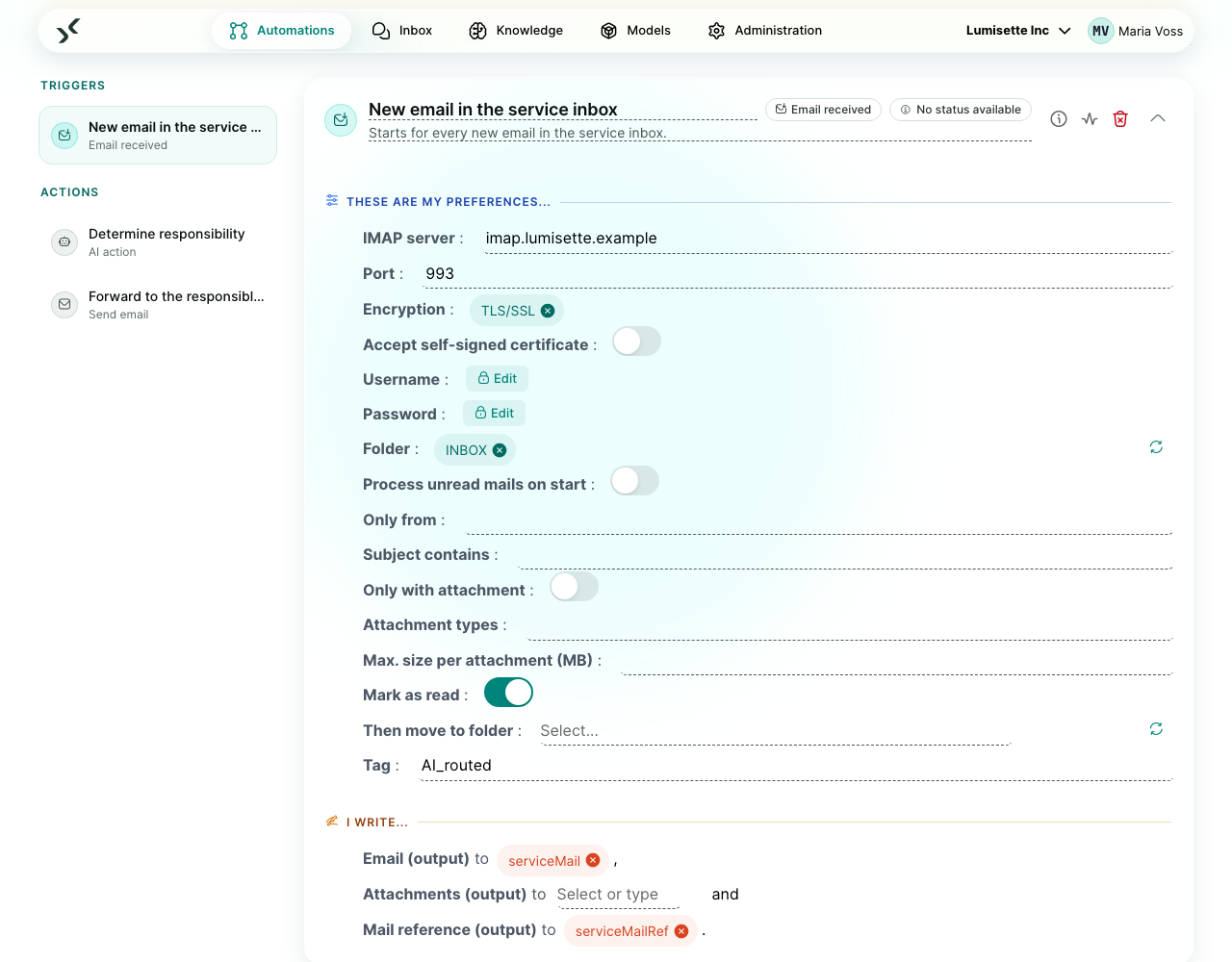
| Field | What it controls | Required | Notes |
|---|---|---|---|
| IMAP server / Port | Where the mailbox lives. | required | Port defaults to 993 (TLS) or 143 (STARTTLS). |
| Encryption | tls, starttls or none. | optional | Default tls. none only for internal test servers. |
| Accept self-signed certificate | For internal mail servers with their own certificate. | optional | Off by default. |
| Username / Password | Login. | required | Stored encrypted. For Microsoft 365 or Gmail use an app password. |
| Folder | The folder to watch. | optional | Chosen from a list once the login data is filled in. Default: INBOX. |
| Process unread mails on start | Initial sync of waiting unread emails. | optional | On by default. Off: only mail arriving from now on. |
| Only from | Senders or domains. | optional | Comma-separated, e.g. invoice@supplier.com, example.com (a domain includes its subdomains). |
| Subject contains | Words in the subject. | optional | Comma-separated; one match is enough; case does not matter. |
| Only with attachment | Skip emails without attachments. | optional | |
| Attachment types | Which attachments are passed on. | optional | e.g. pdf, xlsx. Other attachments are ignored; emails without a matching attachment are skipped. Logos embedded in the email body never count as attachments. |
| Max. size per attachment (MB) | Larger attachments are not passed on. | optional | Default 25. Their names are listed under skippedAttachments. |
| Mark as read | Set the email to read after handing it over. | optional | On by default. |
| Then move to folder | Move the email afterwards, e.g. to Processed. | optional | Chosen from the folder list. |
| Tag | An IMAP keyword such as AI_processed. | optional | Many mail programs show it as a tag or category. Spaces become _. |
| Email (output) | Memory key for the email. | required | See below. |
| Attachments (output) | Memory key for the attachments. | optional | Each attachment as a file under <key>/1, <key>/2 …; under <key> an overview { count, files: [{ key, filename, mimeType, size }] }. |
| Mail reference (output) | Memory key for a reference to the email. | optional | For replying in the same thread with Send email (action reply). The email itself works there too and additionally allows quoting. |
The email in memory:
{
  "from": "invoice@supplier.com",
  "fromName": "Anna Supplier",
  "to": ["inbox@example.com"],
  "cc": [],
  "subject": "Invoice 4711",
  "date": "2026-09-24T19:18:31.000Z",
  "text": "Invoice …",
  "markdown": "# Invoice\n\nPlease pay **by Friday**.",
  "attachmentNames": ["Invoice-4711.pdf"]
}
Emails that do not match the filters stay untouched in the mailbox (not marked as read, not moved).
Example scenario
Invoice inbox. The trigger watches invoices@, only from known supplier domains, attachment type pdf. An AI step reads the PDF (attachments/1) and extracts supplier, number and amount; the Excel action adds a row to the invoice list; Request approval shows the PDF to accounting. The email is tagged AI_processed and moved to Processed.
Recommendations
- ✅ Use a dedicated mailbox or folder for automated processing.
- ✅ Narrow the trigger with sender and attachment type filters — every email that passes starts a run.
- ✅ Use Then move to folder so that the inbox shows at a glance what has been processed.
- ⚠️ New mail is usually picked up within seconds (IMAP IDLE); in addition, the folder is checked every five minutes.
- ❌ Do not use your personal mailbox — the trigger sees every email in the folder.
What to do next
- Answer the email in its thread or as a draft: Send email.
- Put a person in the loop: Request approval.
- Work with attached spreadsheets and documents: Integrations.