Agent Tools: Workflows and Sub-Agents
An agent can do more than talk and search knowledge. You can give it tools: workflows it runs on its own, and other agents it can ask. The agent decides by itself, during the conversation, when a tool is needed.
Example: A user hands an agent the details of an offer. The agent recognizes that a Word document is needed, runs your workflow "Create Word document" with a title and the content, and the finished .docx appears as a file in the chat.
For agents in general, see Agents. For workflows, see Workflows.
How it works in short
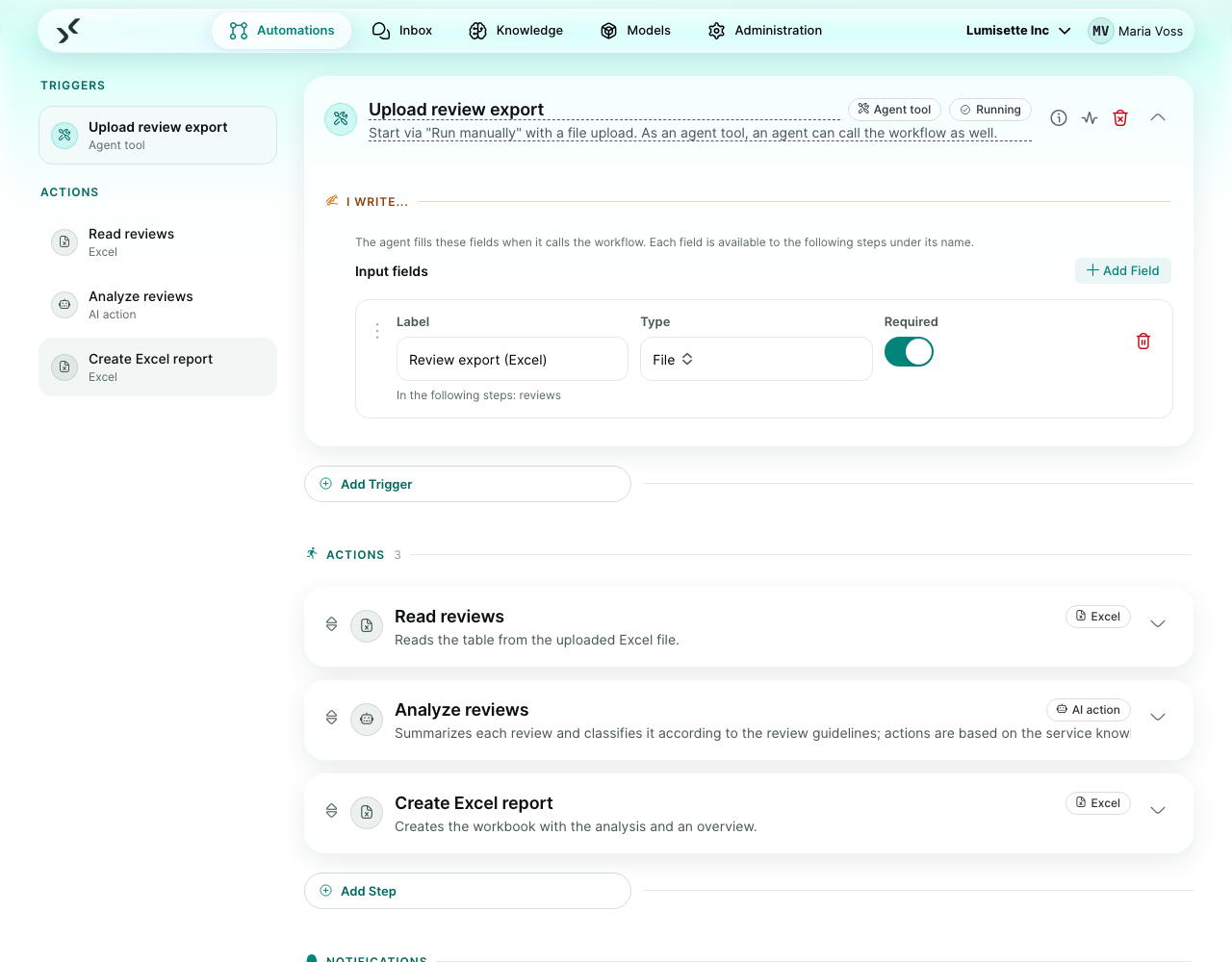
- A workflow becomes a tool by adding the trigger Agent tool to it. On that trigger you define only the input fields – what the agent has to hand over.
- An agent becomes a tool simply by selecting it at another agent. Nothing has to be configured on the agent being asked.
- The agent chooses tools in the agent editor under AI Configuration → Tools, the same way as knowledge bases.
- Name and description of the workflow (or agent) tell the AI what the tool does. You do not write them twice: the agent sees exactly the name and description you gave the automation. For agents, the persona (role, goal, tasks, skills) is added.
- Everything happens in the agent's conversation. A workflow run by an agent does not create a job of its own and does not appear in the workflow's Jobs list; its steps, files and log entries belong to the conversation in which it was called.
Make a workflow usable as a tool
- Open the workflow and add the trigger Agent tool.
- Under Input fields, click Add Field for each value the agent should hand over. Give each field a Label, a Type (text, long text, number, date, file, yes/no) and decide whether it is Required.
- Below each label you see the name under which the field is available, e.g. In the following steps: titel. The following steps can use every input field like any other result of a trigger – it appears in their selection lists.
- Write a clear description of the workflow. It is what the agent reads to decide when to use the tool. If the description is empty, the trigger card reminds you.
- Save and activate the workflow. Inactive workflows are not offered to agents.
A workflow can keep its other triggers – it then runs on a schedule or by webhook and on request by agents.
What the agent gets back
When the workflow is done, the agent receives everything the workflow's steps wrote (texts and data, without the input fields) and the names of files that were provided to the user. Files – for example a Word or Excel document – appear directly in the chat, as long as Show file in inbox is on in the step (the default). Results are capped at 256 KB; longer results are cut off with a notice.
If a step fails, the agent receives the error message instead and can tell the user or try again. A failed tool does not end the conversation.
A workflow called by an agent may run for a limited time – 1 minute at effort Low, 2 minutes at Medium, more at higher effort. After that it is stopped, and the agent is told.
Limits
- Only standard workflows can be tools – no interactive workflows.
- A workflow with an approval step cannot be a tool: it would wait for a decision in the middle of a conversation.
- Workflows never call agents. Tools only work in one direction: agent → workflow, agent → agent.
Give an agent tools
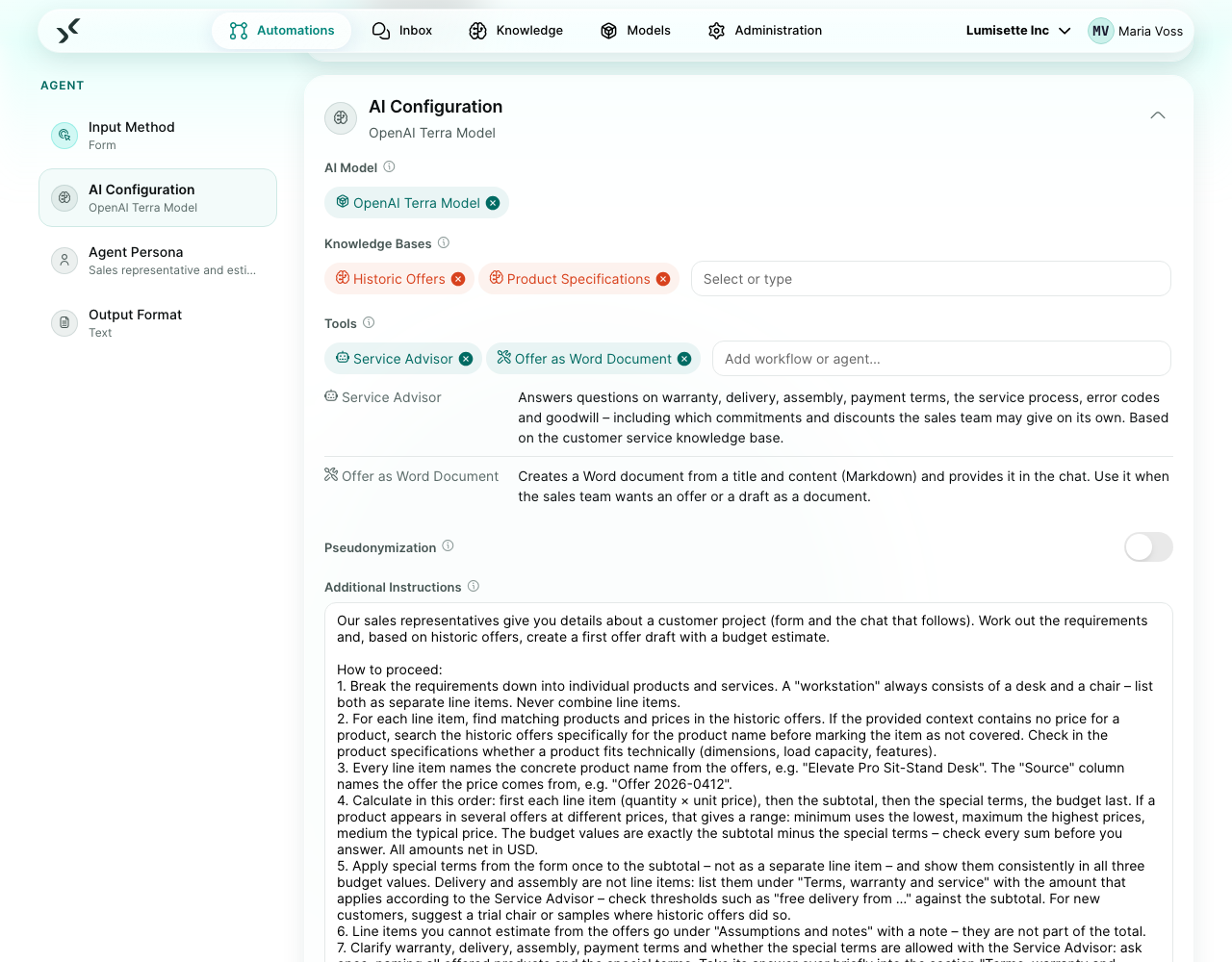
- Open the agent and expand AI Configuration.
- In Tools, start typing and pick workflows (wrench icon) or agents (robot icon). Only workflows with the trigger Agent tool and other agents of the workspace are offered.
- Below the selection, each tool is listed with its description – exactly what the agent will see. Hints appear if a tool has no description, is inactive, or no longer exists.
- Save.
If no tool can be offered yet, the field says so: give a workflow the trigger Agent tool, or create another agent.
Sub-agents
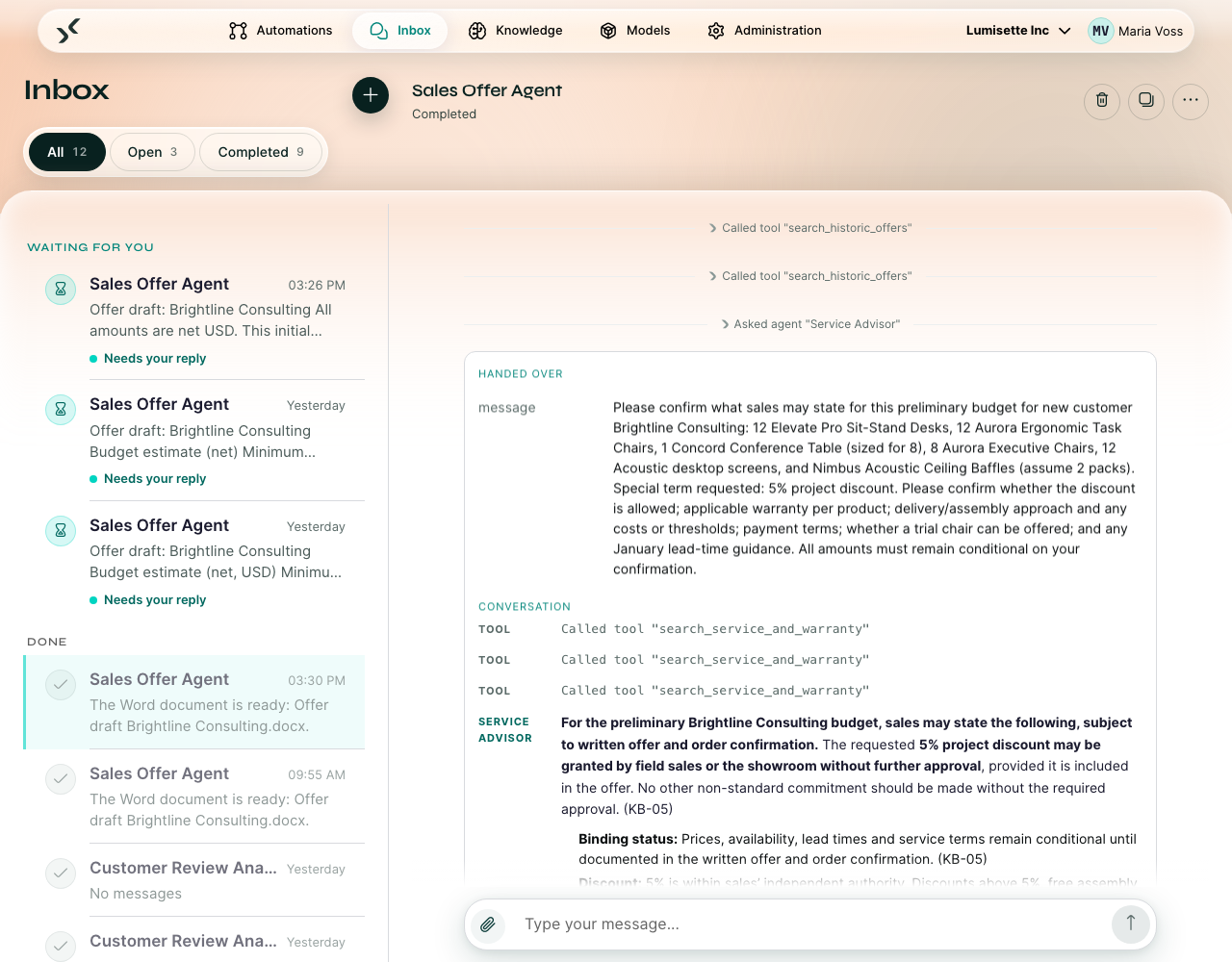
An agent selected as a tool is a sub-agent. The main agent hands it a task – for a chat agent a message, for a form agent its form fields – and receives its answer.
- The sub-agent works with its own model, persona, knowledge, pseudonymization and tools.
- It only sees its own task, not the conversation between the user and the main agent. The main agent decides what to pass on.
- It never talks to the user directly. If it has a question, the question goes back to the main agent, which can answer it or ask the user.
- Asking the same sub-agent again in the same conversation continues its previous exchange.
- Sub-agents can have sub-agents of their own – how deep depends on the effort of the agent the user talks to (Medium: two levels). Agents that would call each other in a circle are rejected when saving.
- The agent the user talks to also sets the budget of model calls for the whole turn; its sub-agents share it.
In the chat
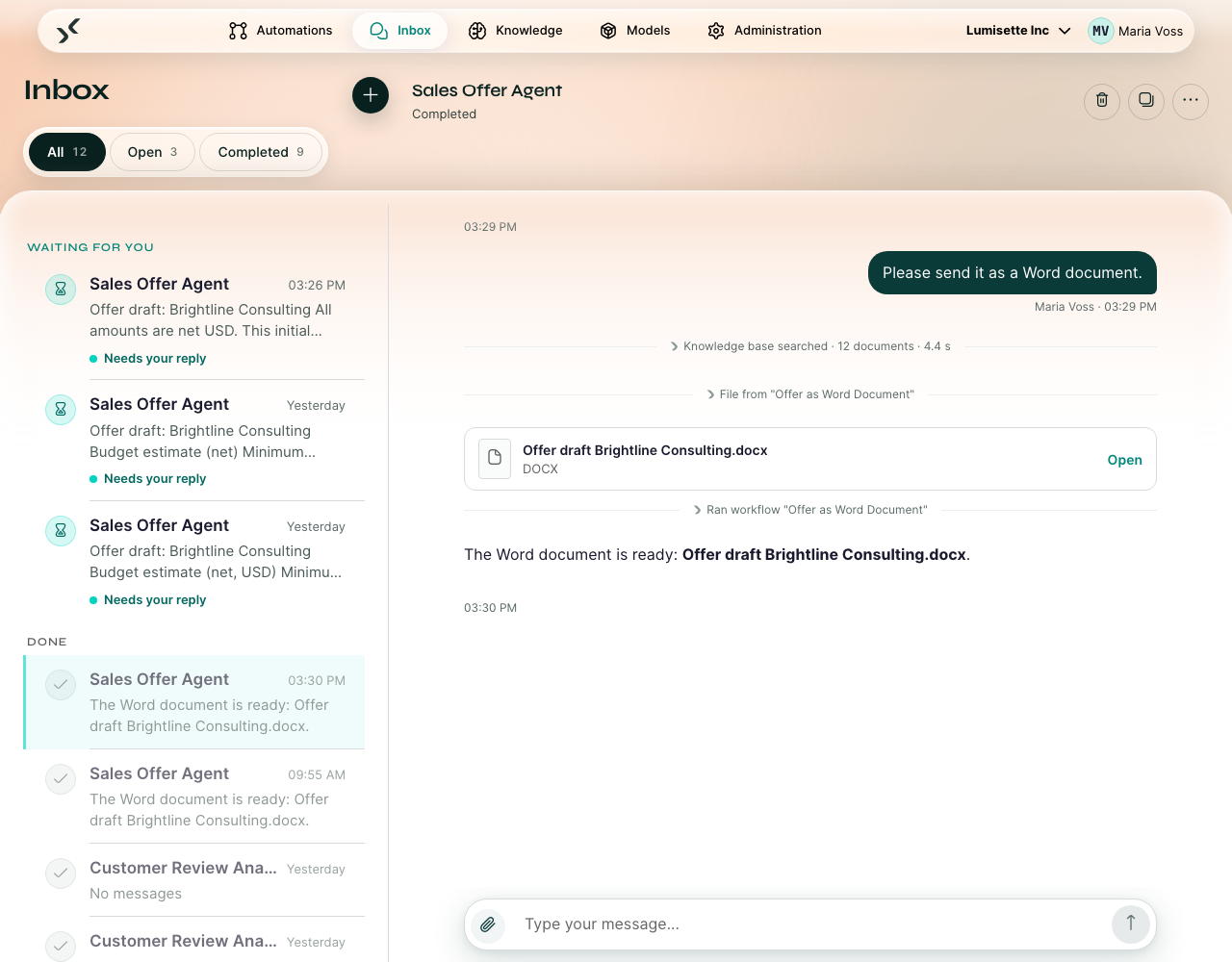
Each tool call appears as a line in the conversation – Ran workflow "…" or Asked agent "…". Click it to see what was handed over, the result, and for sub-agents the whole conversation with them. Files from tools appear below a line File from "…" as file cards, like any other file in the chat.
Permissions and data
- A workflow called by an agent runs with the credentials stored in the workflow (secured fields, connected accounts). Selecting it at an agent means: everyone who may talk to that agent can trigger it.
- If pseudonymization is on for the agent, the workflow receives the real values – otherwise the document would contain placeholders like
#Name 01#. The result goes back to the agent's model masked again. - Workflows used as a tool count toward your license like every other workflow.
Deleting and changing tools
- A workflow or agent that another agent uses as a tool cannot be deleted. The message Still used as a tool names the agents; remove it there first.
- If you remove the trigger Agent tool from a workflow that agents use, saving is refused; the note names an agent that uses it.
- Renaming an input field changes the name under which the following steps read it. Steps that still use the old name are flagged when you save.
Test a tool workflow
Manual Run of a workflow with the trigger Agent tool shows exactly the input fields the agent fills – including file uploads for file fields. That way you can test the workflow with the same inputs an agent would hand over.
Recommendations
- ✅ Describe in the workflow's description what it does and when to use it: "Creates a Word document from a title and Markdown content. Use it when the user wants a document."
- ✅ Keep input fields few and clearly labeled. The labels are the explanation the agent gets for each field.
- ✅ Give sub-agents a narrow task and a matching persona – a contract checker, a researcher, a writer.
- ⚠️ Every tool costs tokens: its name, description and fields are sent to the model on every turn. Select only the tools an agent really needs.
- ❌ Do not use tools for steps that need a human decision. Use an approval step in a regular workflow instead.
What to do next
- Agents – everything about building agents.
- Integrations → Agent tool – the trigger in detail.
- Integrations → Word – a typical action for a tool workflow.