Send email
Send an email with formatted text, signature and attachments — reply in the thread of a received email, or save it as a draft for a person to check.
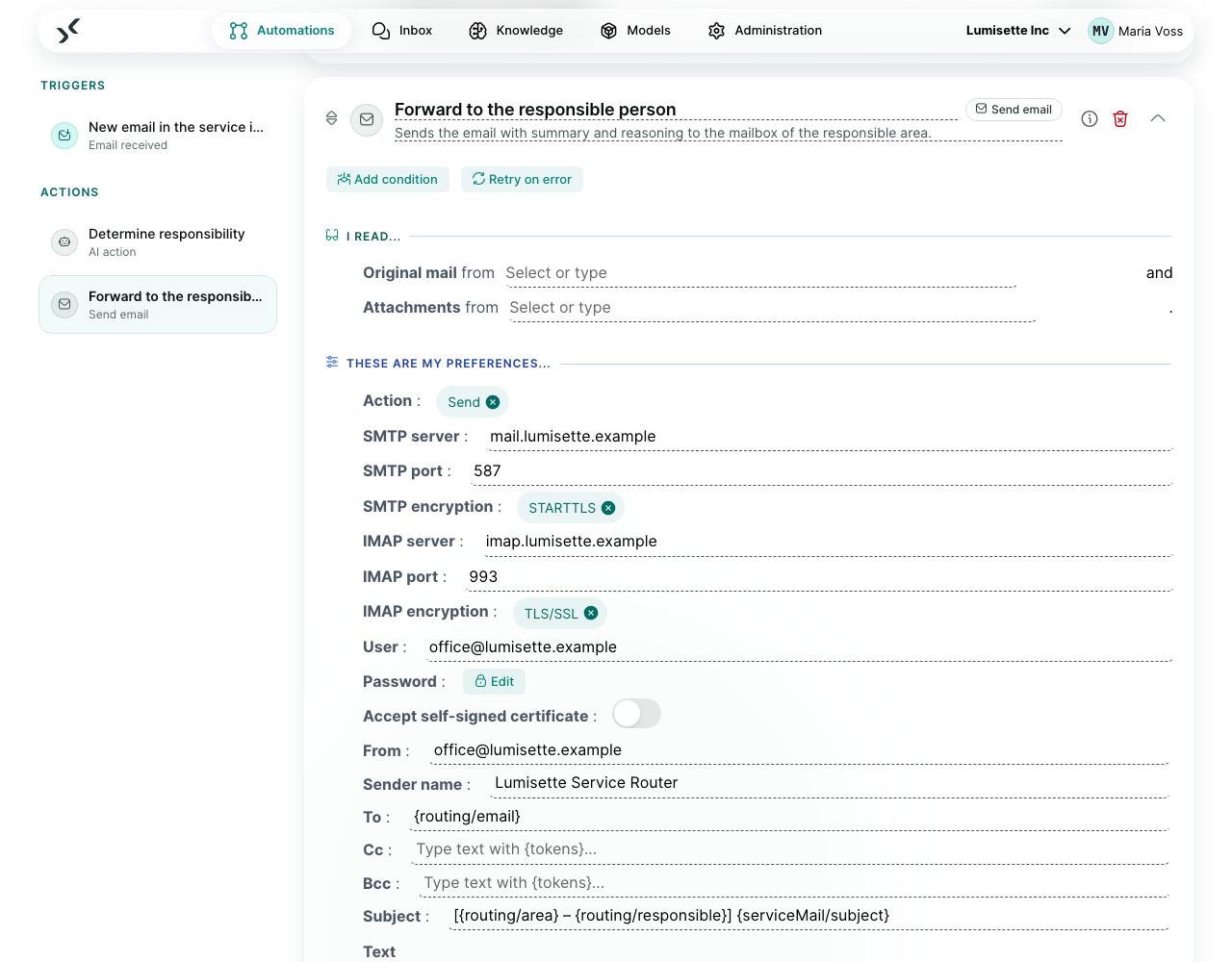
What it does
The step writes one email from your workflow. The text is written in Markdown — by you, by an AI step, or both — and arrives as a properly formatted email: headings, bold text, lists, tables and links. A plain-text version is included for mail programs that don't show HTML.
It works in three ways:
| Action | What happens |
|---|---|
send | Sends the email via your SMTP server. |
reply | Answers an email that the Email received trigger delivered: to its sender, with "Re: …" in front of the subject and in the same conversation in the recipient's mail program. The original text can be quoted below. |
draft | Saves the email in the drafts folder of the mailbox (via IMAP). Nothing is sent — a person opens the draft in Outlook, Thunderbird or the webmail, checks it and sends it. The safest way to start with AI-written emails. |
Attachments are files from earlier steps — an Excel workbook, a Word document, the attachments of a received email — and arrive with their original name and type.
What you configure
| Field | What it controls | Required | Notes |
|---|---|---|---|
| Action | send, reply or draft. | optional | Default send. |
| SMTP server / SMTP port / SMTP encryption | Outgoing mail server. | for send/reply | Encryption starttls (default, port 587), tls (port 465) or none (internal relays only). |
| IMAP server / IMAP port / IMAP encryption | Mailbox for drafts and the sent folder. | for draft | Default port 993 with tls. |
| User / Password | Login for SMTP and IMAP. | usually | The password is stored encrypted. Microsoft 365 and Gmail: use an app password. |
| Accept self-signed certificate | For internal mail servers. | optional | Off by default. |
| From / Sender name | Sender address and the name recipients see. | optional | Default address: the user, if it is an email address. |
| To / Cc / Bcc | Recipients. | To required (except for reply) | Several addresses separated by comma or semicolon; memory values can be inserted, e.g. {memory://customer/email}. For reply the default is the sender of the original email (or its Reply-To). Bcc recipients are not visible in the email. |
| Subject | Subject line. | required (except for reply) | For reply the default is "Re: " + the original subject. |
| Text | The body in Markdown. | required | e.g. Dear {memory://mail/fromName},\n\n{memory://answer}. |
| Original mail | The email to reply to. | for reply | The email or the mail reference from Email received. |
| Quote original mail | Shows the original text below the reply ("On 24 Sep 2026, 10:00, … wrote:"). | optional | Needs the email itself as Original mail, not the mail reference. |
| Attachments | One or more files from earlier steps. | optional | Selecting the attachments output of Email received attaches all its files. |
| Add workspace signature | Appends the signature from the workspace settings. | optional | On by default. |
| Save to sent folder | Puts a copy into the sent folder via IMAP. | optional | Only needed if the mail server doesn't do this itself — Microsoft 365 and Gmail do. |
| Drafts folder | Where drafts go. | optional | Detected automatically (also "Entwürfe", "Drafts"). |
| Max. attachment size (MB) | Upper limit for all attachments together. | optional | Default 20. Larger attachments stop the step. |
| Result | Memory key for message ID, recipients and subject. | optional | See below. |
Signature and allowed domains
Two settings in Administration → Workspace apply to all Send email steps of the workspace:
- Signature — Markdown, appended below the text.
- Allowed recipient domains — e.g.
example.com, partner.com. An email to any other domain stops the step with an error that names the address; subdomains (sales.example.com) are allowed. Drafts are not blocked, only noted in the job log — a person decides before sending.
Security
- HTML written into the text — by a person or an AI — is shown as text, not executed.
- Links work only with
https://,http://andmailto:. Images are turned into links, so nothing is loaded when the recipient opens the email.
Result
{
  "mode": "reply",
  "messageId": "<0f395aac-8ff0-467c-90e7-f3e3c2f25cb9@example.com>",
  "subject": "Re: Request for quotation",
  "to": ["purchasing@customer.com"],
  "cc": [],
  "bcc": [],
  "attachments": ["Quotation_A-4711.xlsx"],
  "accepted": ["purchasing@customer.com"],
  "rejected": [],
  "folder": "Sent Items"
}
folder is set for drafts and for the copy in the sent folder.
Example scenario
Answering requests with a person in the loop. Email received watches sales@. An AI step drafts an answer from the request and your product knowledge, an Excel step builds the quotation. Send email with action draft, Original mail set to the received email and the workbook as attachment saves the reply to the drafts folder — in the right thread, with the quotation attached. A salesperson checks and sends it from Outlook.
Once the answers are reliably good, switch the action to reply.
Recommendations
- ✅ Start with
draft. Switch tosend/replyonce you trust the results. - ✅ Set allowed recipient domains for automations that should only write to known customers or internally.
- ✅ Let the AI write Markdown — headings, lists and tables come out well formatted.
- ⚠️ Microsoft 365 and Gmail need an app password (or an SMTP relay) — the normal account password is rejected.
- ❌ Don't send to large recipient lists. The step is meant for individual emails, not newsletters.
What to do next
- Receive and answer emails: Email received.
- Let a person approve first: Request approval.