Mit Agenten chatten
Der Posteingang ist der zentrale Ort, an dem Endanwender mit dem AI Kit arbeiten. Er listet jede Konversation, die Sie begonnen haben oder die Ihnen zugewiesen wurde, lässt Sie dort weitermachen, wo Sie aufgehört haben, und hier beginnen Sie neue Konversationen mit den Agenten, die Ihr Team gebaut hat.
Wann Sie den Posteingang nutzen
Nutzen Sie ihn immer dann, wenn Sie:
- einem Agenten eine Frage stellen möchten (zum Beispiel „Fassen Sie die Notizen der letzten Teambesprechung zusammen“ oder „Legen Sie einen Urlaubsantrag für nächsten Monat an“),
- eine früher begonnene Konversation fortsetzen möchten,
- eine Aufgabe übernehmen möchten, die eine Automation Ihnen zur Prüfung oder Eingabe übergeben hat,
- sehen möchten, was noch offen und was bereits erledigt ist.
Was ist eine Konversation
Eine Konversation im Posteingang ist ein laufender Austausch zwischen Ihnen und einem Agenten. Es gibt zwei Arten – in der Liste sehen beide gleich aus:
- Eine Konversation mit einem echten Agenten – ein Hin und Her im Chat; der Agent entscheidet, wann er fertig ist.
- Ein Workflow, der angehalten hat, um Sie etwas zu fragen – ein Workflow läuft meist selbstständig, braucht er aber eine Entscheidung oder Eingabe von einem Menschen, erscheint er im Posteingang als Konversation, bis Sie antworten.
Sie müssen nicht wissen, welche Art es ist. Sie antworten einfach.
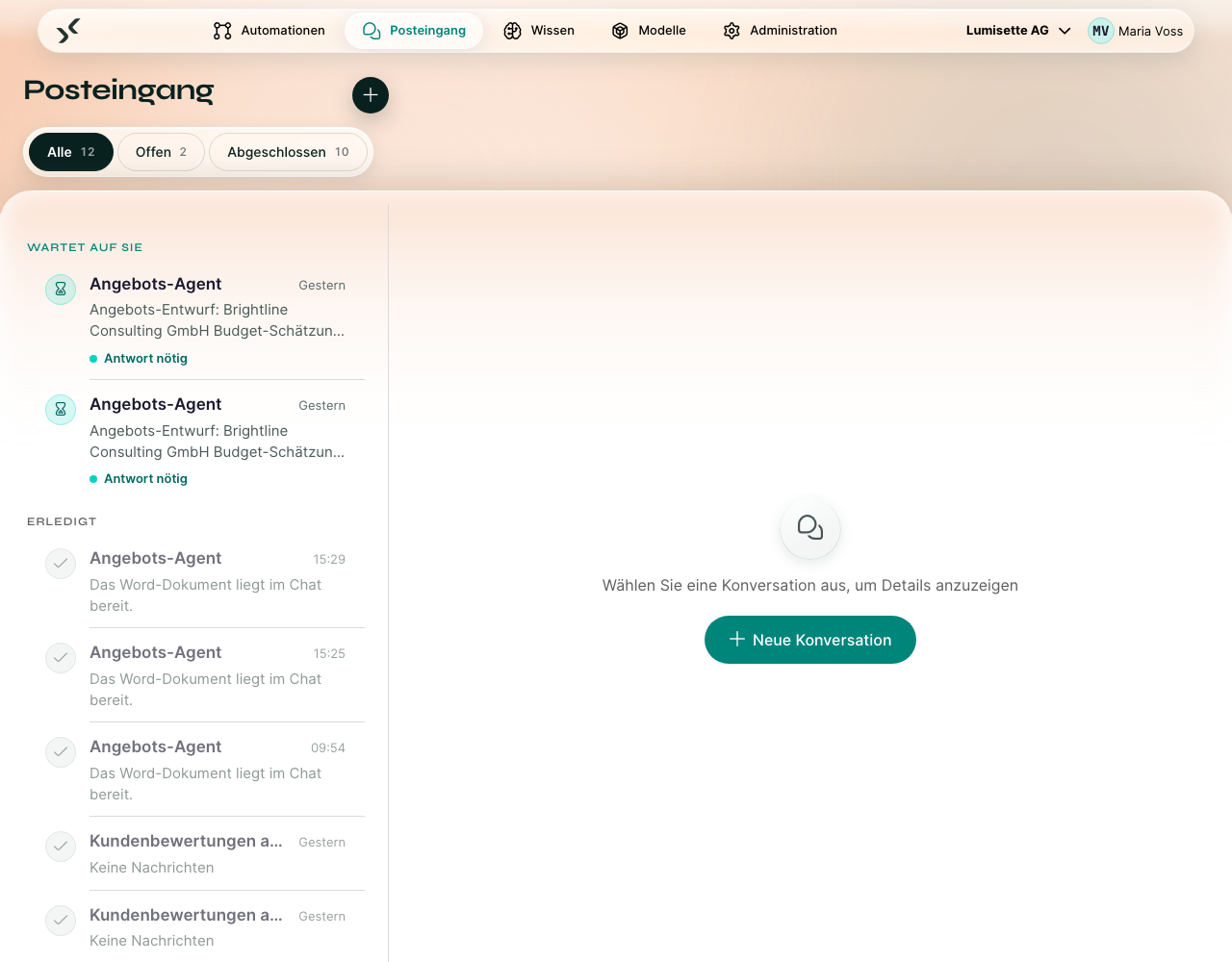
Liste filtern und gruppieren
Über der Liste stehen drei Filter, jeder mit eigener Anzahl:
- Alle – jede Konversation, offen und abgeschlossen. Das ist die Voreinstellung.
- Offen – nur Konversationen, die auf eine Eingabe von Ihnen warten oder noch laufen.
- Abgeschlossen – beendete Konversationen. Praktisch, um frühere Ergebnisse nachzuschlagen.
Innerhalb dessen, was der Filter übrig lässt, gruppiert die Liste die Konversationen danach, was sie von Ihnen brauchen:
- Wartet auf Sie – die Konversation steht still, bis Sie antworten. Beginnen Sie hier.
- Läuft gerade – in Bearbeitung; im Moment ist nichts für Sie zu tun.
- Erledigt – abgeschlossen.
Schritt für Schritt – neue Konversation beginnen
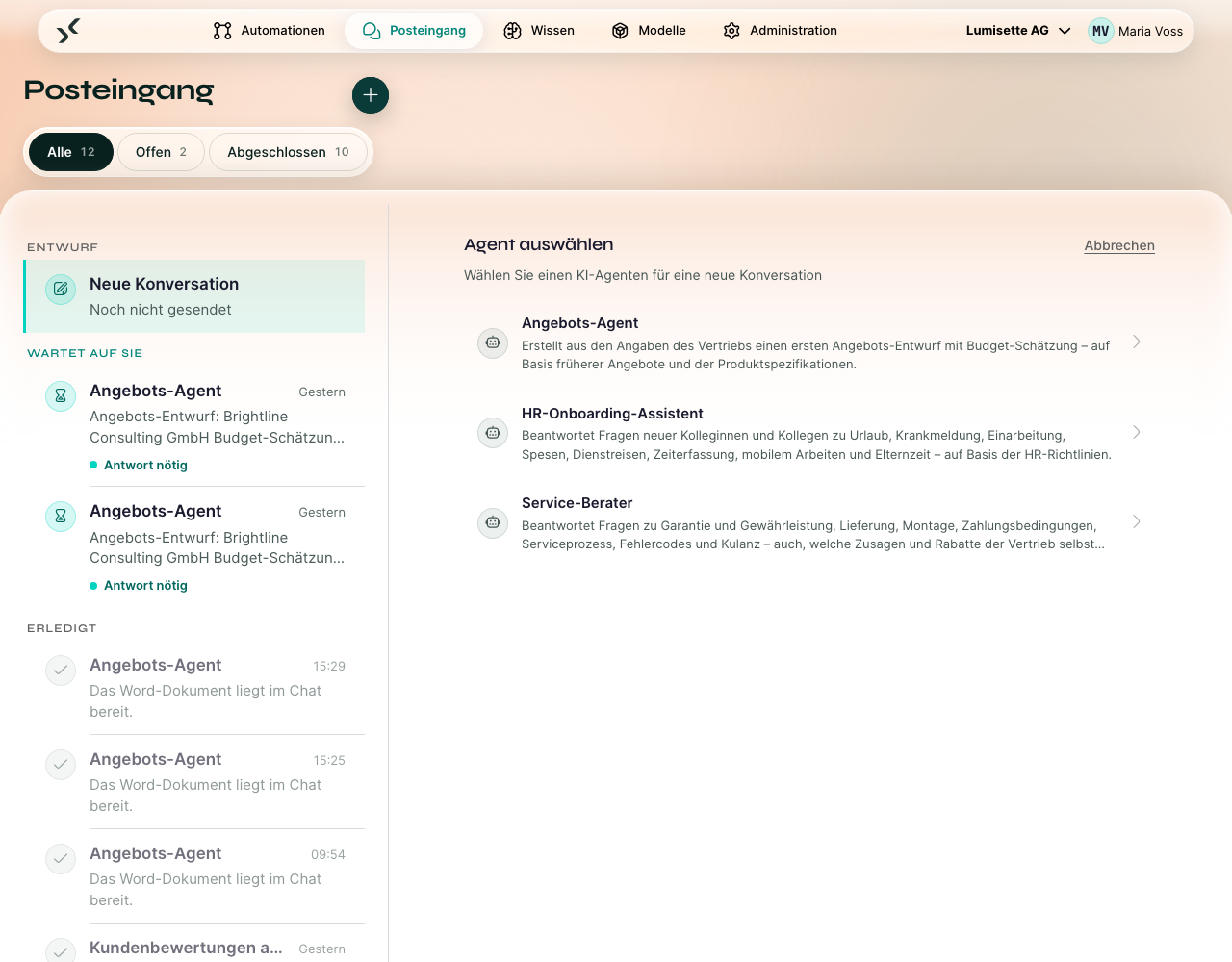
- Klicken Sie in der Werkzeugleiste des Posteingangs auf Neue Konversation. Der rechte Bereich wechselt zu Agent auswählen – er öffnet sich an Ort und Stelle, nicht als Pop-up.
- Wählen Sie den Agenten, mit dem Sie sprechen möchten. Jeder hat einen Namen und eine kurze Beschreibung – lesen Sie sie, um sicherzugehen, dass Sie den richtigen wählen. Anderen Agenten wählen bringt Sie zurück, falls Sie danebengegriffen haben.
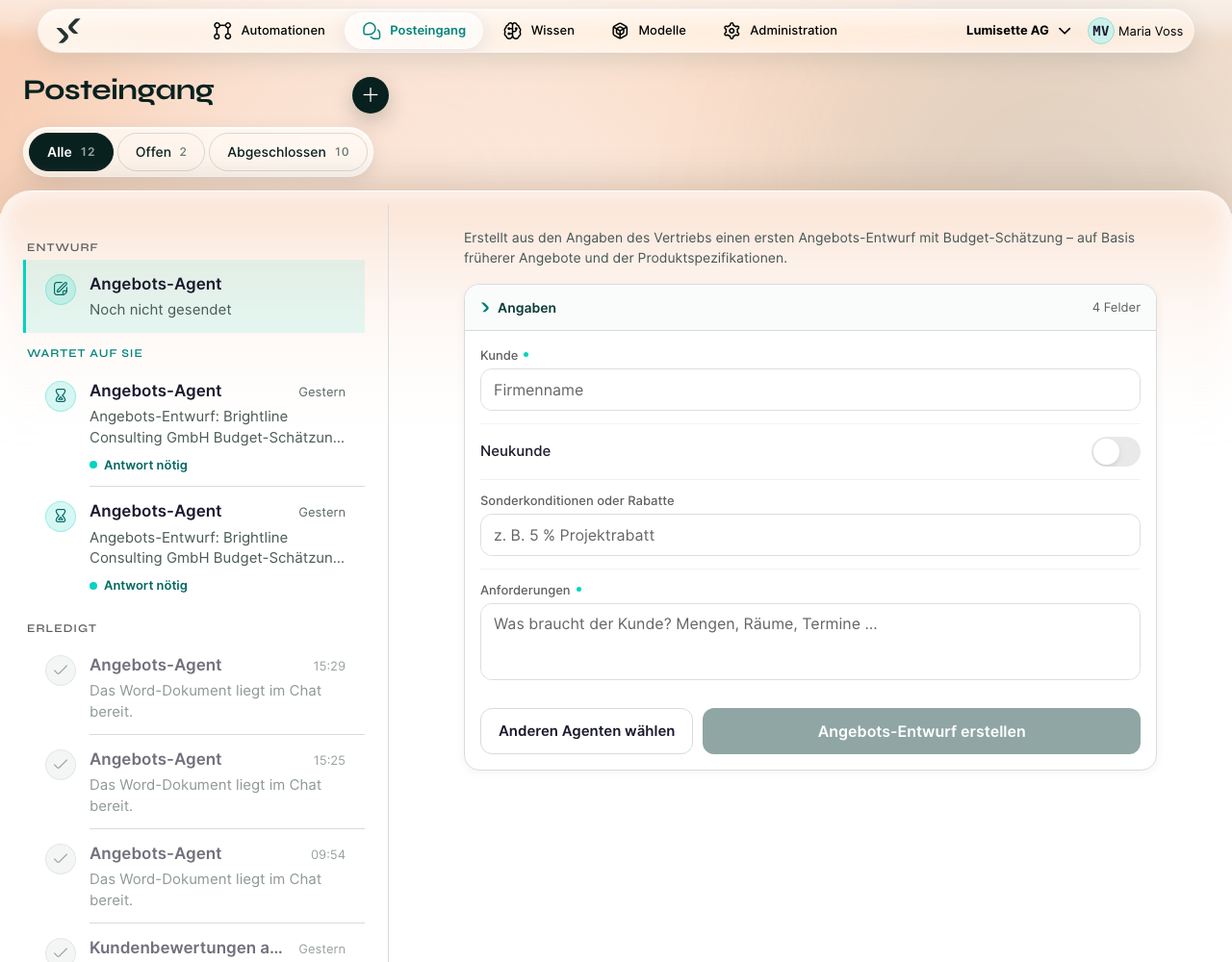
- Je nach Agent erhalten Sie entweder:
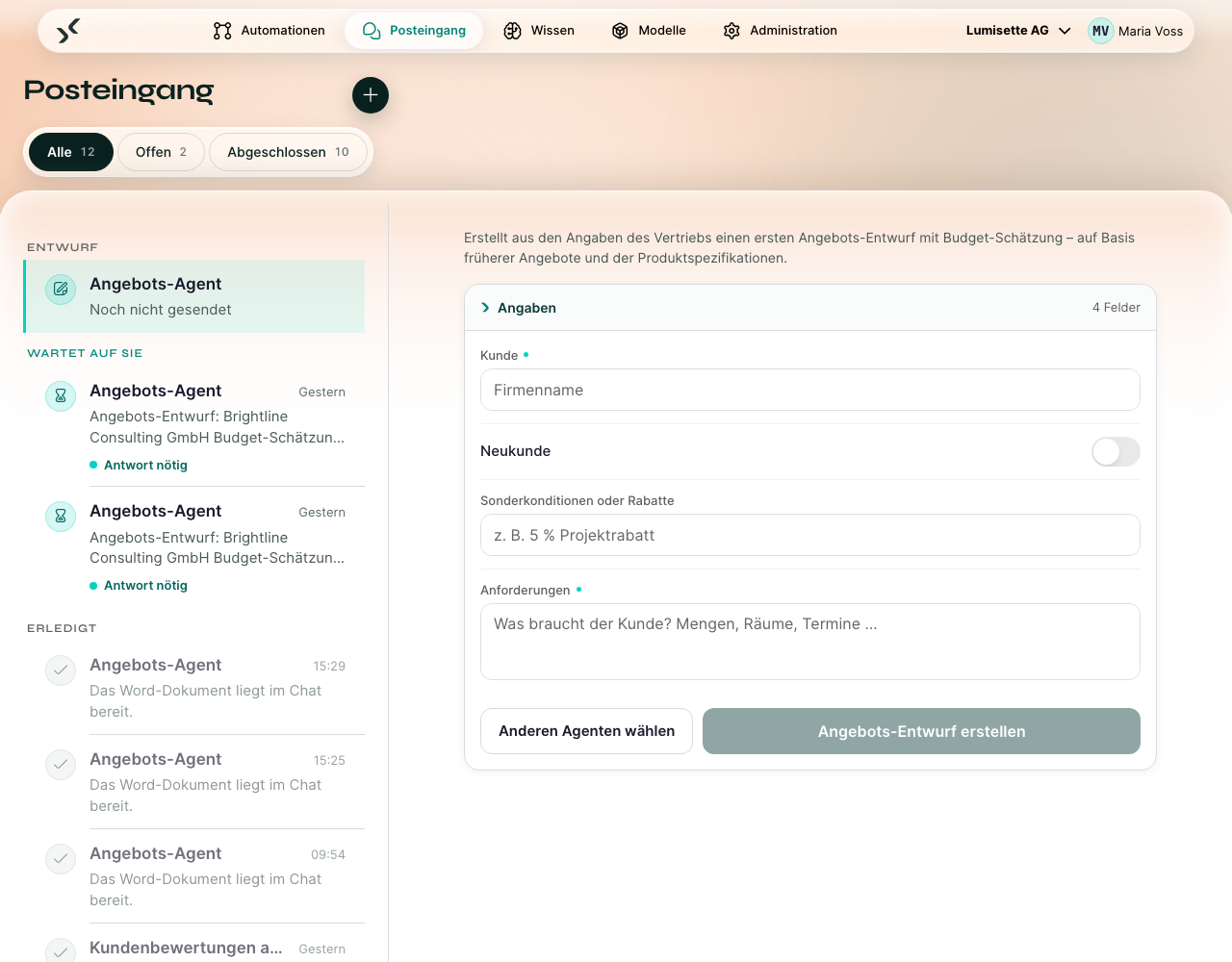
- ein Nachrichtenfeld für Ihre erste Nachricht oder
- zuerst ein kurzes Formular für die Angaben, die der Agent vorab braucht.
- Geben Sie Ihre Nachricht ein und klicken Sie auf Konversation starten. Sie können das Feld auch leer lassen – dann beginnt der Agent mit seiner eigenen Willkommensnachricht.
- Führen Sie die Konversation weiter. Sobald der Agent alles hat, was er braucht, teilt er Ihnen mit, dass die Konversation beendet ist.
Sobald ein Agent gewählt ist, sehen Sie seinen Einstieg – ein Nachrichtenfeld oder ein Formular:
Schritt für Schritt – bestehende Konversation fortsetzen
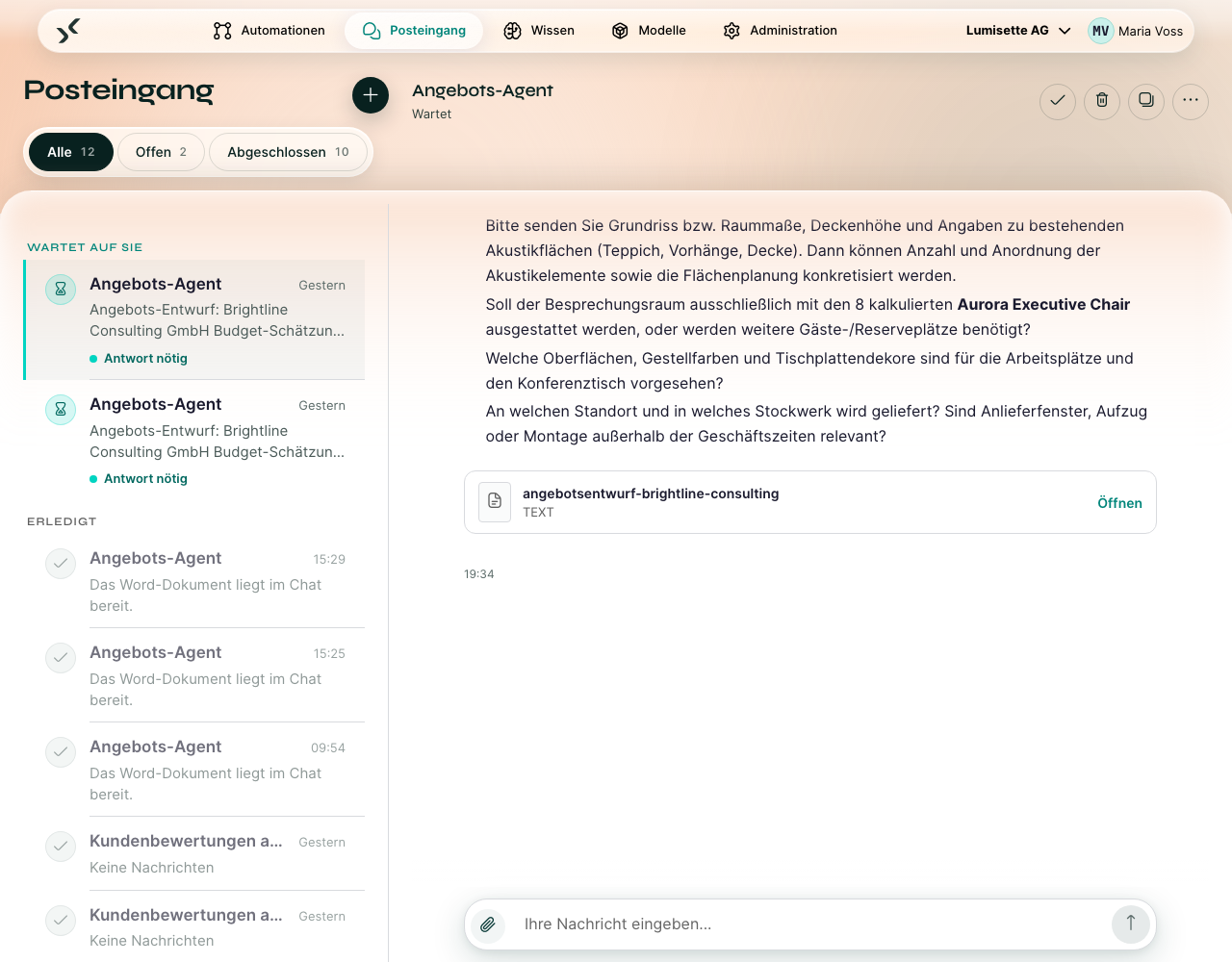
- Suchen Sie die Konversation in der Liste. Die neuesten stehen oben.
- Klicken Sie auf die Karte der Konversation.
- Der vollständige Verlauf erscheint. Scrollen Sie nach oben, um frühere Nachrichten zu lesen, und ganz nach unten, um Ihre Antwort einzugeben.
Dateien anhängen
Klicken Sie auf die Büroklammer links neben dem Nachrichtenfeld (Datei anhängen) und wählen Sie eine oder mehrere Dateien. Jede Datei erscheint während des Hochladens als kleiner Chip über dem Feld; mit dem × entfernen Sie sie wieder. Senden Sie die Nachricht wie gewohnt – eine Nachricht darf auch nur aus Anhängen bestehen.
- Der Agent liest den Text von PDF-, Word-, Excel- und CSV-Dateien sowie von reinen Textformaten und arbeitet mit deren Inhalt. Bilder werden angehängt, ihr Inhalt wird aber nicht gelesen.
- Sehr lange Dokumente werden für das KI-Modell gekürzt; die Datei selbst bleibt vollständig und lässt sich aus der Konversation öffnen.
- Angehängte Dateien erscheinen als Karten unter Ihrer Nachricht. Öffnen zeigt eine Vorschau und lässt Sie die Datei herunterladen.
- Dateien gehören zur Konversation und werden zusammen mit ihr gelöscht.
- Die maximale Dateigröße beträgt 25 MB, sofern Ihr Administrator sie nicht geändert hat.
Formularfelder vom Typ Datei – zu Beginn oder mitten in einer Konversation – funktionieren genauso: Datei auswählen, dann absenden.
Antworten und Tabellen kopieren
Fahren Sie mit der Maus über eine Antwort des Agenten, um darunter drei Knöpfe einzublenden (auf Touch-Geräten sind sie immer sichtbar):
- Kopieren – Formatierungen wie Listen und Tabellen bleiben erhalten, wenn Sie in Word oder Outlook einfügen.
- Markdown – lädt die Antwort als
.md-Datei herunter, genau so, wie der Agent sie geschrieben hat. - Word – lädt die Antwort als Word-Dokument herunter, mit Überschriften, Listen und Tabellen sowie Datums- und Zahlenangaben im Format des Workspace.
Tabellen in einer Antwort haben eigene Knöpfe über der Tabelle (auf Touch-Geräten sind sie immer sichtbar):
- Kopieren – direkt in Excel einfügen (jeder Wert landet in einer eigenen Zelle) oder in ein Dokument.
- CSV – lädt die Tabelle als CSV-Datei herunter, die Excel direkt öffnet (inklusive Umlaute).
- Excel – lädt eine
.xlsx-Datei mit fett gesetzter, fixierter Kopfzeile und Filtern herunter.
Reine Zahlen werden in Excel zu Zahlen; Beträge mit Tausendertrennzeichen oder Währung (z. B. 1,017.00 EUR) bleiben Text, genau wie angezeigt.
Wenn der Agent mitten in der Konversation ein Formular zeigt
Manche Agenten halten mitten in der Konversation an, um Sie strukturiert etwas zu fragen – zum Beispiel nach einem Datum, einer Kategorie oder einer hochzuladenden Datei. Der Chat zeigt das Formular direkt im Verlauf. Füllen Sie es aus, senden Sie es ab, und der Agent macht dort weiter, wo er war.
Wenn der Agent ein Werkzeug verwendet
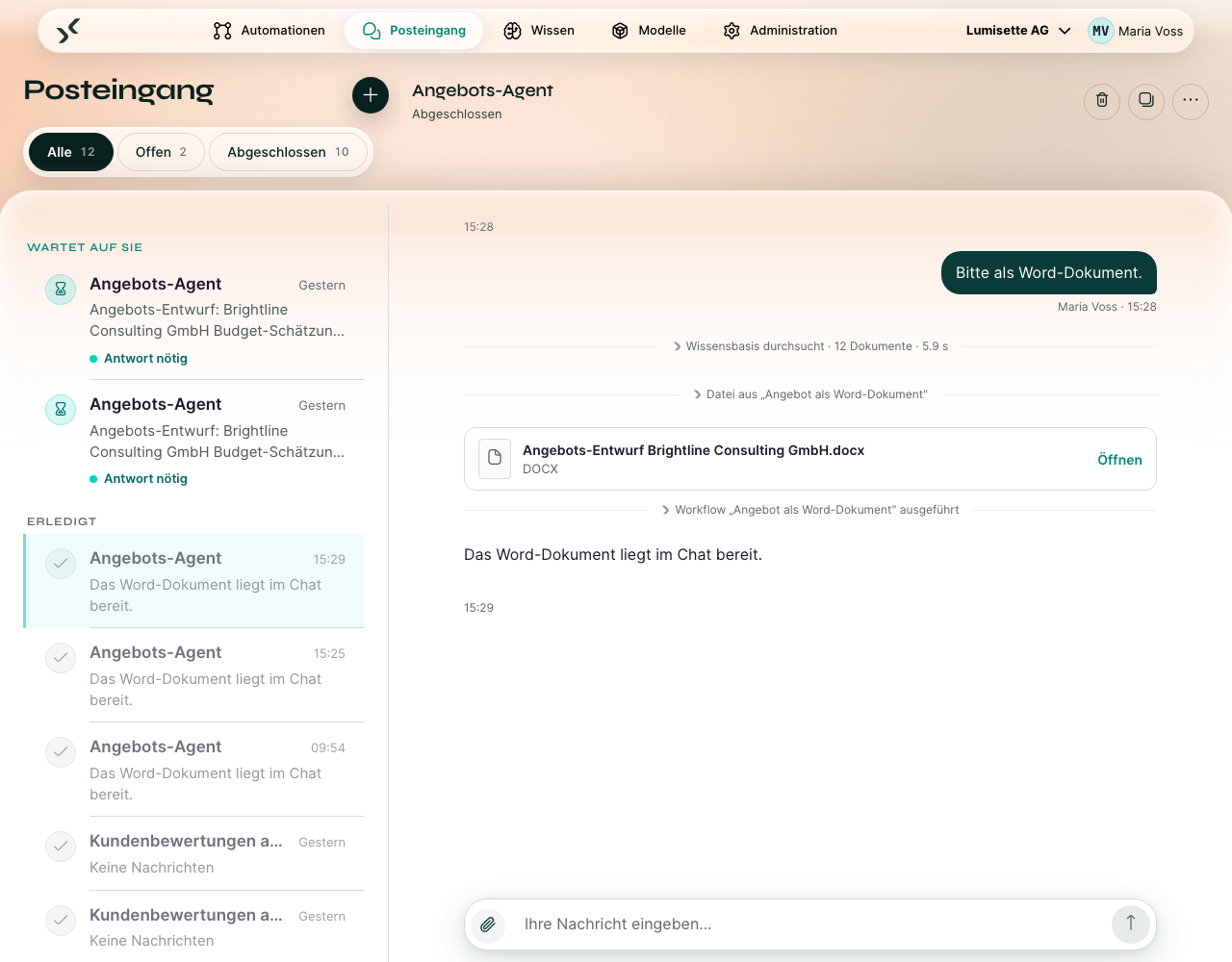
Manche Agenten können selbstständig Workflows ausführen oder andere Agenten befragen (siehe Agent-Werkzeuge). Der Chat zeigt jeden solchen Schritt als dünne Zeile – Workflow „…“ ausgeführt oder Agent „…“ befragt. Klicken Sie auf die Zeile, um zu sehen, was der Agent übergeben hat und was zurückkam. Dateien, die ein Werkzeug erzeugt – zum Beispiel ein Word-Dokument –, erscheinen unter einer Zeile Datei aus „…“ und lassen sich wie jede andere Datei im Chat öffnen.
Sie müssen nichts tun; der Agent macht selbstständig weiter.
Wenn die Konversation hängt
Wenn Sie eine Nachricht gesendet haben und der Agent nicht innerhalb von ein, zwei Minuten antwortet:
- Prüfen Sie Ihre Netzwerkverbindung.
- Laden Sie die Seite neu. Konversationen werden laufend gespeichert – Ihre Nachrichten gehen nicht verloren.
- Besteht das Problem weiter, wenden Sie sich an die Person, die den Agenten gebaut hat. Sie kann den Lauf der Konversation im Bereich Automationen untersuchen.
Empfehlungen
- ✅ Formulieren Sie Ihre erste Nachricht konkret. Mit „Fassen Sie die Besprechung vom Montag mit dem Marketing-Team zusammen“ kommen Agenten besser zurecht als mit „Fassen Sie diese Besprechung zusammen“.
- ✅ Wenn ein Agent eine Rückfrage stellt, beantworten Sie sie, bevor Sie weiteren Kontext schicken. Der Agent entscheidet anhand Ihrer Antwort, wie es weitergeht.
- ✅ Nutzen Sie den Filter Offen als Standardansicht. Sobald eine Konversation abgeschlossen ist, verschwindet sie aus Ihrer täglichen Liste.
- ⚠️ Konversationen ohne Aktivität werden nach 60 Tagen gelöscht (Ihr Administrator kann das ändern), zusammen mit ihren Dateien. Laden Sie alles herunter, was Sie behalten möchten. Hat eine Konversation ihren Zweck erfüllt, markieren Sie sie als erledigt (das übernimmt der Agent oft automatisch für Sie).
- ❌ Fügen Sie keine hochsensiblen Daten (vollständige Ausweisdaten, unverschlüsselte Zugangsdaten, Geheimnisse) in einen Chat ein, ohne das mit Ihrem Administrator abzustimmen. Die Daten laufen über das KI-Modell, das für den Agenten konfiguriert ist – und das kann extern sein. Siehe Best Practices → Datenschutz.
Nächste Schritte
- Wenn Sie selbst Agenten bauen: Automationen → Agenten.
- Wenn Sie verstehen möchten, wie festgelegt wird, was ein Agent tun darf: Automationen → Grundkonzepte.