Chat with Agents
The Inbox is the main place where end users interact with the AI Kit. It lists every conversation you started or that was assigned to you, lets you pick up where you left off, and is where you start new conversations with the agents your team has built.
When to use the Inbox
Use it whenever you want to:
- Ask an agent a question (for example "Summarize the latest team meeting notes" or "Open a vacation request for next month").
- Continue a conversation you started earlier.
- Pick up a task that an automation has handed to you for review or input.
- See what is still open vs. already done.
What is a conversation
A conversation in the Inbox is one ongoing exchange between you and an agent. It can be of two types — both look the same in the list:
- A conversation with a true agent — back-and-forth chat, the agent decides when it is done.
- A workflow that paused to ask you something — a workflow runs on its own most of the time, but if it needs a human decision or input, it shows up in the Inbox as a conversation until you respond.
You do not need to know which is which. You just answer.
Filtering and grouping the list
Three filters sit above the list, each with its own count:
- All — every conversation, open and closed. This is the default.
- Open — only conversations that are waiting on input from you or are still in progress.
- Completed — finished conversations. Useful for looking up past results.
Within whatever the filter leaves, the list groups conversations by what they need from you:
- Waiting for you — the conversation is stuck until you answer. Start here.
- In progress — running; nothing for you to do right now.
- Done — finished.
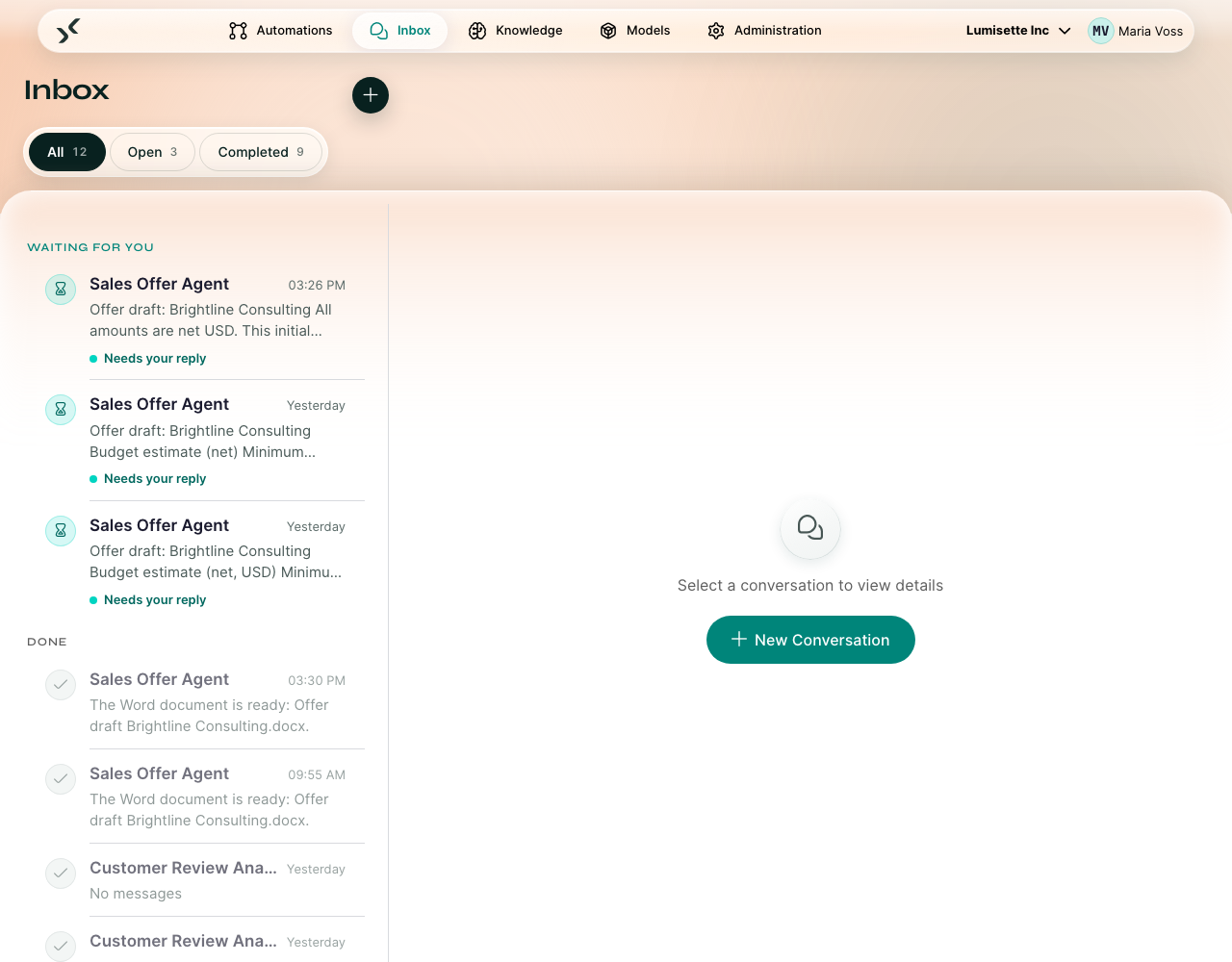
Step by step — start a new conversation
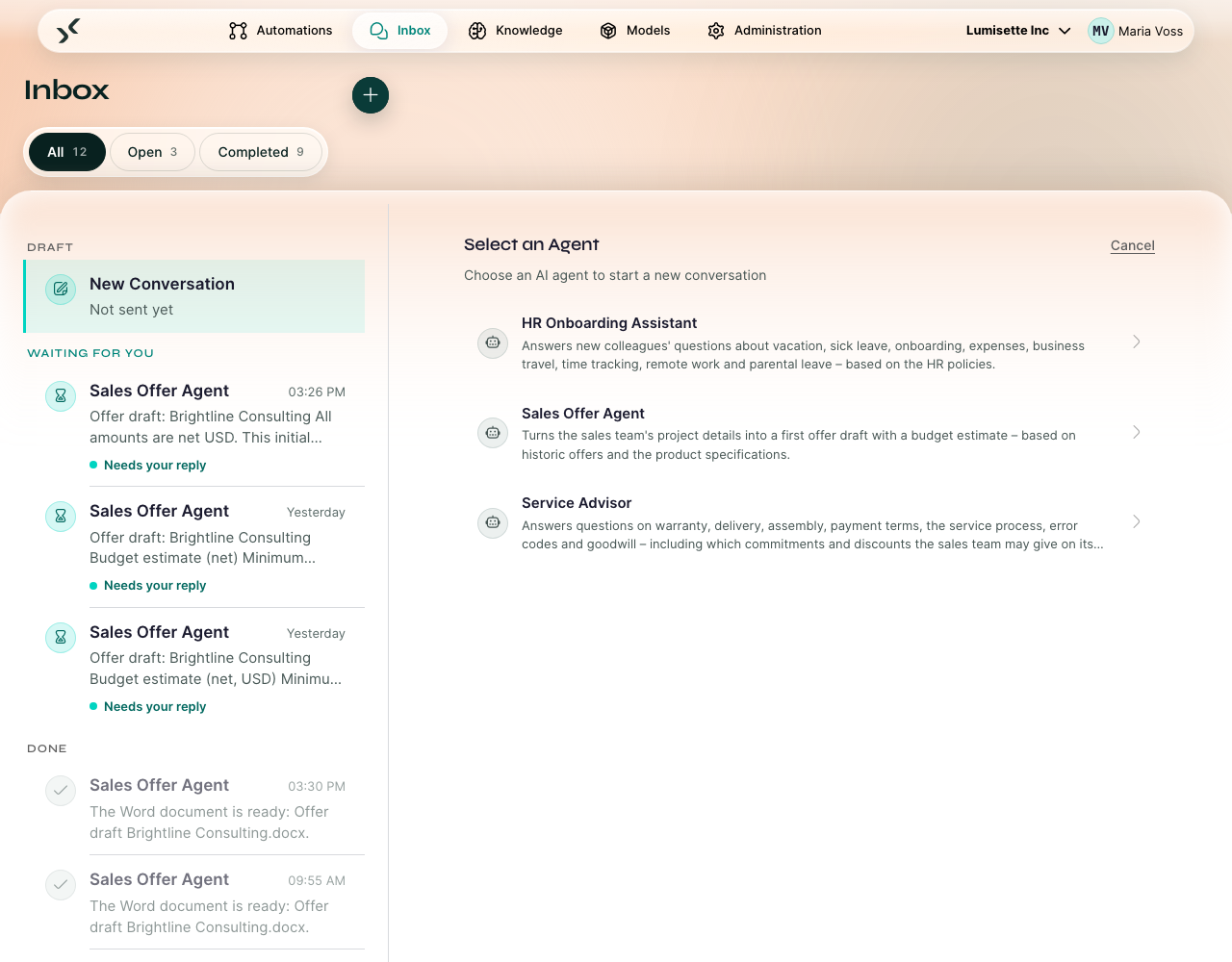
- Click New Conversation in the Inbox toolbar. The right-hand pane switches to Select an Agent — it opens in place, not as a pop-up.
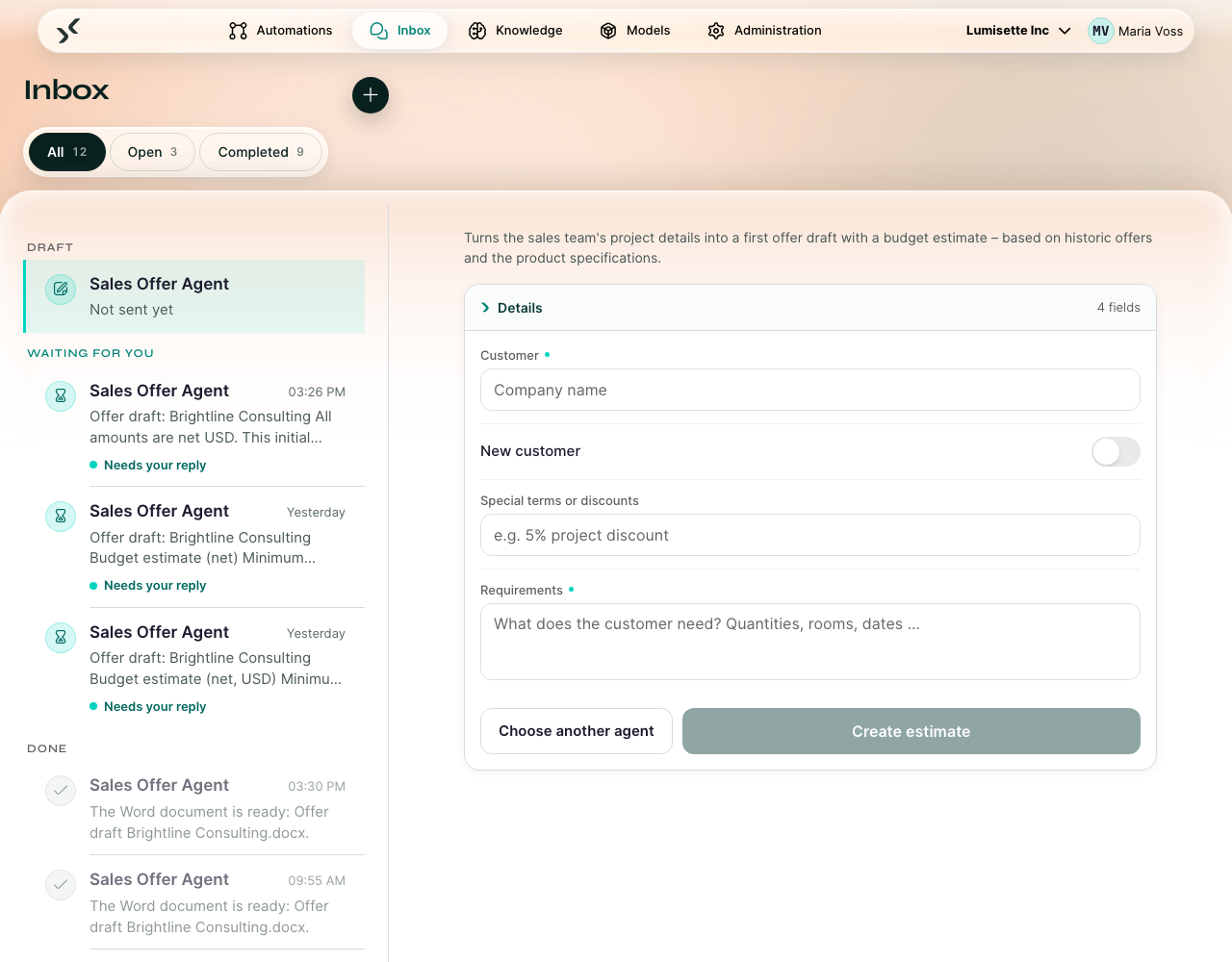
- Pick the agent you want to talk to. Each has a name and a short description — read it to make sure you are choosing the right one. Choose another agent takes you back if you picked wrong.
- Depending on the agent, you will either:
- Get a message box ready for your first message, or
- First fill in a short form with the information the agent needs upfront.
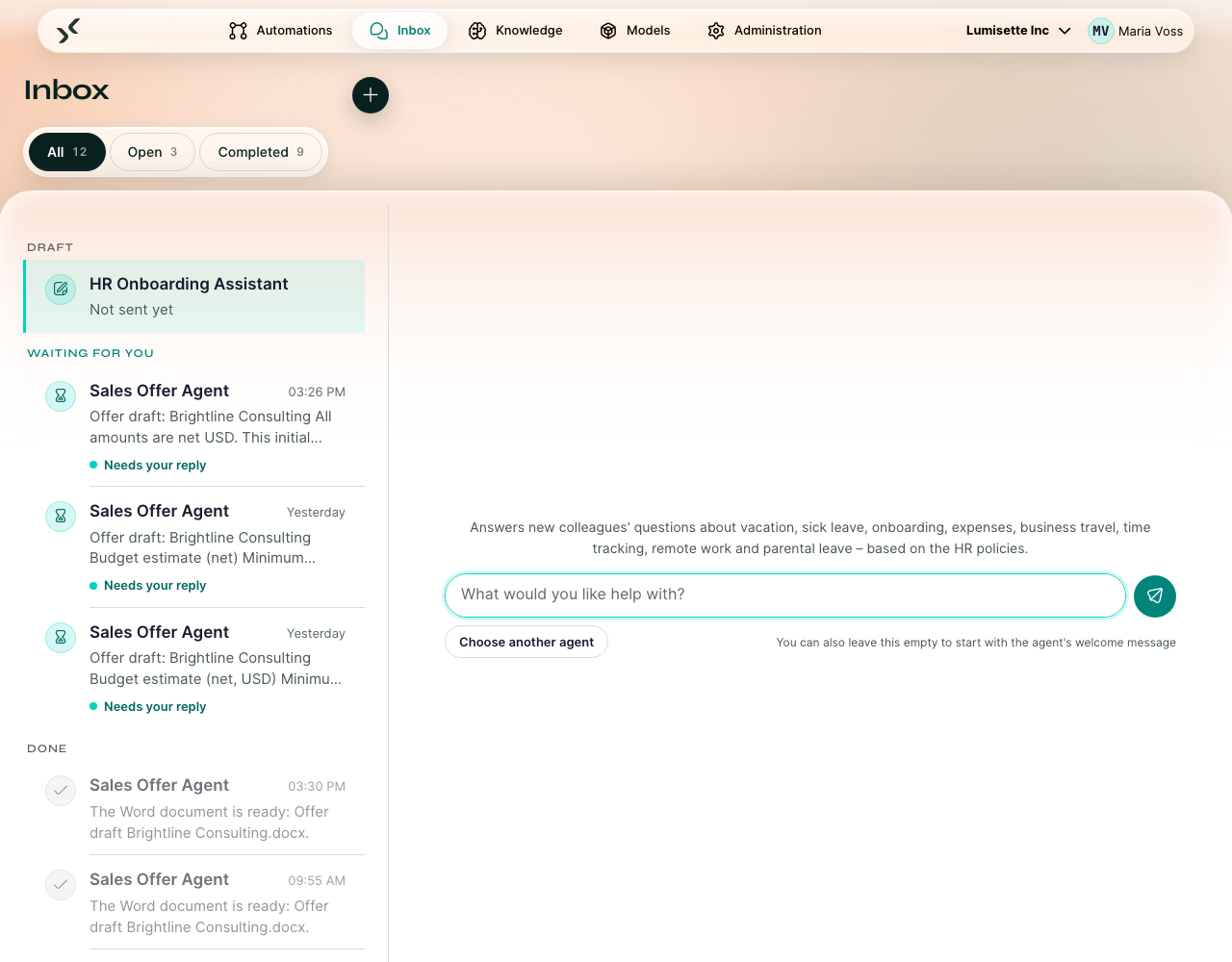
- Type your message and click Start Conversation. You may also leave the box empty — then the agent opens with its own welcome message.
- Continue the conversation. When the agent has everything it needs, it tells you the conversation is finished.
Once an agent is picked, you get its starting point — a message box, or a form:
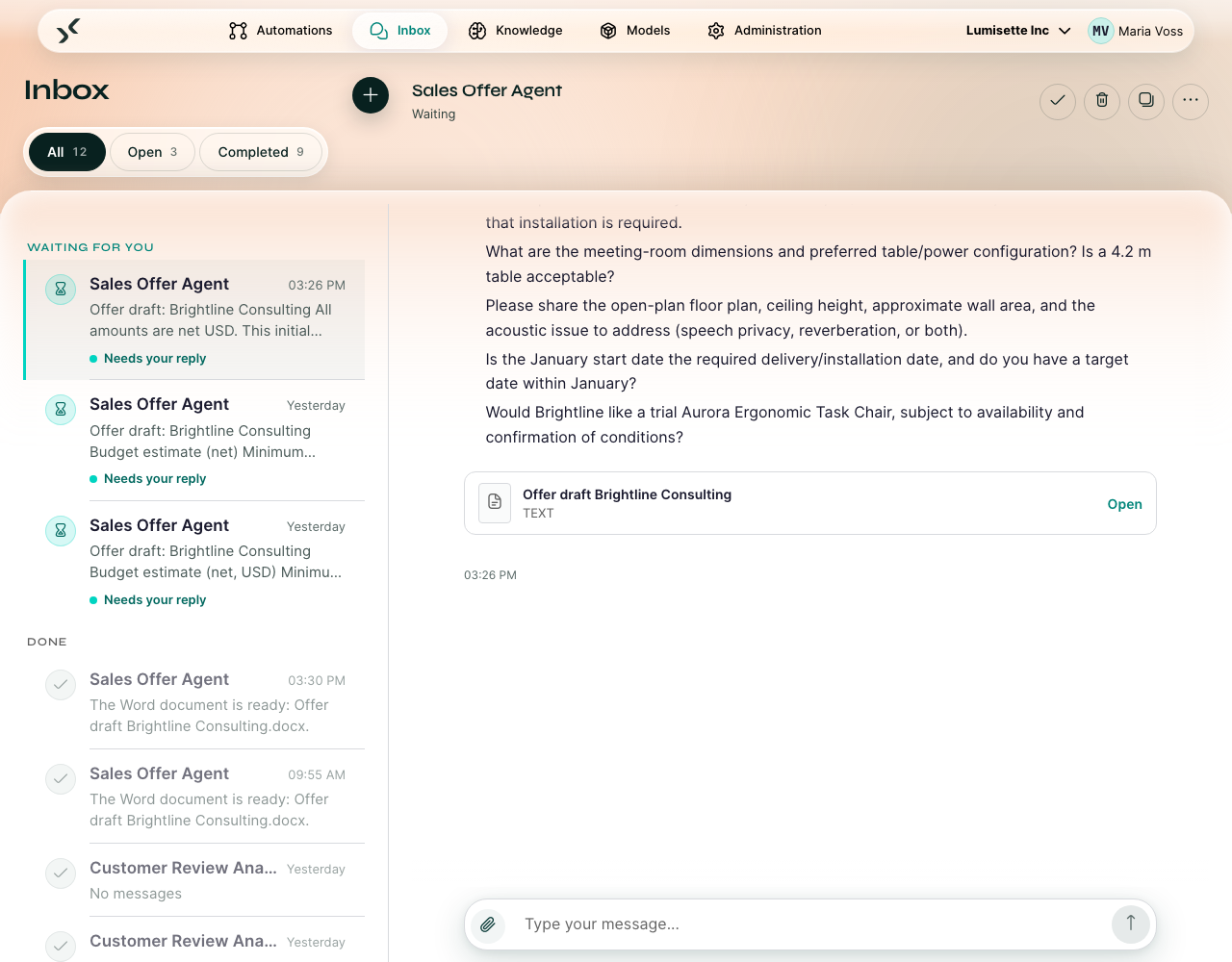
Step by step — continue an existing conversation
- Find the conversation in the list. The most recent are at the top.
- Click the conversation card.
- The full transcript appears. Scroll up to read prior messages, scroll to the bottom and type your reply.
Attaching files
Click the paper clip left of the message field (Attach file) and pick one or more files. Each file appears as a small chip above the field while it uploads; the × removes it again. Send the message as usual — a message may also consist of attachments only.
- The agent reads the text of PDF, Word, Excel and CSV files and of plain text formats and works with their content. Images are attached, but their content is not read.
- Very long documents are shortened for the AI model; the file itself stays complete and can be opened from the conversation.
- Attached files appear as cards under your message. Open shows a preview and lets you download the file.
- Files belong to the conversation and are deleted together with it.
- The maximum file size is 25 MB unless your administrator changed it.
Form fields of type file — at the start of a conversation or mid-conversation — work the same way: Choose file, then submit.
Copying answers and tables
Hover over an agent's answer to show three buttons below it (on touch devices they are always visible):
- Copy — formatting such as lists and tables is kept when you paste into Word or Outlook.
- Markdown — downloads the answer as a
.mdfile, exactly as the agent wrote it. - Word — downloads the answer as a Word document, with headings, lists and tables, dates and numbers in the workspace's format.
Tables in an answer have their own buttons above the table (on touch devices they are always visible):
- Copy — paste straight into Excel (each value lands in its own cell) or into a document.
- CSV — downloads the table as a CSV file that Excel opens directly (umlauts included).
- Excel — downloads an
.xlsxfile with a bold, frozen header row and filters.
Plain numbers become numbers in Excel; amounts with thousands separators or currencies (e.g. 1,017.00 EUR) stay as text, exactly as shown.
What if the agent shows a form mid-conversation
Some agents pause mid-conversation to ask you something structured — for example a date, a category, or a file upload. The chat shows the form inline. Fill it in, submit, and the agent continues with what it was doing.
When the agent uses a tool
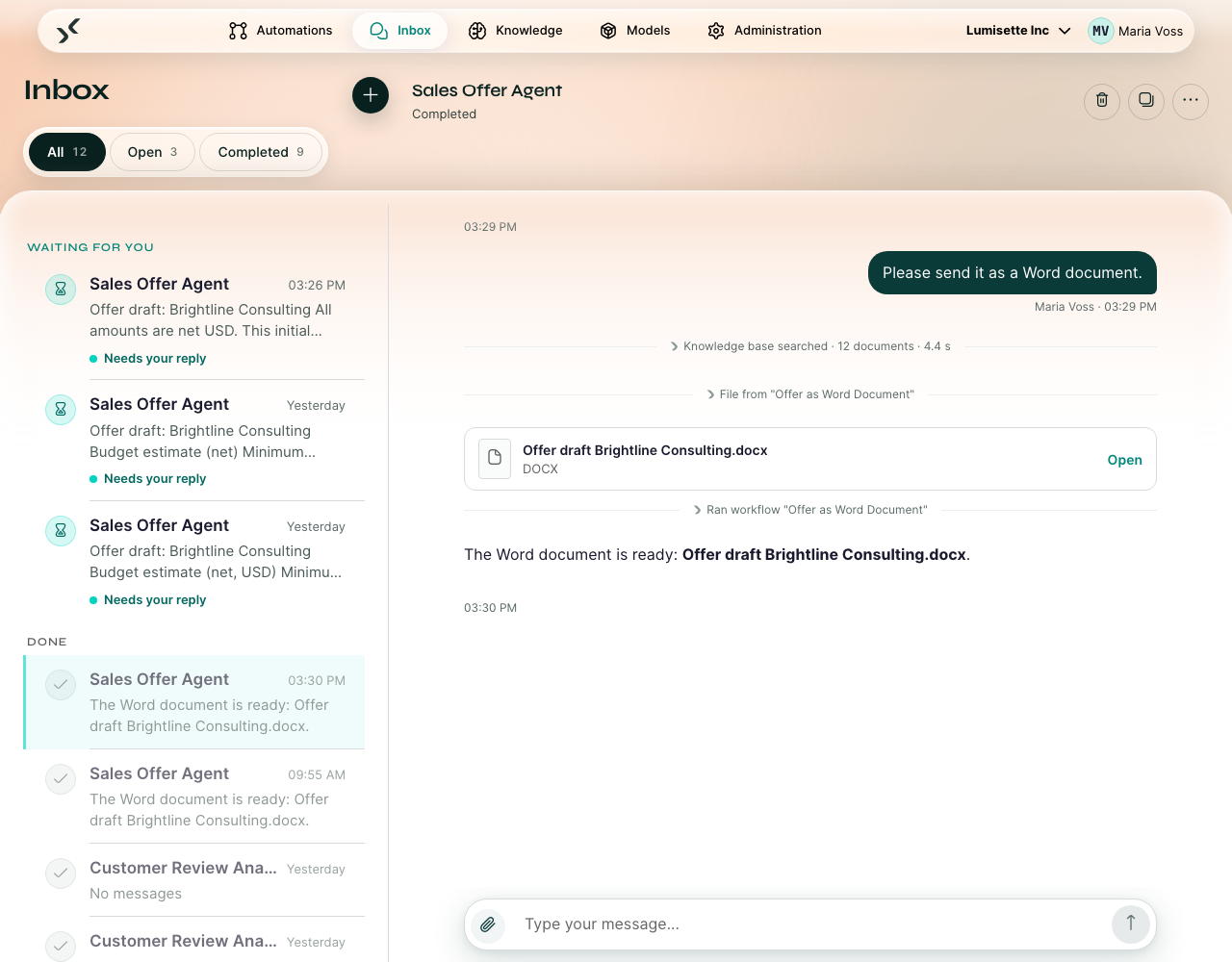
Some agents can run workflows or ask other agents on their own (see Agent Tools). The chat shows each such step as a thin line – Ran workflow "…" or Asked agent "…". Click the line to see what the agent handed over and what came back. Files a tool creates – for example a Word document – appear below a line File from "…" and open like any other file in the chat.
You do not have to do anything; the agent continues on its own.
What if the conversation gets stuck
If you sent a message and the agent does not reply within a minute or two:
- Check your network connection.
- Refresh the page. Conversations are saved continuously — you will not lose your messages.
- If the problem persists, contact the person who built the agent. They can inspect the conversation's job from the Automations area.
Recommendations
- ✅ Be specific in your first message. Agents handle "Summarize the meeting on Monday with the marketing team" better than "Summarize that meeting".
- ✅ When an agent asks a clarifying question, answer it before sending more context. The agent uses your answer to decide what to do next.
- ✅ Use the Open filter as your default view. Once a conversation is complete, it slides out of your daily list.
- ⚠️ Conversations without activity are deleted after 60 days (your administrator can change this), together with their files. Download anything you want to keep. If a conversation has served its purpose, mark it complete (the agent often does this for you automatically).
- ❌ Do not paste highly sensitive data (full identity records, raw credentials, secrets) into a chat without checking with your administrator. The data goes through whichever AI model the agent is configured to use, which may be external. See Best Practices → Data Privacy.
What to do next
- If you build agents yourself: Automations → Agents.
- If you want to understand the system that decides what an agent can do: Automations → Core Concepts.