Wissensbasen erstellen und bearbeiten
Diese Seite führt Sie durch den Aufbau einer neuen Wissensbasis und deren spätere Bearbeitung.
Bevor Sie beginnen
- Im Workspace ist mindestens ein Embedding-Modell eingerichtet – ohne eines lässt sich das Formular nicht abschließen. Siehe Modelle → Einführung.
- Sie wissen, welche Inhalte die Wissensbasis enthalten soll und wo sie liegen (Dateien zum Hochladen, einige kurze Textstücke, …).
- Sie haben im Workspace die Rolle Editor, Manager oder Admin.
Schritt für Schritt – eine Wissensbasis erstellen
Das Formular fragt nur das Nötigste ab: Name, Beschreibung, Embedding-Modell und eine Datenquelle. Alles Weitere – Aktualisierungsplan, weitere Quellen, Dateien, Feinabstimmung des Abrufs – erledigen Sie anschließend im Editor.
1. Bereich Wissen öffnen und auf Neues Wissen erstellen klicken
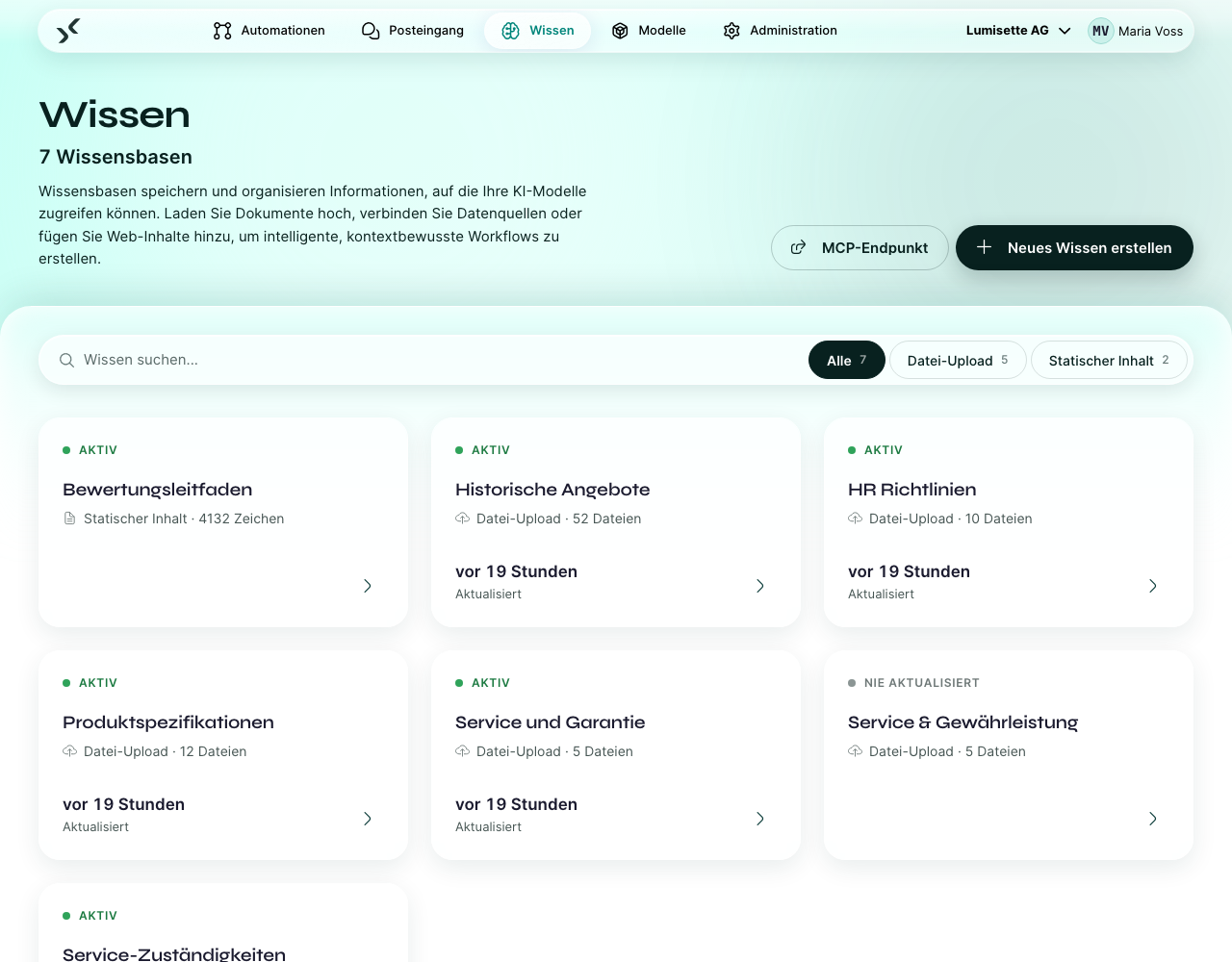
2. Name und Beschreibung vergeben
Unter Wissensdetails:
- Name – kurz und eindeutig: „Personalhandbuch“, „Produkt-FAQ“.
- Beschreibung – ein Satz dazu, was die Wissensbasis enthält. Agenten, mit denen die Wissensbasis verbunden ist, bekommen diese Beschreibung angezeigt und erkennen daran, wann sie sie nutzen sollen.
3. Embedding-Modell wählen
Embedding-Modell listet die Modelle des Workspace auf, die Embeddings unterstützen. Das Embedding-Modell überführt Dokumente und Anfragen in denselben Zahlenraum, damit sie sich vergleichen lassen.
Wichtig: Haben Sie ein Embedding-Modell gewählt und Daten hinzugefügt, können Sie nicht ohne Weiteres wechseln. Ein Modellwechsel macht alle bereits indexierten Chunks ungültig. Wählen Sie bewusst – und wählen Sie dasselbe Modell für Wissensbasen, die vergleichbar bleiben sollen.
4. Datenquelle wählen
Unter Datenquelle wählen Sie einen Connector. Ihre Wahl bestimmt, welche Felder darunter erscheinen:
- Datei-Upload – keinerlei Konfiguration. Das Formular weist darauf hin: Dateien werden erst hochgeladen, wenn die Wissensbasis existiert, und zwar im Editor. Das ist der einfachste Einstieg.
- Statischer Inhalt – ein Feld Inhalt, das Sie direkt hier ausfüllen. Gut für FAQ-artige Texte, die kein eigenes Dokument rechtfertigen.
- Web-Inhalte – eine Start-URL sowie Crawl-Tiefe und Max. Seiten.
- Lokales Dateisystem – ein Quellpfad, ein Dateimuster (Glob) und Unterordner einbeziehen. Mit Unterordnern gilt ein Muster mit
/für den relativen Pfad (z. B.contracts/**/*.pdf), sonst für den Dateinamen. Wird nur angeboten, wenn die Installation lokale Ressourcen erlaubt. - Datenbank – eine Live-SQL-Quelle. Technisch eine andere Art von Wissensbasis (live abgefragt statt indexiert), aber Sie wählen sie hier wie jede andere Quelle.
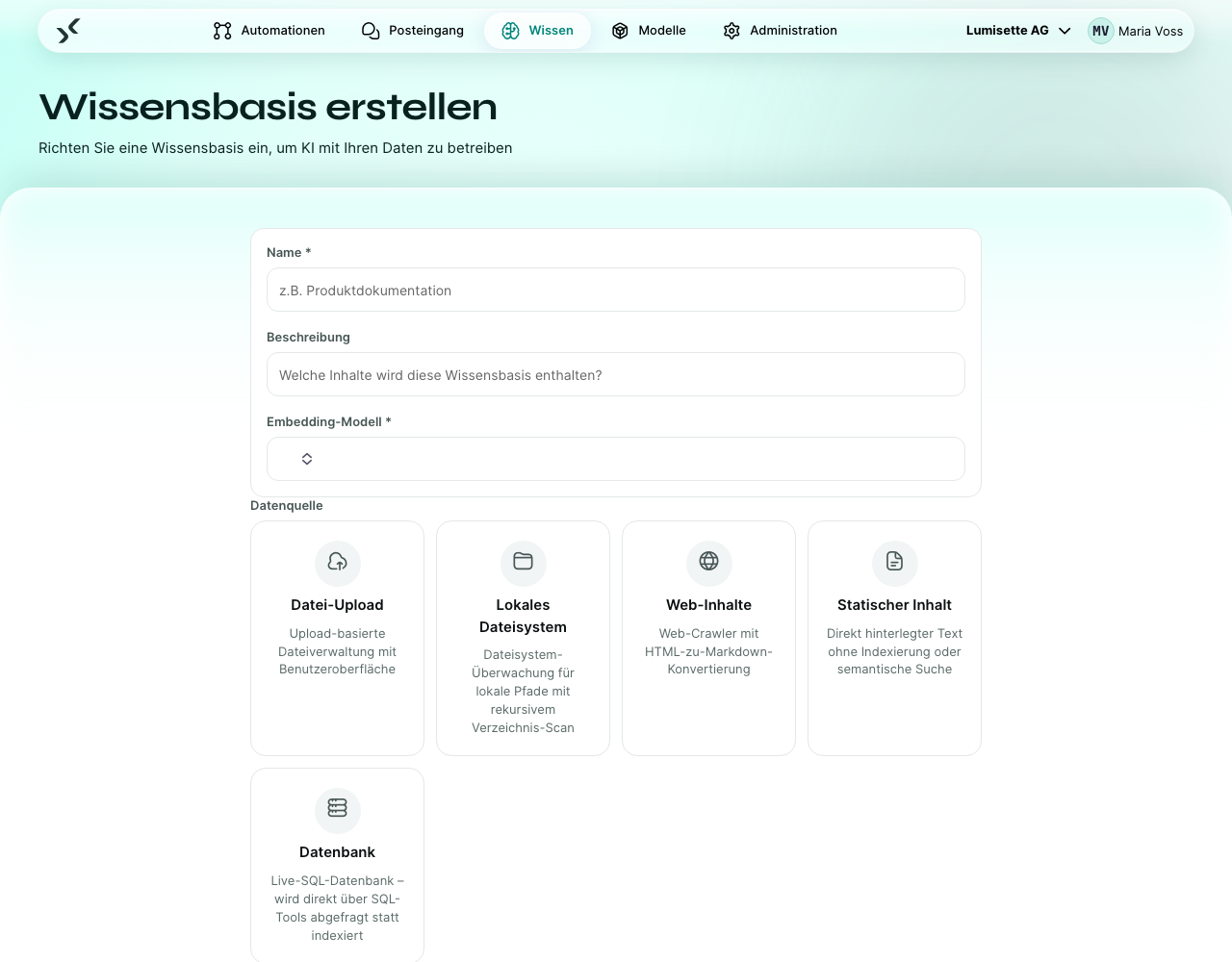
5. Auf Wissensbasis erstellen klicken
Die Schaltfläche bleibt deaktiviert, bis Name, Modell und die Pflichtfelder der gewählten Quelle ausgefüllt sind. Danach landen Sie im Editor.
6. Inhalte hinzufügen und erste Aktualisierung starten
Im Editor erledigen Sie nun, was das Formular bewusst ausgelassen hat:
- Bei Datei-Upload: Ziehen Sie Ihre Dokumente hinein (PDF, Word, Excel, Text, RTF, Markdown).
- Stellen Sie Automatische Aktualisierung ein, wenn die Quelle nach Zeitplan neu gelesen werden soll (siehe unten).
- Klicken Sie auf Aktualisieren, um die erste Indexierung zu starten. Die erste Aktualisierung kann dauern – Minuten bei kleinen Wissensbasen, länger bei großen. Den Fortschritt sehen Sie in der Jobs-Ansicht.
📷 SCREENSHOT: Der Editor der Wissensbasis direkt nach der ersten Aktualisierung mit Status und Anzahl der Chunks.
Der Aktualisierungsplan
Automatische Aktualisierung im Editor legt fest, wie die Wissensbasis ihre Quellen neu liest:
- Manuell / Bei Änderung – kein Zeitplan. Die Wissensbasis wird aktualisiert, wenn Sie es auslösen, und bei hochgeladenen Dateien und Ordnern auf dem Server automatisch 30 Sekunden, nachdem Dateien hinzugefügt, geändert oder gelöscht wurden. Webseiten werden nur manuell aktualisiert.
- Alle 2 / 4 / 6 / 12 Stunden – feste Intervalle über den Tag.
- Täglich, Jede Nacht um 00:00 / 02:00 / 04:00, Alle 2 Tage, Einmal pro Woche (Sonntag) – für Inhalte, die sich selten ändern. Die Nachtoptionen sind die richtige Wahl, wenn die Indexierung nicht mit der Nutzung tagsüber konkurrieren soll.
Sie können das jederzeit ändern. Manuell / Bei Änderung ist ein guter Ausgangspunkt, solange Sie testen – kurze Intervalle verbrauchen Embedding-Tokens.
Eine bestehende Wissensbasis bearbeiten
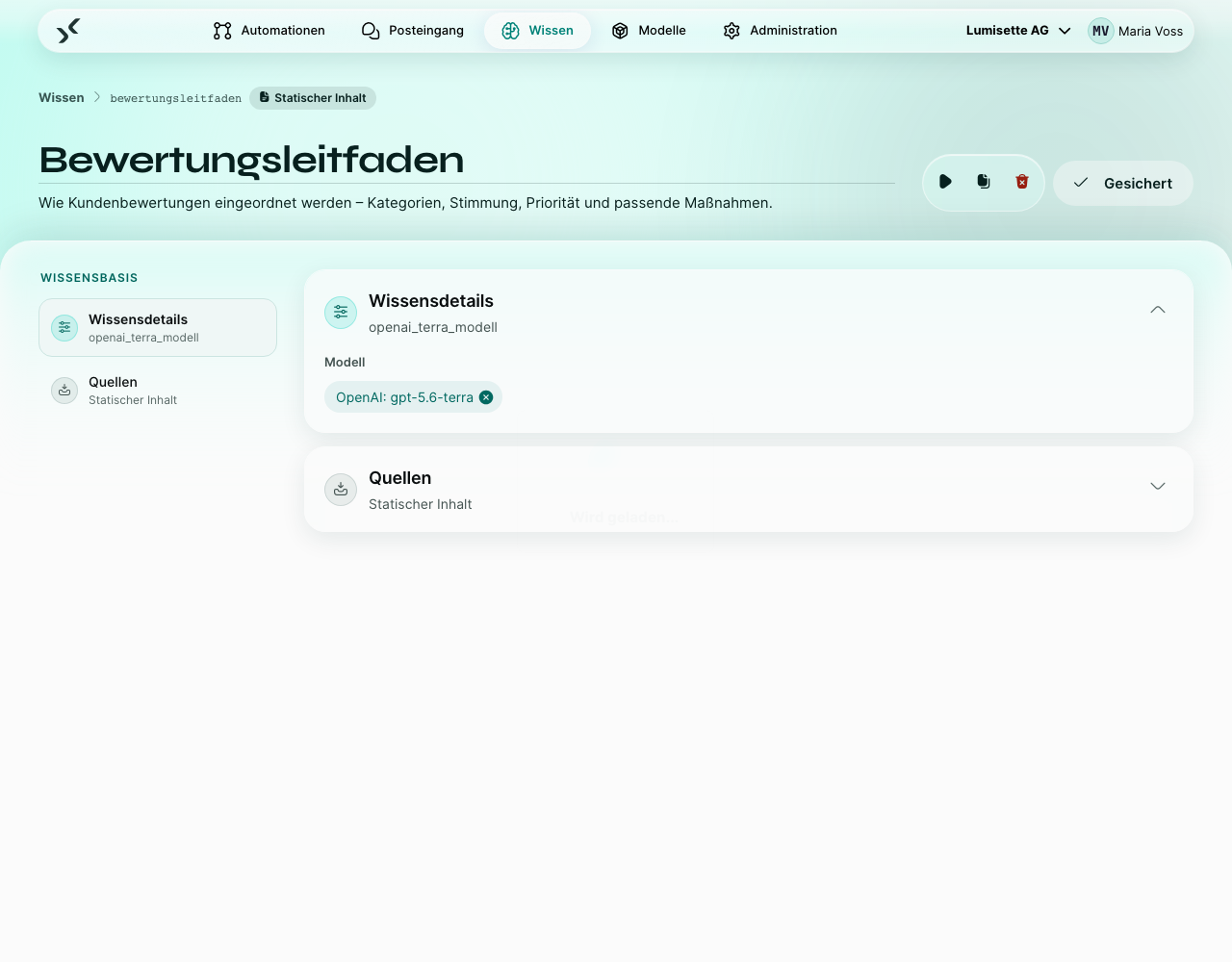
Klicken Sie im Bereich Wissen auf eine Karte, um den Editor zu öffnen. Dort können Sie:
- die Wissensbasis umbenennen, die Beschreibung bearbeiten und die automatische Aktualisierung ändern.
- die Quelle konfigurieren sowie Dateien hochladen oder entfernen.
- eine manuelle Aktualisierung auslösen.
- die Ansicht Jobs öffnen, um frühere Aktualisierungen zu prüfen.
- eine Anfrage testen – geben Sie eine Frage ein und sehen Sie, welche Chunks zurückkommen. So erkennen Sie offensichtlich falsche Treffer.
- die Wissensbasis duplizieren – nützlich, wenn Sie eine Konfiguration für ein verwandtes Thema abzweigen möchten.
- die Wissensbasis löschen.
Eine Wissensbasis testen
Der Test einer Wissensbasis ist das mit Abstand nützlichste Werkzeug zur Fehlersuche. Geben Sie eine Frage ein, lassen Sie sich die besten Treffer anzeigen und sehen Sie sie sich an:
- Sind die Treffer eindeutig themenfremd, liegt es am Embedding-Modell oder an der Zerlegung in Chunks.
- Sehen die Treffer richtig aus, ist aber die Antwort der KI falsch, liegt das Problem beim Prompt oder beim Modell.
Testen Sie, bevor Sie die Wissensbasis einer Automation im Produktivbetrieb übergeben.
Empfehlungen
- ✅ Beginnen Sie mit Datei-Upload oder Statischer Inhalt, wenn Sie nur sehen möchten, wie das Prinzip funktioniert – beide brauchen nichts außerhalb der Plattform.
- ✅ Nutzen Sie die Funktion Testen mit fünf bis zehn realistischen Anfragen, bevor Sie eine Wissensbasis mit produktiven Automationen verbinden.
- ✅ Halten Sie die Beschreibung zutreffend. Agenten entscheiden anhand der Beschreibung, wann sie die Wissensbasis befragen.
- ✅ Gruppieren Sie Inhalte nach Thema, nicht nach Dateityp. Eine Wissensbasis mit fünf Word-Dokumenten und drei Webseiten zum selben Thema ist in Ordnung; eine Wissensbasis mit gemischten Themen nicht.
- ⚠️ Mit einem Zeitplan werden hochgeladene oder geänderte Dateien erst zum nächsten geplanten Zeitpunkt übernommen, nicht sofort. Manuell / Bei Änderung übernimmt sie nach 30 Sekunden.
- ⚠️ Ein Wechsel des Embedding-Modells macht alles ungültig. Planen Sie einen solchen Wechsel als Abfolge „neue Wissensbasis anlegen, Automationen umstellen, alte löschen“.
- ❌ Packen Sie keine themenfremden Inhalte in eine Wissensbasis, um „Kontingente zu sparen“. Die Suchqualität sinkt schnell, je vielfältiger die Inhalte werden.
Nächste Schritte
- Halten Sie Ihre Wissensbasis aktuell: Wissensdaten aktualisieren.
- Verbinden Sie Wissen mit Automationen: Wissensabfrage und KI-Aktion.